


FRGamer
Members
-
Joined
-
Last visited
Everything posted by FRGamer
-
-
-
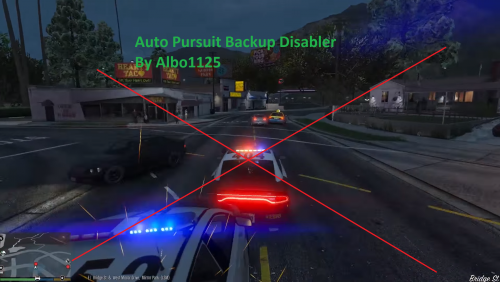 WOW! Thank you, now I don't have to worry about the AI slamming me into a building!
- 57 comments
- 15 reviews
-
-

- 3
-
-
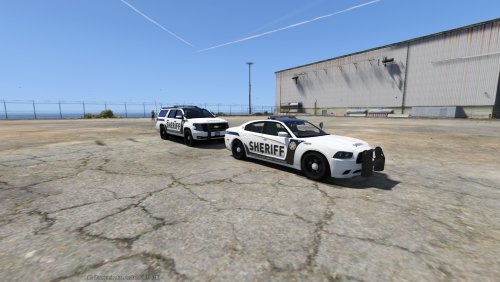 Really like these! Nice!
 -
For the siren, first enable edit mode, then export your vehicles.awc to openFormats to a new folder and then take the siren files and replace those with the ones in your vehicles folder (once you export the vehicles.awc to openformats you get that and a folder called vehicles) and then just right click "Import openFormats" and find your vehicles.awc and the siren is installed. Not sure about the CVPI sound mod.
-
Are you trying to replace the siren?
-
-
I am now able to download again :)
-
I thought it had something to do with my PC, so I restarted and same thing. Guess something happened with the site.
-
-
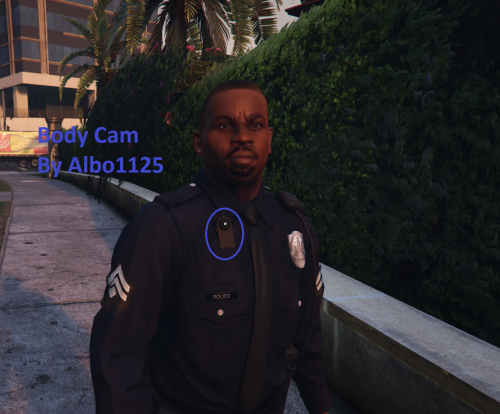 This is a great idea, and looks awesome! Definitely going in my game, amazing job once again Albo!
- 45 comments
- 17 reviews
-
-
- 2
-
-
 Omg heaven.
 -
 That Parking tho in the 3rd pic lmao
 -
-
 Edit the quote :) I changed mine
 -
Try again, because I got it within 24 hours <3
-
-
-
-
-
-
Yes, the free one will do just fine.
-
Download this and put it in your directory: http://goo.gl/NKbkYg
-
Pinnacle of V was removed. VisualV is still on GTA5-Mods.com.
-
 I know right :D

.thumb.jpg.54f04afcd6ae69e17f1388b62a696d8b.jpg)



.thumb.png.e436e916367dd5b950520057d9057b55.png)
