Iconography
Members
-
Joined
-
Last visited
Everything posted by Iconography
-
Break just said no need to spam the timer... EDIT: Damn just been Ninja'd......
-
 "Oh, a vehicle is on fire?" "Oh, who cares I need my coffee."
 -
I see what you did there.
-
 That song is now stuck in my head. Thank you....
 -
To be blunt, I am not quite sure how to respond to 800 hours spent on a game...... Then again, I'm not one to talk.... I have about that much spent in GTA IV (360) and EFLC (pc) when combined.
-
Lord Inglip never fails.
-
Everyone knows that when it hits zero, Lord Inglip is going to take over the universe. It's just common sense, isn't it? Just read a few CAPTCHAs if you want proof...... And shame on you if you have no clue who the almighty Lord Inglip is.
-
I, personally, only use GIMP (cuz I love freeware...) But, I usually never make skins so I'm not a real authority here.
-
Olanov, you get Ninja'd too much. But, to be on topic, just do what Olanov and Break say, face the suspect and just press alt + H.
-
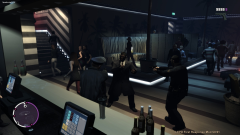 Yeah it is. It's from TBoGT, it's one of the two nightclubs.
 -
From the album: Psychology of Liberty City
...Do not use it to spawn other cops.... 'Cuz some day they might turn around and shoot you dead. -
I used to play a LONG time ago, probably 5 or 6 years ago. Got to about lvl. 119-121 somewhere in there before I got banned because my account was hacked Still hate Jagex......
-
That's some pretty good work. Keep it up!
-
Nothing makes me want to shoot someone in the face more than reading an ENTIRE POST FULL OF F*CKING CRYBABIES. Honestly, some people need to shut up and listen for once in their lives.
-
At this point, wait for a dev to address the problem. I've run through the basics but, if what you say about the diagnostic tool is true, there may be fail safes which I am not aware about.
-
Try reinstalling LCPD:FR, running the auto installer as an admin (right clicking it and selecting run as admin), and also run GTA as an admin. If that doesn't fix it, make sure you have EITHER dsound.dll or xlive.dll in your root GTA folder, and make sure LCPD:FR is in a folder called "Scripts", which should be inside your root folder.
-
Without LCPDFR, maybe. But with it? I doubt it will run at all, it adds strain to the CPU and GPU. I've never heard of the diag tool not diagnosing due to a single core CPU but... I didn't design it so I don't know. Do everything on the get support page, including downloading C++ and .NET framework. If you have car mods, try removing them and see if that fixes it.
-
Read the get support page and post a diag log....... and P makes the screen go blurry, press P by itself again to make the screen clear.
-
-
It's nice to see that some people care enough to post thank you letters to the devs, and everyone else. +1 And I fully agree, though I never tried PPM and never will. LCPD:FR all the way. I have yet to find a better community than this. Perhaps this could be pinned and anyone else wanting to thank the devs or the community could post here? Just my two cents.
-
No, just set your cop voice with SNT to one of the fat cops.
-
Read the sig.
-
You had that problem before too, when I posted a link to the support page. I suggest you talk with someone to get it figured out.
-
I'm not going to lie, I am surprised. Just looking at the specs I wouldn't expect that, not at all... But that's just me.
-
Well I don't have a copy for you, but what you can do is check out the get support page and see if anything on that checklist fixes the problem while you're waiting for a copy. Unless you already went through that page.