


AgentSanchez
Members
-
Joined
-
Last visited
Everything posted by AgentSanchez
-
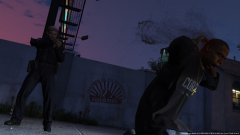 That's edgy.
 -
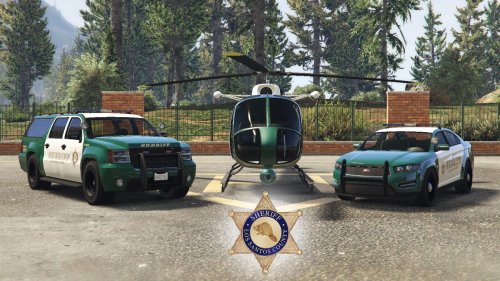 Not really a fan of the Starbucks logo for the USGC, everything else is fantastic though.
- 12 comments
- 1 review
-
-

- 2
-
-
Yeah, it's the animation from one of the activities involving Mary-ann, it's the one with Michael where they run from Pacific Bluffs to Del Perro.
-
It's not mapped the same way to that of the current LSPD cops, the mapping is more similar to that of the Highway cops.
-
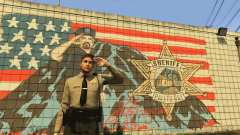 It's just to be generic, don't loose your breath over it.
 -
iloveu
-
![[4k] Officer Patrick Jr. Ready for Duty!](//s3-gallery.int-cdn.lcpdfrusercontent.com/monthly_2015_05/small.2015-05-07_00001.jpg.623cac648462fc226910a1dadc485575.jpg) Sounds like it.
Sounds like it. -
Correctionals SASPA.
-
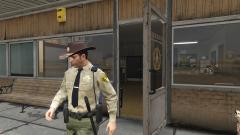 ''It's time for a good old fashioned american hero''
 -
Welp, they still have lines announcing themselves both as LSPD and SAHP.
-
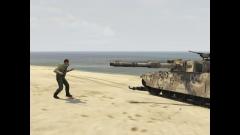 They all have one.. but the game rarely makes them use it.
 -
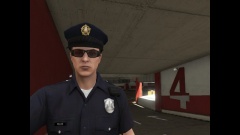 If it has Sheriff and Police at the same time, you're Metro Dade!
 -
Really? I don't really believe you... alright, mhm, i'll try it.
-
How did you.... bastard, I want to know!
-
Took some photos of the new rooms in the police station. Briefing room. Locker room. Basement. Proccessing and cells. Cells. Note: You can go inside of them. Rear entrance to cells. Staff entrance.
-
White & Gold for me, however im starting to see shades of blue on the dress though.
-
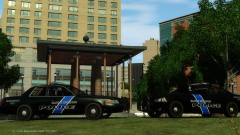 Please, Louise release this beautiful piece.
 -
The title just begs for someone to make a soviet joke.
-
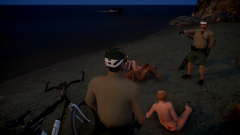 From the gallery it looked like (to me) that they were having sex...
 -
Wasn't it Sam who was doing?
-
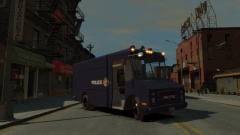 The best I could find.
 -
Nyet
-
I'd like to have the ability to drop a flare so I could request a SWAT team to rappel at the given location.
-
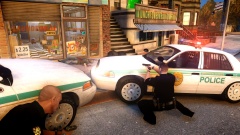 Love the metro dade style, nice work.
 -
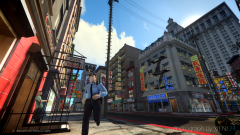 I'll be honest. Your HK police peds are amazing, I'm awaiting what you can come up with when GTA V is released.

![[4k] Officer Patrick Jr. Ready for Duty!](http://s3-gallery.int-cdn.lcpdfrusercontent.com/monthly_2015_05/small.2015-05-07_00001.jpg.623cac648462fc226910a1dadc485575.jpg)
