Skip to content
View in the app

A better way to browse. Learn more.

LCPDFR.com

A full-screen app on your home screen with push notifications, badges and more.

To install this app on iOS and iPadOS
  1. Tap the Share icon in Safari
  2. Scroll the menu and tap Add to Home Screen.
  3. Tap Add in the top-right corner.
To install this app on Android
  1. Tap the 3-dot menu (⋮) in the top-right corner of the browser.
  2. Tap Add to Home screen or Install app.
  3. Confirm by tapping Install.

Amber parking lights for the 2nd gen. Stanier v1.1

(13 reviews)

4 Screenshots

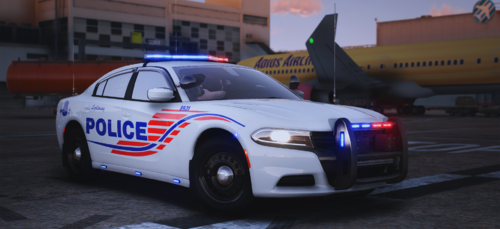
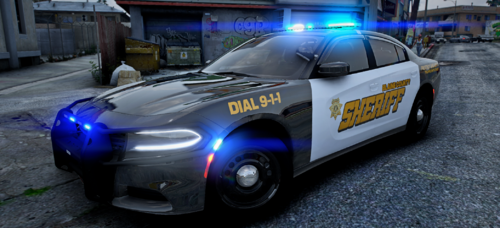
This is a simple texture edit of all the 2nd generation Vapid Stanier (police, police4, sheriff, taxi)
vehicles, that changes part of the headlights and indicators to amber. Both the headlights and indicators will
be amber even when the lights are turned off.

Plus, as an optional mod, I added a visualsettings.dat mod that turns every indicator light on a steady
glow at night. Unfortunately this means parked cars will have them on as well.

Installation:

You're gonna need OpenIV for this. All the .ytd files go into vehicles.rpf, while visualsettings.dat go into common/data located in update.rpf.

What's New in Version v1.1

Released

- Fixed the sheriff not having the amber parking lights

User Feedback

Recommended Comments

AmericanBagel

Members

Ok thanks. I dont mean to be an ass about it but could you put what you just said in description of where to download for anyone that wants to download this at a later date so they dont get confused. Plz btw love the mod. Keep up the good work. Thanks for the help.

AmericanBagel

Members

Ok so just tested you need to put police 1 and 4 in patchday3ng.

Sgt.Kanyo

Members Author

Yeah but like I mentioned this before, Rockstar constantly keeps changing their content, so I'd have to keep on updating this mod (and as a matter of fact, any future mods) every single time an update has come out. (and I don't really play that much V)

Create an account or sign in to comment

Account

Navigation

Search

Search

Configure browser push notifications

Chrome (Android)
  1. Tap the lock icon next to the address bar.
  2. Tap Permissions → Notifications.
  3. Adjust your preference.
Chrome (Desktop)
  1. Click the padlock icon in the address bar.
  2. Select Site settings.
  3. Find Notifications and adjust your preference.