Skip to content
View in the app

A better way to browse. Learn more.

LCPDFR.com

A full-screen app on your home screen with push notifications, badges and more.

To install this app on iOS and iPadOS
  1. Tap the Share icon in Safari
  2. Scroll the menu and tap Add to Home Screen.
  3. Tap Add in the top-right corner.
To install this app on Android
  1. Tap the 3-dot menu (⋮) in the top-right corner of the browser.
  2. Tap Add to Home screen or Install app.
  3. Confirm by tapping Install.
Due to overzealous filtering on Microsoft’s side, some emails to Outlook and Hotmail addresses may not be delivered. If you’re affected, please use a different email address or try again later.

StickyWheels v0.2.1

(21 reviews)

1 Screenshot

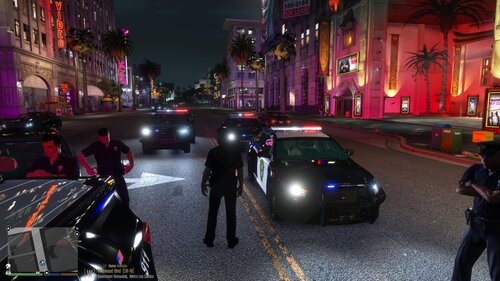
StickyWheels is a RagePluginHook plugin that keeps the wheels turned the way you left them when stationary.
When you leave the vehicle the wheels will retain their angle,
entering the vehicle will not straighten them out again.

Requirements: RagePluginHook v0.41+

Usage:

  • Turn the wheel left or right when stationary


Edited by khorio
update desc

What's New in Version v0.2.1

Released

  • updated for RPH v1.1 (was 0.41)
  • updated code to reduce wheel snapping

Short Description

keeps your wheels turned

User Feedback

Recommended Comments

error404vibes

Members

It doesn't work for me.

rainy

Members

Nice. Good thing GTA VI will have this in the base game!

you heard it here first 👀

This still works as of 09/06/2026 and I thought it didn't at first. Instead of holding the wheel the direction you want when exiting vehicle.. you instead park hold the direction you want and let go; the wheels will stick slightly and then you can exit and the player will turn the wheel and the tires will stick how you are expecting them to.

Create an account or sign in to comment

Latest Mods

Account

Navigation

Search

Search

Configure browser push notifications

Chrome (Android)
  1. Tap the lock icon next to the address bar.
  2. Tap Permissions → Notifications.
  3. Adjust your preference.
Chrome (Desktop)
  1. Click the padlock icon in the address bar.
  2. Select Site settings.
  3. Find Notifications and adjust your preference.