Piarulli246
Members
-
Joined
-
Last visited
Everything posted by Piarulli246
-
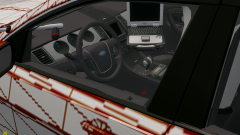 Looks good but don't unlock it.
 -
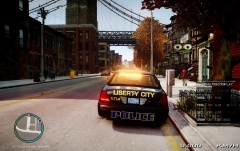 It is Deco's that he released unlocked on LCPD Mods.
 -
 Looks so good! Does your ENB work with EFLC?
 -
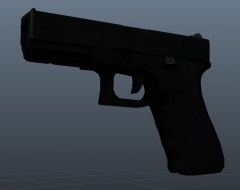 A pack would be cool and the gun looks good!
 -
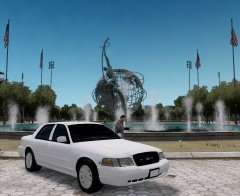 Yea I understand. Until I take the time and fix the materials on bugs model, I probably won't use it. I also not releasing this anyway.
 -
Thanks soutar!!!
-
Ohhh I get you. I don't think it is that boxy but I'm glad you like the setup.
-
I'm confused:[ lmao
-
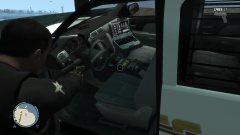 Love that console Nickie and love the truck!!
 -
Don't think I am going to release it but that can change. Look at my updated picture.
-
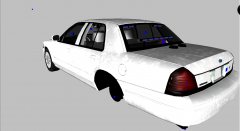
From the album: Images by Foward
Rear lighting and antennas made by me. More coming on to it. -
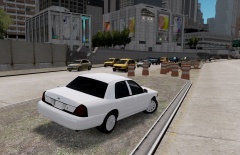 Thank you! My tint is so dark you can't even see the lights. Ill update a picture in a little.
 -
Yea i forgot I have to scale them down.
-
From the album: Images by Foward
I like it! -
From the album: Images by Foward
Watching traffic on Union Drive West for speeders. -
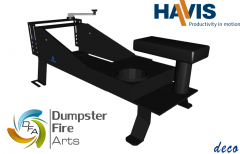 'Havis Console"
 -
Damn Tim! Great job!!
-
 Its not the best but thanks Jetski!!
 -
From the album: Foward's WIP
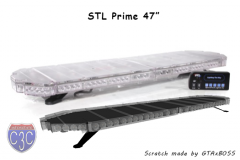
Made by me. I know it isn't very good but this was my first time making a light from scratch. -
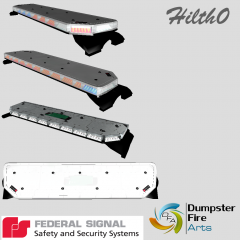 Looks awesome man!
 -
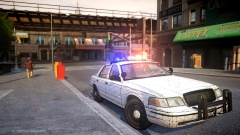 Doesn't look so bad. Maybe we can talk over the weekend and I can help you. PM if you would like.
 -
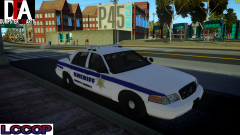 Looks awesome man!
 -
 Damn sean!!!!
 -
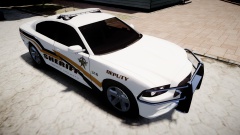 Just noticed this wasn't yours lol. Looks good!
 -
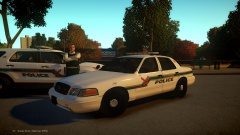 It looks very good Stink! Keep it up.