


Piarulli246
Members
-
Joined
-
Last visited
Everything posted by Piarulli246
-
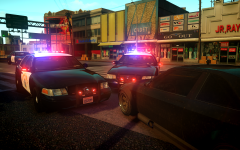 Beautiful Cars!
 -
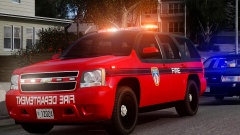 Without the E. lol
 -
-
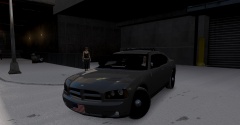
From the album: Foward's WIP
WIP -
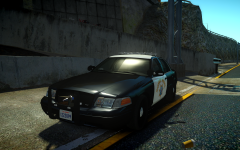 God Damn!
 -
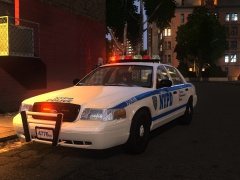 Awesome ENB!
 -
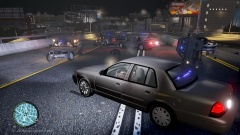 Game 4 Video
 -
From the album: Images by Foward
Cops can't take me. About 150 cars blew up from them driving so fast. -
Feels like a dream, those movies will never be the same. R.I.P.
-
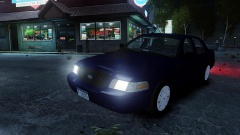 I think its available on LCPDMods.
 -
 Good to see ya back!
 -
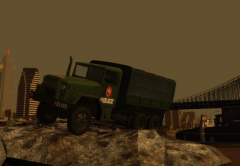 Oh because that is the Nassau County Police logo. I live there.
 -
You from Nassau County?
-
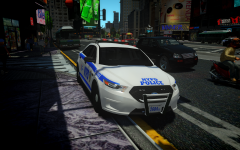 I'm pretty sure he doesn't have permission to release it.
 -
 Looks beautiful!
 -
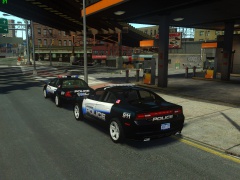 Yea I know they are but the black mounts look so far in.
 -
What's with those mounts on the Whelen Lib
-
-
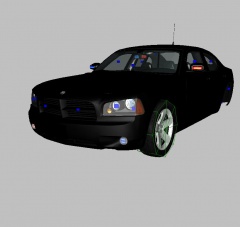 Looks nice, I like those rims!
 -
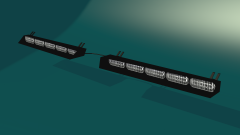 Awesome job hoffers, it looks really nice!
 -
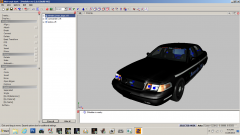 Your textures are messed up, that is why your cage is blue.
 -
I told you! R.I.P.
-
![[WIP] 2009 Detective CVPI](//s3-gallery.int-cdn.lcpdfrusercontent.com/gallery/album_1328/sml_gallery_3938_1328_397514.png) KEEP THE RIMS! Me Gusta!
KEEP THE RIMS! Me Gusta! -
![Ellwood City [WIP]](//s3-gallery.int-cdn.lcpdfrusercontent.com/gallery/album_1613/sml_gallery_79222_1613_229754.jpg) Nice skin.
Nice skin. -

![[WIP] 2009 Detective CVPI](http://s3-gallery.int-cdn.lcpdfrusercontent.com/gallery/album_1328/sml_gallery_3938_1328_397514.png)
![Ellwood City [WIP]](http://s3-gallery.int-cdn.lcpdfrusercontent.com/gallery/album_1613/sml_gallery_79222_1613_229754.jpg)
