Piarulli246
Members
-
Joined
-
Last visited
Everything posted by Piarulli246
-
-
-
-
Name: 2008 Unmarked Chevy Tahoe Version: 1.0 Light Bar: N/A Other Lighting: Interior Lighting, Grill Lighting, Fog Light Lighting, Side Lighting, Rear Lighting Equipment: Spotlight, Laptop Multiple Liveries: Yes Optimized For: Polpatriot Status: Open Credits: Chevy Tahoe Model: Model is original "Chevrolet Tahoe" by 4x4 Full Driver - Hummer H2, converted to GTAIV by Stiopa. Model improvements & Modified By Bxbugs123 Wheels By Bxbugs123, Textures by Lt.Caine Voltex Split Visor Redhawk by Hilth0 Sound Off LED3 Mini Light by Corleone Whelen Par 32 by Corleone Whelen Slimlighter TIR6 by PFCBarefoot Axixtech Commander by Corleone Police Console by PFCBarefoot Spotlight by Bxbuggs123 SecurCOM Antennas by PriMan Flashers and Strobes by Foward Note: Antennas are not in the pictures. They are located on the roof. Click Here for Video Big thanks to everyone!
- 20 comments
- 15 reviews
-
-
That is probably the closet you'll get to that even though its not the greatest.
-
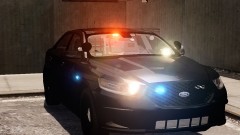 Looks nice, I like it.
 -
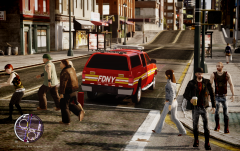 I think the freedoms out there aren't very good. I would love to see a nice one so I can make my local pd cars.
 -
The orange leds on the back should be moved up a little, also the vertex leds should be place right like this pic: https://www.google.com/search?q=fdny+battalion+9&es_sm=122&source=lnms&tbm=isch&sa=X&ei=zixIUuD9KKH_4APZpoDwAw&ved=0CAkQ_AUoAQ&biw=1745&bih=890&dpr=1#es_sm=122&q=fdny+battalion+front&tbm=isch&facrc=_&imgdii=_&imgrc=kSuVPiPa7JTKWM%3A%3BTvttI3MtcEMhtM%3Bhttp%253A%252F%252Fi1.ytimg.com%252Fvi%252FKK8aRReq75s%252Fmaxresdefault.jpg%3Bhttp%253A%252F%252Fwww.youtube.com%252Fwatch%253Fv%253DKK8aRReq75s%3B1920%3B1080 Great work though!!
-
-
-
Like Grant said you should scale the lightbar up a little so that the mounts touch the side like this
- 17 comments
- 11 reviews
-
I had this problem a lot. Just search through the forums and there's a lot of threads on this problem. Make sure you don't save any police cars at your safe house also
-
This video should help a lot: http://www.lcpdfr.com/page/tutorials/index.action/_/vehicle-modification-tutorial/video-assembling-an-entire-vehicle-r48
-
It looks like a great bar and I want to use it but you should really update it to what hilth0 said.
- 24 comments
- 20 reviews
-
-
It was always in there but it was just never used and is one of those vehicles you won't see a lot.
- 15 comments
- 20 reviews
-
-

- 1
-
-
-
Yep me too!
-
Your very right lol.
-
Should be the same if its setup like the lightbar in my pics pretty much.
-
What I first do when I import a lightbar is open all the parents and delete any L1s. (You can use the L1s that the lightbar gives you but I'm doing this to show you how to do it if a lightbar doesn't have L1s) So the L1s are all deleted. So now that we have the L1s deleted, we can do Select>Quadr and make sure you have Selected mode ON and select the whole lightbar. Then go up to Create>Copy and copy the lightbar. Now a second lightbar will pop up. What you want to do with the second lightbar is open all the parents and rename all the L0s to L1s. Now you want to move all the childs we renamed to L1 and move them up into the first lightbar we had. Now you have to select the lightbar again because if you don't the first lightbar will only move and the second won't. Then you can move your lightbar to where ever you wish. Hope this helped!
-
-
Okay, for changing the rims you need to use zmodeler. How to install rims: http://www.lcpdfr.com/index.php/tutorials/index.action/_/vehicle-modification-tutorial/video-adding-replacing-wheels-r43 For changing the color of the lightbars, you can use anything with paint.
-