Piarulli246
Members
-
Joined
-
Last visited
Everything posted by Piarulli246
-
-
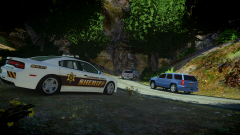 I love the car but IMO I don't think those rims fit. Great car anyway!
 -
-
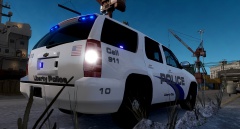 Keep an eye out for another picture.
 -
Yea the font can be hard but you shouldn't give up man.
-
Thanks!
-
Skin doesn't look that hard. You should definitely learn how to skin because it is pretty cool to know. There are some good tutorials out on the web that can help you out. Good luck!
-
Well just saying you should use ELS v7 just because it has many more features and it is awesome. With the car, it can be a distance error so you should download another model. Video for ELS v7:
-
What is happening to this world!?
-
Eh. Could use some work because it is not very hard to do this but if you add so more stuff it would be better.
- 3 comments
- 4 reviews
-
From the album: Images by Foward
Vehicle and texture by me. -
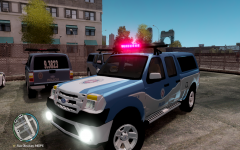 Ew.
Ew. -
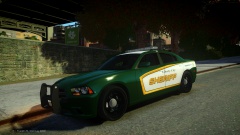 He enb is not released atm.
 -
 Awesome
 -
It is not to bad man. Just for some tips, try not to make a lot of CVPIs because there are so many and people don't like it. Keep it up though.
- 7 comments
- 8 reviews
-
-
-
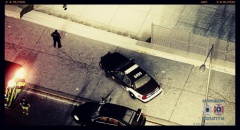 Awesome pic!
 -
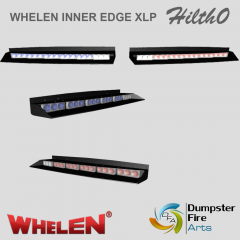 Look awesome Hilth. Keep it up!
 -
Damn that is nice!
-
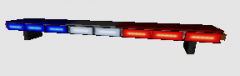 Very odd bar IMO.
 -
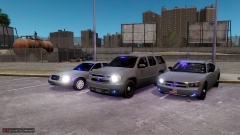 Yea in this picture I am using the dsf Vic Yoda converted but I will be updating it to decos dsf Vic. Bugs Vic always crashes me with only two lights in it so I can't use it. I need to redownload it because I think I messed it up when I first started modding.
 -
Thanks Chris!
-
-
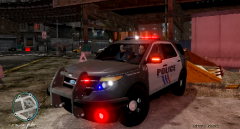 Idk I guess your right. To me it's just not right because I'm weird.