



Pavy
Members
-
Joined
Everything posted by Pavy
-
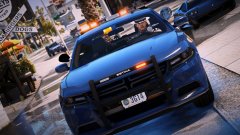
From the album: New York City/State Police Vehicles
-
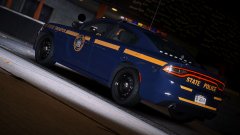
From the album: New York City/State Police Vehicles
-
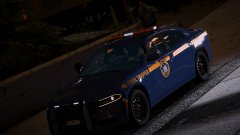
From the album: New York City/State Police Vehicles
-
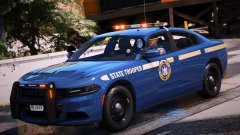
From the album: New York City/State Police Vehicles
-
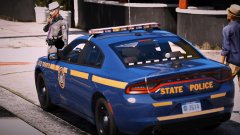
From the album: New York City/State Police Vehicles
-
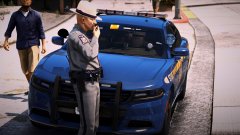
From the album: New York City/State Police Vehicles
-
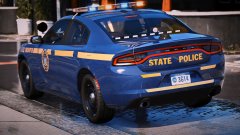
From the album: New York City/State Police Vehicles
-
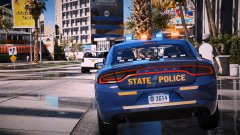
From the album: New York City/State Police Vehicles
-
It's available to people Who join park's Benefactor Program. It'll be released to the public when he's ready with it. Also it will be a plugin, not a script. Read his recent post.
-
You didn't unzip the file
-
Drag the .ytd file to your desktop then into openIV
-
You installed it wrong. Read the install instructions. Example; In the rar file> Eup Uniforms>mp_m_freemode_01_male_apt01>jbib_diff_012_a_uni.ytd You take that file and drag it into this location in openIV Grand Theft Auto V\Mods\update\update.rpf\x64\eup\eup_componentpeds.rpf\mp_m_freemode_01_male_apt01\
-
-
Thanks for repeating me.
-
Add dinput back. Remove Copjams.dll and Turnsignals.ini. Update Your simple trainer because its very old And Keep your mods rename to mods_
-
You still need dinput for scripthook to work. Without that no mods will work that rely on it. Screenshot your entire main directory please.
-
Delete dinput8.dll from your main directory.
-
Restart your pc
-
Exit out of all those programs. Try again.
-
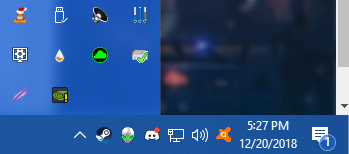
Screenshot your tray notification area like so^
-
Run Gta 5 first with steam. When the window pops up, Start Rage.
-
Inside your commandline.txt file located in your main gta 5 folder, paste this -DX11 -windowed Save it and Launch Rage as Admin
-
Do you have the latest scripthookV version?
-
Right click gta5 in steam library>Properties>Local Files>Verify Integrity of game files That will update it
-
You should post a video so we know what it looks like for better context


