




Cyan
Management Team
-
Joined
Everything posted by Cyan
-
Your topic has been moved to LSPDFR 0.4 Support. Please post in the correct location in the future.
-
I'm afraid even tracing through the source code, the error doesn't make much sense. Perhaps the PDB trace is bad (or the .NET impl is), do you get a different error at all from subsequent loads?
-
the last thing in your log is LSPDFR spawning policeb, policeb may be causing your crash. Did you make changes to it? Your mods folder may be to blame.
-
The error you received is LSPDFR crashing trying to load assets that should be there. I've never seen this issue occur where the mods folder is not the cause. Rename your mods folder to _mods to see if it still occurs. You probably made a change to it recently that you didn't test to see was valid.
-
Your topic has been moved to GTA V Support, this is not LSPDFR related. Please post in the correct location in the future.
-
There's an example project here showing .ini file use with RPH/LSPDFR: https://github.com/LMSDev/LSPDFR-API/tree/master/Utilities/IniFileDemo
-
You update your game. Old versions of RPH/LSPDFR are no longer distributed.
-
And the result was what? You aren't seeing an RPH crash, you are seeing a crash most likely due to other non-script assets you've added.
-
Your topic has been moved to GTA V Support, this is not LSPDFR related. Please post in the correct location in the future.
-
LSPDFR is crashing trying to load assets that should be there. This is usually caused by a bad mods folder. Rename mods folder to _mods. If LSPDFR then works, something you've installed to your mods folder is bad.
-
https://www.lcpdfr.com/forums/topic/122424-where-to-get-ragepluginhooksdkdll/
-
Your XML that you changed is invalid. [06/26/2022 04:35:04.888] LSPD First Response: Exception type: System.Xml.XmlException [06/26/2022 04:35:04.888] LSPD First Response: Exception message: The 'CustomRegion' start tag on line 362 position 4 does not match the end tag of 'VehicleSet'. Line 426, position 6. Check and fix the issue with an XML validator.
-
You'd be able to use third party binaries, but per the GPL you can only link to libraries that are also an equivalent open source license. I think we could add exceptions here (and there's also the system library exception in the GPL) but the expectation is probably that any further linked code would also be open source. Lennart however is talking about the distribution of the resulting LCPDFR binaries from the source code compilation.
-
Your topic has been moved to GTA V Support, this is not LSPDFR related. Please post in the correct location in the future.
-
Well, LSPDFR doesn't cause this, so either you have a bad trainer installed or another script mod causing it, or you're at that part of the story.
-
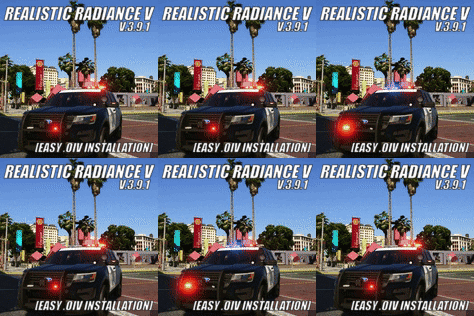 I would assume, logically, that you use the OpenIV uninstaller oiv that is included in the download??
- 67 comments
- 10 reviews
-
Your topic has been moved to GTA V Support, this is not LSPDFR related. Please post in the correct location in the future.
-
That's the point. If LSPDFR loads successfully though, your issue is in that folder, not with LSPDFR. Undo your recent changes to your mods folder or re-create it.
-
You installed something into your mods folder that is either corrupt or non-functional. You'll have to re-create your mods folder or undo your most recent changes to it.
-
Your topic has been moved to GTA V Support, this is not LSPDFR related. Please post in the correct location in the future.
-
The solution would be to install LSPDFR correctly (all the files). [6/24/2022 4:43:15 PM.383] LSPD First Response: [FATAL] Failed to load backup data: System.IO.FileNotFoundException: Failed to find file:lspdfr/data/regions.xml
-
https://github.com/alexguirre/RAGENativeUI/releases
-
Your topic has been moved to LSPDFR 0.4 Support. Please post in the correct location in the future.
-
Your topic has been moved to GTA V Support, this is not LSPDFR related. Please post in the correct location in the future.
-
Rename mods to _mods and try again, LSPDFR is crashing loading assets that should be there.


