




Illusionyary
Members
-
Joined
-
Last visited
Everything posted by Illusionyary
-
It's bound to re-appear. Bxbugs has taken down files before only to re-upload them a week or two later. If you're that desperate for the car, you could always PM him. Also, moved to GTA IV Discussion.
-
Yep, technology sure is amazing. Look at the computer for example, it once took up and entire room but now you can fit one in your pocket. Awesome stuff.
-
Actually, the numbers have nothing to do with the speed. They change the flash pattern of the coronas.
-
I'm really digging this thread, here's some more Australian cars. Australian Capital Territory Police, Holden Kingswood, 1960's, new markings. New South Wales Police, Holden Kingswood, 1960's. Northern Territory Police, Vehicle Fleet, 1960's. New South Wales Police, Ford (unknown model), late 1950's, NSW's first speed radar system. St John Ambulance Service South Australia, Holden Ambulance (unknown model), 1961. St John Ambulance Service, Ford Ambulance (unknown model), 1960's. New South Wales Police, Ford Falcon, 1980's.
-
Your laptop/notebook isn't powerful enough to run the game. 56 MB of VRAM is a joke, don't expect to be playing any resource intensive games on a system like that.
-
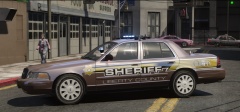 Damn that's purty.
 -
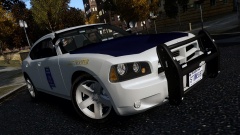
From the album: Illusions
Alabama State Police Dodge Charger -
I'm curious about the siren, is that my PA20? It sounds like it but I can't really tell. Awesome video though, it really did feel like I was watching a snippet from a TV show.
-
![[WIP] 2015 Ford Interceptor Utility Ecoboost](//s3-gallery.int-cdn.lcpdfrusercontent.com/gallery/album_2838/sml_gallery_120090_2838_2366125.png) I'm aware of that, they are identical.
I'm aware of that, they are identical. -
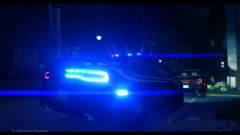 Yeah, it definitely is the model. I'd still trim the rear stripes though, just to negate that effect. I can't tell you how much that sort of stuff annoys me, lol.
 -
Not sure what they were smoking but I think they had this in mind:
-
The Ford logo and "Interceptor" text are too small, here's a reference picture. '' target='_blank'>>
-
*picture about the skin* *everyone critiquing the model* It looks good but the lines on the rear fender could do with a touch-up, they seem to dissolve into nothing. I would either release it in a pack or talk to the author and have it featured on the model.
-
Here's some action clips from an old Aussie police drama. Featuring: hideous cars, awful acting and an awesome siren! https://www.youtube.com/watch?v=UesM_LUibQE That's a variant of the LTS siren by the way, which was primarily used in the 80's and 90's all over the country. Unfortunately, the MFB is the only department which still uses it today. If you've ever seen the Mad Max films, it was the siren used on his interceptor. https://www.youtube.com/watch?v=l1yCZrF3J34
-
Have you patched the game to patch 7, is it a legit copy of the game? https://support.rockstargames.com/hc/en-us/articles/200145406-Grand-Theft-Auto-IV-Patch-7-Title-Update-v-1-0-7-0-English-1-0-6-1-Russian-1-0-5-2-Japanese-
-
You do realize that's a notebook graphics chip and an i3 processor, right? Yes, it will probably run IV with decent settings but you could get a much better system for the same price.
-
What config are you using, how much VRAM (video ram) do you have and did you install one of the commandlines?
-
My bad, I meant the ENB SFE one won't run well, Prophet's should be fine.
-
That ENB will probably drop you down about 10 or 15 frames, which won't be great for multiplayer, so I don't recommend it.
-
How many FPS do you get on average?
-
It takes a long time to get interesting footage. People want action, they're not going to sit there and watch an officer file reports for half an hour.
-
I'm not familiar with the M series of graphics cards, how well can you run the game without an ENB?
-
...or you can type Dxdiag (provided you have DirectX) into the Windows search Bar, it'll display almost all of your computer specifications.
-
Open the trainer.ini, hold Ctrl and push F, type in "livery" (without the quotations) and change vehiclelivery=1 to 0, so it looks like this: vehiclelivery=0.
-
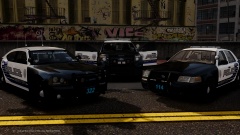
From the album: SC Designs
Released:


![[WIP] 2015 Ford Interceptor Utility Ecoboost](http://s3-gallery.int-cdn.lcpdfrusercontent.com/gallery/album_2838/sml_gallery_120090_2838_2366125.png)
