


PhillBellic
Members
-
Joined
-
Last visited
Everything posted by PhillBellic
-
AI Vehicles are currently not supported, is what I've heard.
-
I think Albo was working on having such functionality in the next Version. I too would like to see it. :)
-
 Albo, here's a future Suggestion for you. When you activate the Airhorn/Bullhorn, Traffic should move over just as if you were using a Siren.
- 851 comments
- 108 reviews
-
-

- 1
-
-
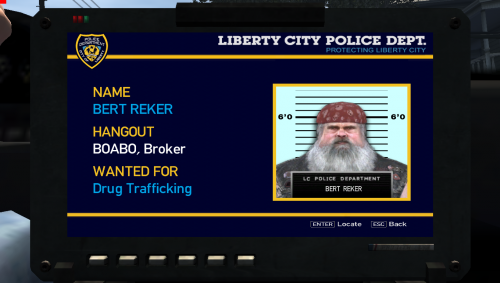 Hello, Jeansowaty. Great work in making this. Will Try it out soon.
 -
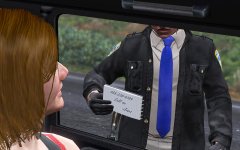 Alright Meow! License and Registration.
 -
-
-
That's a very good suggestion, Officer27. I wouldn't mind it be set up like that.
-
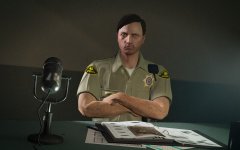 I didn't know S.A. Noire was being made?
 -
![SAHP Regular Coat [WIP]](//s3-gallery.int-cdn.lcpdfrusercontent.com/monthly_2016_08/small.photo_2016-08-03_15-26-15.jpg.aac5f9f30bda4155ed3443dee5dd3313.jpg) "How come he gets a Jacket, and we don't?" *Jacket guy looks around nervously.*
"How come he gets a Jacket, and we don't?" *Jacket guy looks around nervously.* -
![Variation (Leather bike Jacket) [WIP]](//s3-gallery.int-cdn.lcpdfrusercontent.com/monthly_2016_08/small.photo_2016-08-03_15-18-35.jpg.0b9ed4ef4e8ad32a179e6f18651638d2.jpg) Wow. Both Images look great! Really enhances the SAHP Officers. How's work going on the Female Counterpart?
Wow. Both Images look great! Really enhances the SAHP Officers. How's work going on the Female Counterpart? -
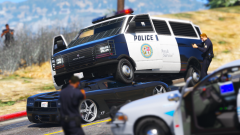 "And here we see the Declasse Burrito feasting on its latest kill."
 -
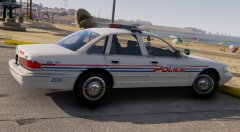 That's Lundy for ya. Always attracted to whatever's flashier or shinier.
 -
I have a Logitech G510s and there's a way through the Logitech Software to bind the Macro Keys to various .ini commands. That's how I operate ELS in IV.
-
That about does it.
-
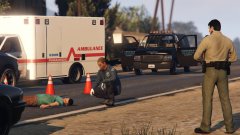 Wait. There's a UV Mapped Speedo? Neat Screenshot, by the way.
 -
Aww. You are going to make Lt. Caine cry now. :( It depends on how its coded. The Flappy Door 'bug' was not and is not a problem with V8.0 onwards.
-
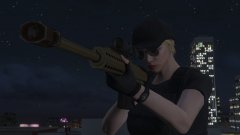 "I've come to kill Dr Miles Bennett Dyson!" Pretty spot on Cosplay.
 -
:D
-
Copy across your Added Entries into the RDE 3.0 'vehicles.meta' file, and you should have no problems there.
-
Great Tutorial, Captain14.
-
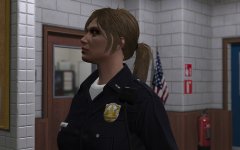 It's Lieutenant Police, everybody!
 -
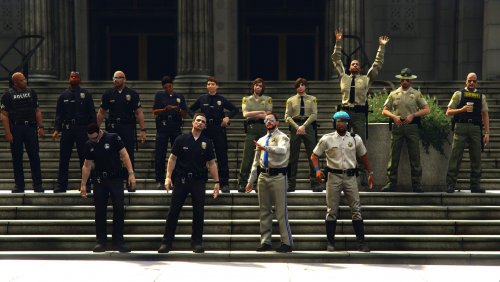 Not that I'm aware of. I'll keep a lookout anyway. About the latter, I hope you reconsider as well.
 -
What about the MP Females? I didn't see any there.
-
Good to hear. I'd let the Community make the Marked Version(s). It would be like a 'Buyers' Market. More Variety as well, I think.


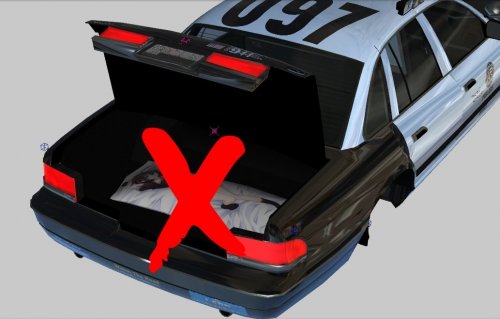
![SAHP Regular Coat [WIP]](http://s3-gallery.int-cdn.lcpdfrusercontent.com/monthly_2016_08/small.photo_2016-08-03_15-26-15.jpg.aac5f9f30bda4155ed3443dee5dd3313.jpg)
![Variation (Leather bike Jacket) [WIP]](http://s3-gallery.int-cdn.lcpdfrusercontent.com/monthly_2016_08/small.photo_2016-08-03_15-18-35.jpg.0b9ed4ef4e8ad32a179e6f18651638d2.jpg)
