PhillBellic
Members
-
Joined
-
Last visited
Everything posted by PhillBellic
-
Please have a read of this Guide; It will help answer many of your Questions.
-
 FTFY. :p
 -
You way outside your Jurisdiction, Occifer!
-
Hmm, needs an Insignia/Logo as well.
-
Cool Vehicles. Will they have Pillows in them?
-
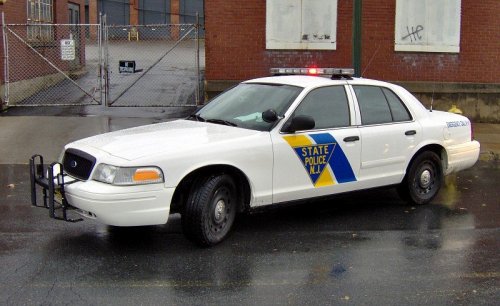 Some In Game Screens would have been good to see. I hope to see some Uploaded soon.
 -
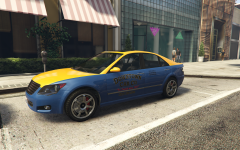 Heh. Kinda forgot you had made it already...
 -
-
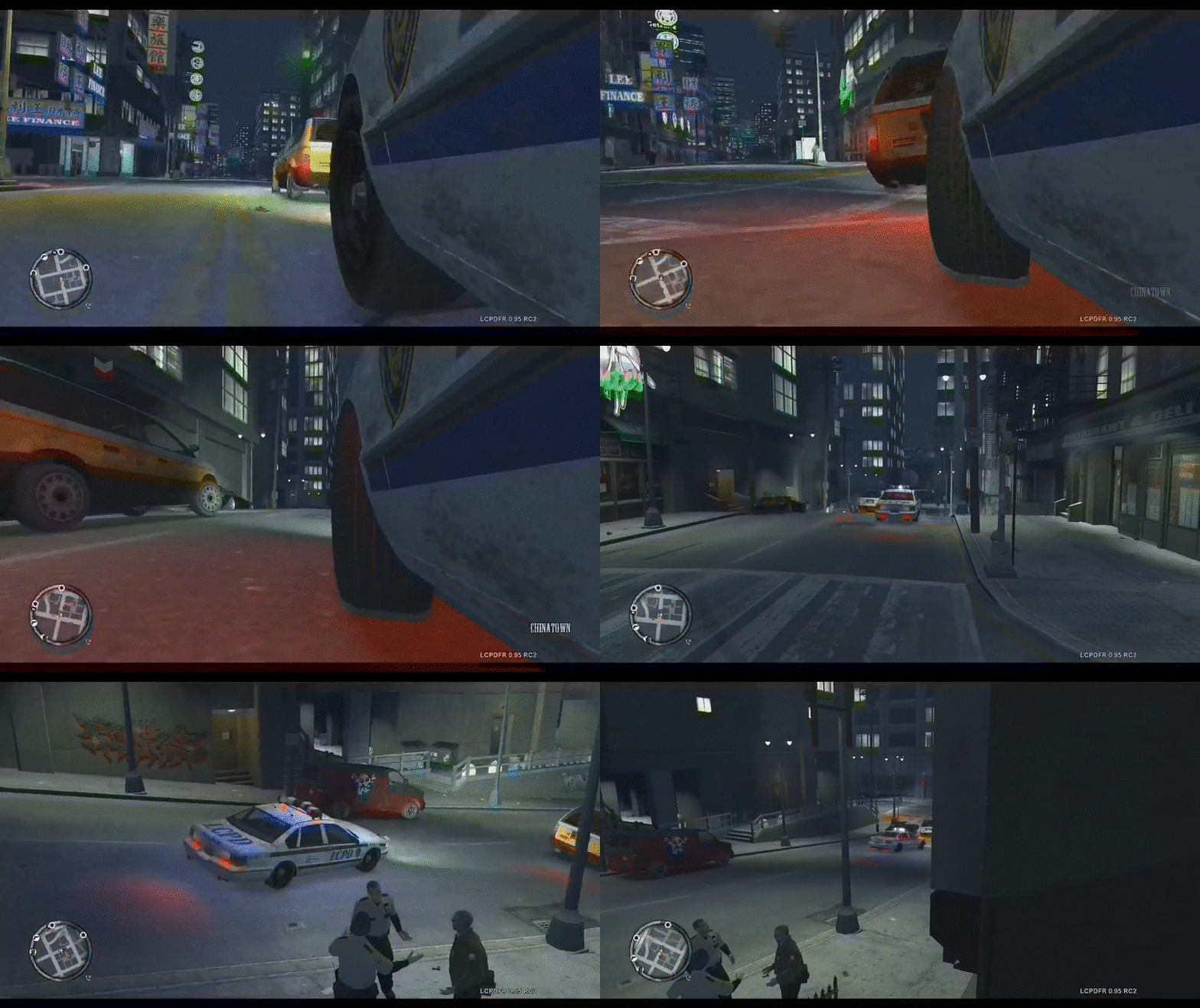 LOL at those Cops just standing there, not doing a thing to help.
 -
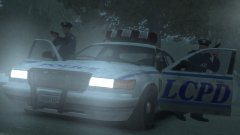 LCPD better than LSPD, amirite?
 -
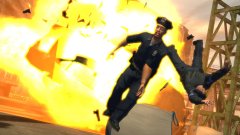 FTFY.
FTFY. -
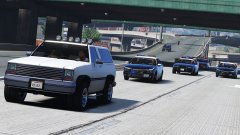 Something something OJ something something...
 -
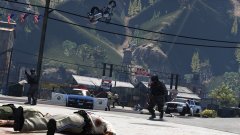 Where's that Bike going?
 -
Nice. Dilletante next?
-
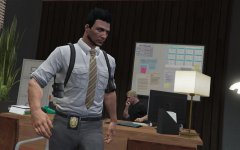 "PC Load Letter? What the fuck does that mean!"
 -
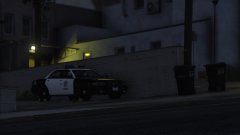 That's the perfect time to Listen to 'Nightshift' by The "Commodores."
 -
Great 'MIR', Sam.
-
-
Oh God! Why do I get the impression they're going to bury them?
-
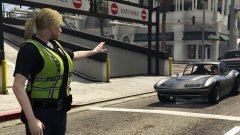 Hammertime! It's like you're using The Force.
 -
-
CVPI is Love. CVPI is Life. OT: I think Ford made a large mistake when they discontinued the venerable CVPI.
-
 Look, NOOSE are getting into that Festive Cheer. I'd try Reinstalling first.
- 2,342 comments
- 236 reviews
-
-

- 1
-
-
 Deadpool, is that you? Awesome Holster as well.
 -
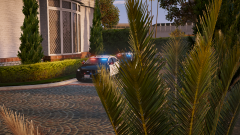 Crisp Screenshots. I also like the Quarter Panel Lighting.