PhillBellic
Members
-
Joined
-
Last visited
Everything posted by PhillBellic
-
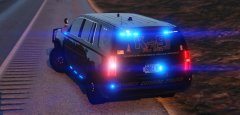 "This Vehicle Was Purchased By Your Local Drug Dealer" Fuckin' rekt! :D XD
 -
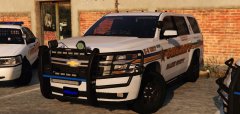 What? Is it Christmas already? :p
 -
I think you may have it a bit wrong. RDE is not meant to 'compete' against any of those. It's basically an Unofficial Community Made DLC/Patch designed to completely rebuild the Law Enforcement, Military, and Emergency Services in the Game. No more fugly POLICE Liveries, no more LSSD Patrolling Blaine County...
-
I don't use any of Albo's Mods in my Game. (Sorry Albo. Please don't Sue me!) You'd need to ask another person for their take on it. It works well with Alex_Ashfold's EUP derivatives; L&O, and S&R. Apart from some other Script Mods, my Game is effectively Stock. FPS is fine in my case.
-
Bruh; Helpful Link.
-
I use the Vehicles included with RDE. They shit all over the Rockstar ones.
-
Also, give the following a read; I'd suggest you Install the Vehicles into 'patchday16ng'. Reason being, it's both the latest and most current "override" archive. The rest should be fairly straight forward.
-
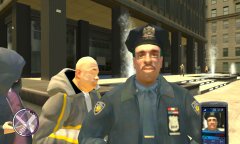 I think both Olanov and the Phone are telling you something... :p
 -
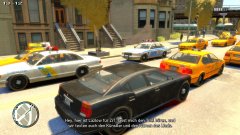 I can totally hear Lazlow in my head right now!
 -
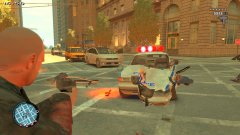 Ehh, that'll buff out. :D
 -
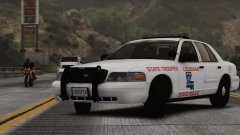 Creative use of the Lago Zancudo Bridge. Mimics the Lake Pontchartrain Bridge quite effectively. :)
 -
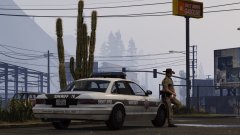 I think this would be better for the Slogan; "Community Suppression Since 1869" My $0.02.
 -
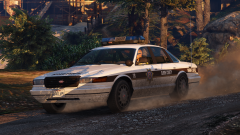 *Looking into Boot/Trunk* "Now where did I put my Donuts?" :D
 -
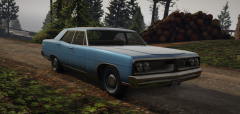 You should have placed a Sepia colour pallete over it. To me, it would have been more visually impacting. :) Otherwise, keep going at it!
 -
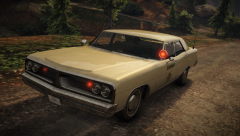 TLAD Regina best Regina, amirite? :D Awesome work incorporating the Spot-Light into the Lighting Pattern. :)
 -
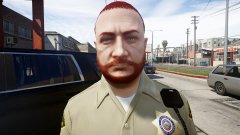 And then the Bear got High and watched re-runs of Cheech and Chong all day. :D Then visited the Pot Brownie Factory...
 -
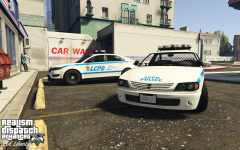 Is RDE Liberty still being released? Crisp looking Liveries, Nef!
 -
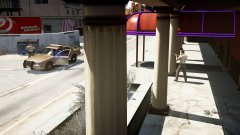 Just needs one more person. Then it's a true Standoff!
 -
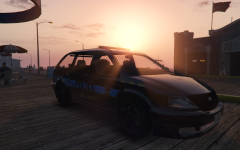 Is that the 'Soccer Mum/Mom' Division? :p
 -
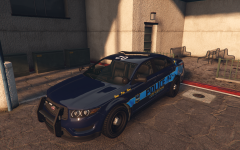 Love the detail on the Ram-Bar. Helps complete the package!
 -
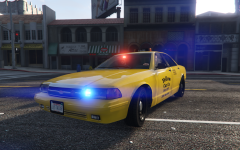 I better hide this Image from my Cousin. If he sees this, it will be hard to calm him down after. :D
 -
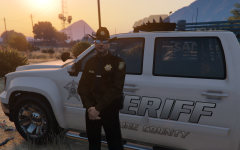 The "Finest" Deputies that confiscated Meth can buy. :D
 -
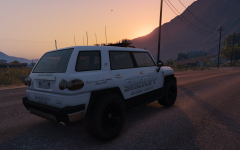 That's one creative Slogan. Mimics the LSSD one perfectly!
 -
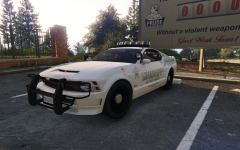 Call it the "Perception" or something. Perception and Vision are Synonyms. Also, that's one gorgeous Ram-Bar, Nef! :)
 -
... you go visit your friends up in the Mountains! :D