PhillBellic
Members
-
Joined
-
Last visited
Everything posted by PhillBellic
-
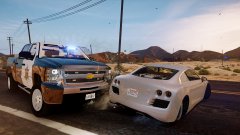 Getting revenge on Tailgaters, are we? :p
 -
-
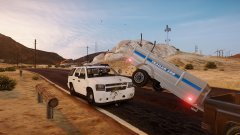 Thought so. I think it even dates further back to the good old San Andreas days. I remember many a wrecked Trailer back then.
 -
Do they even recognise Trailers as Vehicles?
-
Including these ones? Fair enough. I didn't see any Map edits to the Dock Building in question in the RDE Base File Set.
-
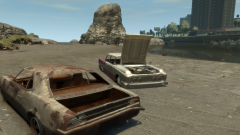 Wait. Which Time Period are you referring to? 1988, or 2008? :p
 -
I've found a LOD of that Sign already. Still hunting down the main Texture.
-
Could well be. Anyway, here's a Fun Fact for y'all; On some Warehouses in the LS Port, there's Warehouse Space Available. I didn't know the LC Port Authority operated in LS. :D XD This should probs be changed. What do ya reckon?
-
The Port Police Bikes do however have a 'City Of Los Santos' Roundel, for lack of a better word. Probably where the confusion is coming from. The LS Port Police Roundel is on the rear Pannier.
-
It was always a fun delight driving those old wreckers around. You didn't find any junker Emperors there?
-
'cause it looks hilarious. https://imgur.com/a/K2Rim :D
-
Yeah. It leans forward on the ground. The rear Landing Gear doesn't even.
-
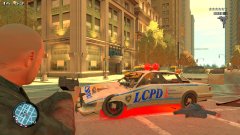 Kilometres ahead of the Vehicle Damage System used in V. :/
 -
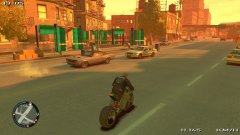 Looks like your Save File is fucked now...
 -
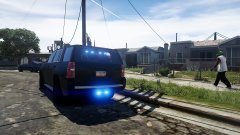 I didn't realise Walking could be so dangerous!
 -
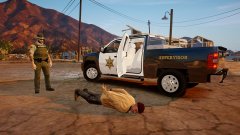 If you keep on Planking there, I'm gonna Arrest you!
 -
Happy to help you, Hastings. :) Also, the LS Port Police have a Hakuchou as well.
-
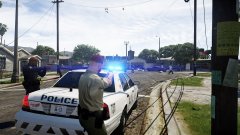 *Decades from now* "...and that my child is how WW III started..."
 -
That "Harley-like thingies" is called a Sovereign. ;) p.s., there's two SAHP Bikes present. The 'BMW' is actually the Shitzu Hakuchou, FYI.
-
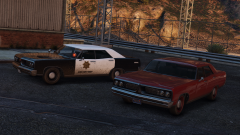 I so wish to take these for a spin soon! :)
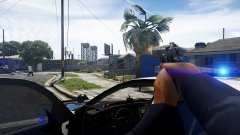 And then every Man, Woman, Child, and Dog pulls out their Weapons and starts shooting wildly...
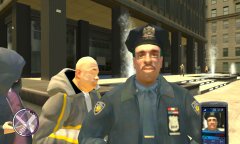 Look at the top row, in the middle. :D
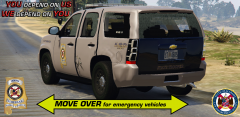 They probably got blinded by all those pretty Lights. :D Like a Moth to a Flame...
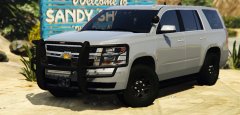 Was this Vehicle also purchased by a Drug Dealer? :p