PhillBellic
Members
-
Joined
-
Last visited
Everything posted by PhillBellic
-
 Because you've been smoking the Ganja, mon! :D XD
 -
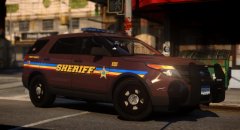 The new Liveries do look more vibrant and crisp.
 -
-
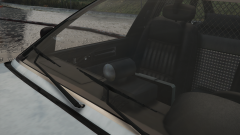 Me too! It may be Low Poly, but it does the job extraordinarily well! It could have some more details added to the Texture Files, however.
 -
 I think you should release both Packs. Perhaps mark them as a 'Beta' Release so you can use some Community 'Crowd Sourcing' to adapt your designs to more Templates. :)
 -
All the more reason for there to be no 'vehicles.meta' file (etc), and instead have the entries contained in the Readme/Installation Guide. :)
-
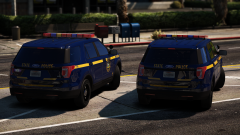 I think the Roof Numbers are missing.
 -
It may be confusing at first, but as you gain more experience, adding to/modifying the files becomes easier. Also, taking your time installing Mods is of extreme importance. I've learned this the hard way... p.s., I wish that Mod Makers only included the necessary lines, not the whole file.
-
The Chicago PD must be the only one to use the Battenberg Stripe in the US. Needless to say, the "We Serve & Protect" part needs to be eliminated at the very least, in my opinion.
-
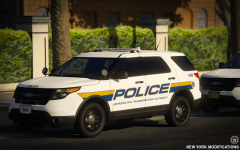 That MTA Vehicle looks Satanic!
 -
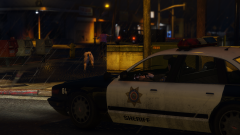 "Here, Kitty, Kitty! I just want to pat ya!"
 -
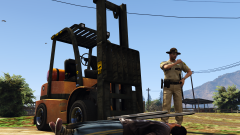 "This is how we play 'Forklift Simulator', right?"
 -
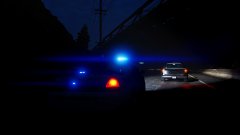 "You can run, but you can't hide!" "Pull over you maniac!"
 -
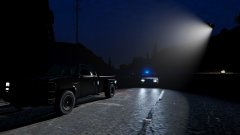 "We’re the police, you moron, we’ve got helicopters!"
 -
 "You’re going down, hard man, right now!"
 -
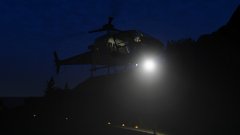 "Hey, I can see my House from here!" "Hey, would you just shut the hell up!" "Stop! Police!" "I think he knows that by now!" :D
 -
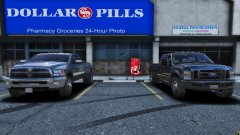 Where's the GM?
 -
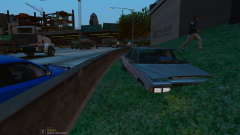 "Please Disperse! Nothing To See Here!"
 -
New York State Police? :p Anyhoo, the question still is open. 'Cause I'd love to see them with a more Modern Vehicle Fleet, and not relics "that belong in a Museum"! :) d=
-
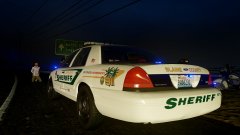 Not even the Justice Department in Mega City One are as brutal as the Police in Southern SA. :D
 -
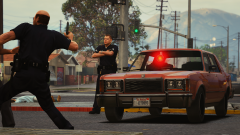 Where's Tenpenny at?
 -
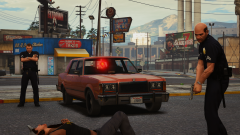 "We'll shit on you from such a height, you'll think God himself crapped on you!"
 -
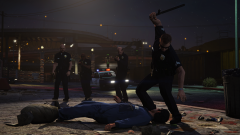 Ahh, just like good old 1992.
 -
"... and here we see the rare species 'Arresticus Coppius' in action subduing their prey..."
-
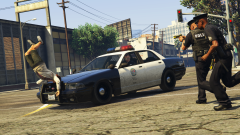 Now that's a face plant!