
K4te
Members
-
Joined
-
Last visited
Everything posted by K4te
-
same with another plugins so update RNUI to newest version
-
Make sure that you installed everything combined with garmmar police correct Remove Callout Manager - instead you can use Callout Interface
-
Are you sure it's correct log? (6/8/2023) - attach more current log
-
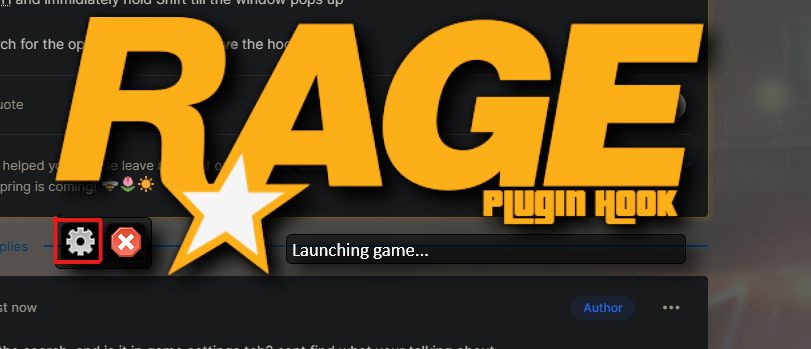
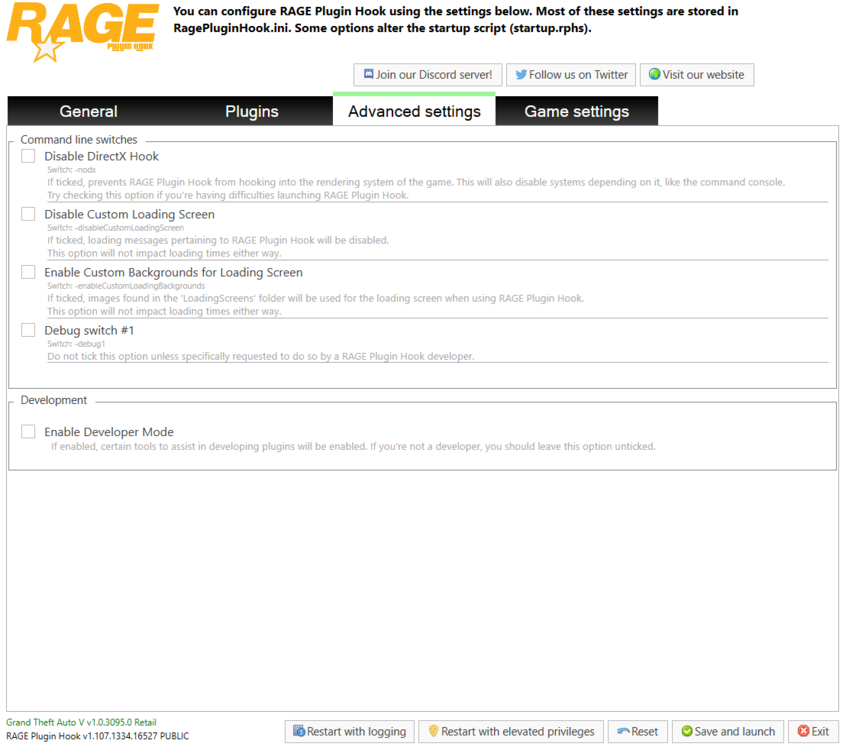
By search he mean you need to find it When you launch RPH click this icon (you have to be fast and click it before this window close) then go to advanced settings and turn off first option at comandline line (like below)
-
Everything what is below opus.dll too
-
If you didn't install any EUP plugins or vechicles (replace/add-on) then you won't have this folder. Pls attach screenshots of your MAIN gta5 FOLDER.
-
Temporally yes - if this won't change anything feel free to install it back
-
I missed 1 thing: CalloutInterfaceAPI.dll to main gta5 folder What about NVE? Afaik there is special version of NVE that is compatible with lspdfr - check if this is not issue that we are looking for
-
Better Hit Reactions error crash whole gta5? Tbh this is new for me but better check if you installed it correctly too, I suggest temporally remove all plugins (for example create folder at desktop and drag&drop them there) and add them back but do it 1 by 1 to find what cause problem - but first check if you can launch just a basic lspdfr
-
From main gta5 folder: remove all ScriptHookVDotNet files and check if it change smh - if it helps you can try use SHVDN nightly version From gta5\plugins\lspdfr: remove Callout Manager - it's outdated and gonna crash your game later in loading screen + you have installed Callout Interface
-
Sadly its not working fine, I tested it for some time and my game was crashing mostly when I had it installed
-
Attach RagePluginHook log file (.txt or .log file in your MAIN gta5 FOLDER)
-
Remove all ScriptHookVDotNet files and try launch game - if this gonna work you can try SHVDN nightly version
-
Attach screenshots of your main gta5 folder
-
Attach screenshots of your main gta5 folder
-
New log Ah and I didn't noticed second link.. check if you installed correct "addondlc:/coastal callouts" - weaponturretrbm.meta file cause another problem
-
Update gameconfig, heapadjuster and packfile - this should help
-
Attach screenshots of your main gta5 folder, gta5\plugins and gta5\plugins\lspdfr
-
Mods folder fault First what you can do is update gameconfig, heapadjuster, packfile and check if this help. Second: if first step won't help you can try to find mod (or mods) that u installed and remove them 1 by 1 to find which one cause problem (or replace it with original files) Third: if nothing helps and second step is impossible - delete whole mods folder, create new one and add mods again - but add them 1 by 1 and test if it don't make game crash again
-
Check callout accept button in keys.ini file (gta5\lspdfr) maybe you changed smh by mistake
-
I would say opposite: @Royal98 leave scripthookv and dinput8, SHVDN is known to cause problems like that - if you don't need it then remove all ScriptHookVDotNet files, if you need it for some plugins/scirpts - try to use shvdn nightly version
-
Check if you installed everything correct
-
Afaik there is special version of NVE that supports compatibility with lspdfr, I suggest to try use this version
-
Attach screenshots of your MAIN gta5 FOLDER
-
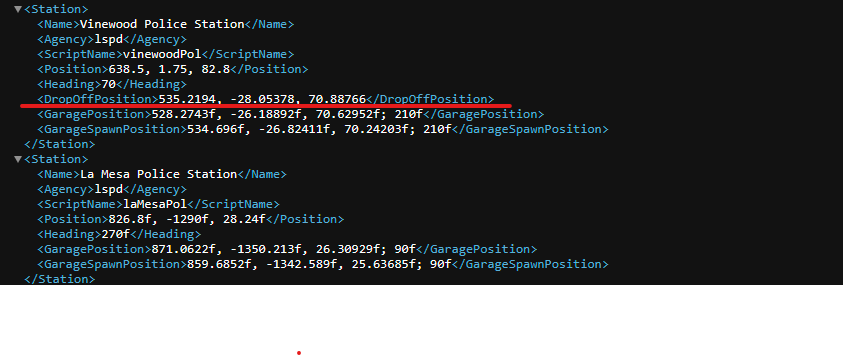
Everything should be in stations.xml file (gta5\lspdfr\data)