


McAwesome6934
Members
-
Joined
-
Last visited
Everything posted by McAwesome6934
-
-
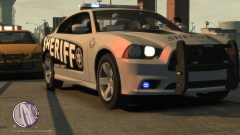 Skin, model is by NickieB.
 -
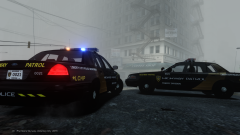 I personally like police better.
 -
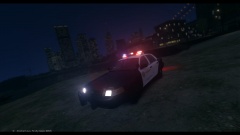
From the album: McAwesome Pics!
No editing was necessary for this beaut, love the city in the background. -
Yeah the lighting color is weird, does not look red/blue at all. More of a pinkish. Due to that I can't use this vehicle, which is unfortunate because I was really looking forward to a vehicle w/ the odyssey. This is what the light colors look like for me -
- 27 comments
- 6 reviews
-
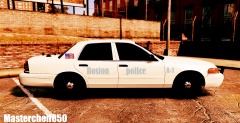 Got potential, but could use a bit of work. I have a couple of suggestions for you - Most of the time the flag should be be placed so that the union on the driver's side of the vehicle would be to the viewer's left while the union on the passenger side of the vehicle would be to the viewer's right. Next, the P in police should be capitalized, to match Boston. Also it would look nice to use the font that BPD uses IRL. Lastly to add something more to it, since it's pretty bare and plain, you could add the Badge/Insignia that use, and make it stealthy. Just my thoughts on it. Example of flag on passenger side -
 -
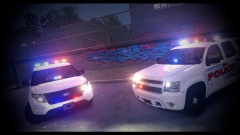
From the album: McAwesome Pics!
GeorgieMoon's newest release.. these things are hot! Feedback? Original (unedited) screenshot - Spoiler -
GTA IV Tutorial - Installing Vehicles And Changing Vehicle Liveries
-
https://www.youtube.com/watch?v=KRRKCgMJccU&feature=youtu.be In this GTA IV tutorial I cover how to install vehicles, and change vehicle liveries using SparkIV and OpenIV. If you don't understand how to mod, or add/change something in GTA IV and you would like me to do a tutorial, comment below. ▬▬▬▬▬▬▬▬▬▬▬▬ ▼ Download OpenIV or SparkIV ▼ OpenIV ➡ http://www.gta4-mods.com/tools/openiv-15-f21438 SparkIV ➡ http://www.gtainside.com/en/download.php?do=detail&cat=326&id=28310 ▬▬▬▬▬▬▬▬▬▬▬▬ Video go to fast? Here are the steps - Installing Vehicle Mods - 1) Download and Install OpenIV or SparkIV 2) Download desired GTA IV vehicle 3) Open SparkIV or OpenIV 4) Navigate - GTA IV Main Directory - pc - models - cdimages - vehicles.img 5*) If Using OpenIV click 'Edit Mode' on the top near the search bar ➡ Drag Files Into OpenIV - If using 7Zip the file must be extracted, if using WinRar the file can be drug directly from archive into OpenIV 5*) If using SparkIV click 'Import' then select the files, rebuild and save. Changing Vehicle Liveries - 1) Download and Install OpenIV or SparkIV 2) Download desired GTA IV vehicle 3) Open SparkIV or OpenIV 4) Navigate - GTA IV Main Directory - pc - models - cdimages - vehicles.img 5*) If using OpenIV click 'Edit Mode' on the top, next to the search bar. ➡Then click the desired vehicle texture file, and scroll down and click on Police Sign 1/ cvpi Sign 1/ or something similar. ➡ Click replace on the top right, and double click the desired livery you would like to replace it w/. ➡ Finally click save & close. 5*) If using SparkIV select designated vehicle .wtd and click edit on the top. ➡Then click the desired vehicle texture file, and scroll down and click on Police Sign 1/ cvpi Sign 1/ or something similar. ➡Click import and double click on the livery you would like to replace it w/. *Each vehicle gets 4 different liveries that randomly spawn in-game, to change the other liveries follow the same steps as listed above.
-
 I've only got this drop once.. and I fucking hated it. I have never had to do the quick drop off option, until this drop off point. Do you have any tips?
 -
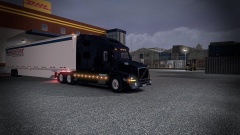
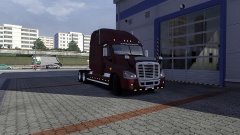
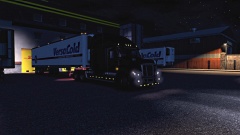
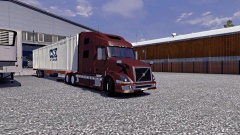
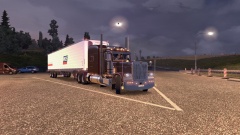
Welp since SCS is taking their sweet time, w/ ATS I modded Euro Truck Simulator 2 to have American Trucks. Here are some pics of life on the road.
-
From the album: American Truck Simulator?
-
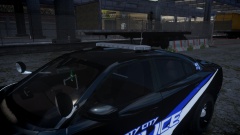 Dude that air freshener though!
 -
Those are optional, meaning the lightbar for gta wouldn't have to have those.
-
I love all liberties, but the new one looks soooo sexxxy :D
-
![[REL] Raydian Vehicle Pack](//s3-gallery.int-cdn.lcpdfrusercontent.com/gallery/album_378/sml_gallery_472_378_132087.jpg) These cars are mint!
These cars are mint! -
-
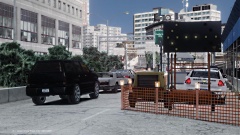
From the album: McAwesome Pics!
-
-
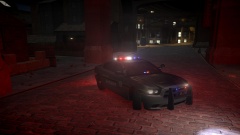 Looking good goon! Red is supposed to be on the driver side though.
 -
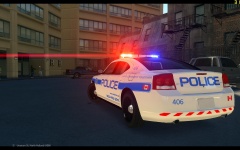 No license plate?
 -
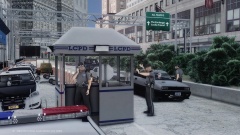 I believe they are pending approval!
 -
-
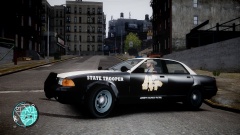 Like the idea, but the shape of L.C. does not look good plastered on the side of a car.
 -


![[REL] Raydian Vehicle Pack](http://s3-gallery.int-cdn.lcpdfrusercontent.com/gallery/album_378/sml_gallery_472_378_132087.jpg)
