

brenden.iannetta
Members
-
Joined
-
Last visited
Everything posted by brenden.iannetta
-
Launch RPH, then immediately hold shift. Change Plugin Timeout Threshold to 60000, then click "Save And Launch". If it crashes, rename your mods folder to "_mods", and send another log.
-
Once again, I will assist you there.
-
Update your RAGENativeUI.dll. Download the .zip file from this link then extract RAGENativeUI.dll into your GTAV root. https://github.com/alexguirre/RAGENativeUI/releases/download/1.9/RAGENativeUI.zip
-
Hah no problem 🙂
-
Try re-installing LSPDSFR. You might have a corrupt file.
-
Launch RPH, then immediately hold shift. Click "Plugins", then "Don't Load Any Plugins On Startup". Then click "Save And Launch". Once GTAV Loads up and you are in game, type "ReloadAllPlugins" into the console. If it crashes send another log.
-
No problem 🙂 Just mark as solved!
-
You need to make a new topic. You can't keep resurrecting this ancient one. Please attach your RAGEPluginHook.log file (located in GTAV root) to the new one.
-
Try Installing all of these: https://www.gta5-mods.com/misc/gta-5-gameconfig-300-cars https://www.gta5-mods.com/tools/packfile-limit-adjuster https://www.gta5-mods.com/tools/heapadjuster If this doesn't work, rename your mods folder to "_mods" and try to launch.
-
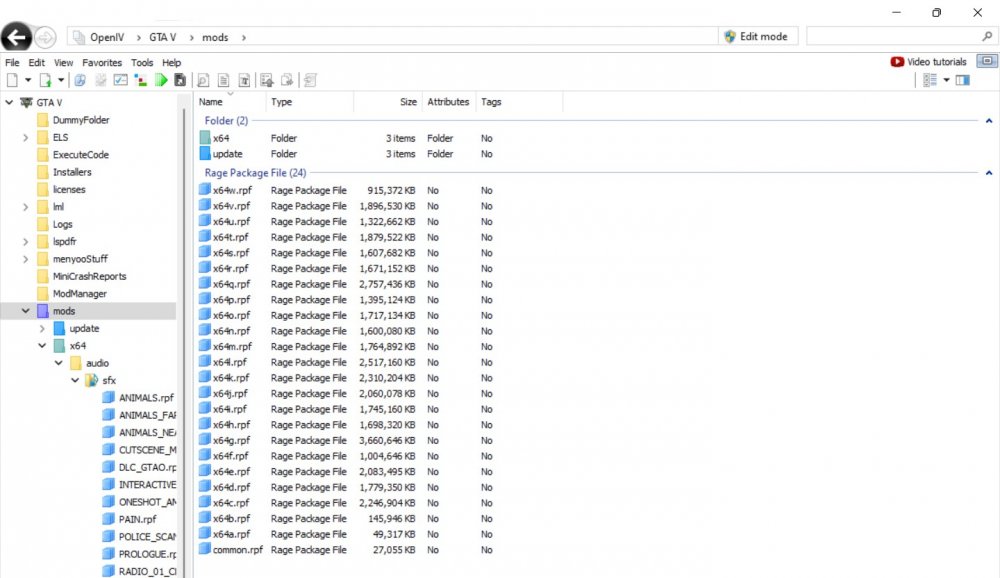
LMAO. That is a new issue.... All you need in your mods folder is the following: Be mindful that you don't need all of these, just the ones you've modified.
-
Haha no problem. It should've been installed when you install LSPDFR. Maybe you mistook it and deleted it by accident. Make sure to mark as solved 🙂
-
You're on an old version of RAGENativeUI.dll. Download it from this link then extract RAGENativeUI.dll into your main GTAV directory. https://github.com/alexguirre/RAGENativeUI/releases/download/1.9/RAGENativeUI.zip
-
Send a RAGEPluginHook.log please. It's in your GTAV root.
-
Do you have all of these installed? https://www.gta5-mods.com/misc/gta-5-gameconfig-300-cars https://www.gta5-mods.com/tools/packfile-limit-adjuster https://www.gta5-mods.com/tools/heapadjuster
-
Traffic Policer is a less-featured and deprecated plugin, so there is no need to use it if you have StopThePed. Could you attach the RAGEPluginHook.log file which is in your GTAV root? You probably have a conflict/installation error.
-
Try adding a _ to your mods folder. It should be named: "_mods".
-
This is a known issue already. We are waiting for a fix.
-
Your other topic:
-
Do you use LML?
-
I'm assuming you've figured this out based on your rep level. To you, resource.lua files are only to be used on FiveM. To install a non-els FiveM car, just drag the vehicle files into the latest patchday. Reference this for more help:
-
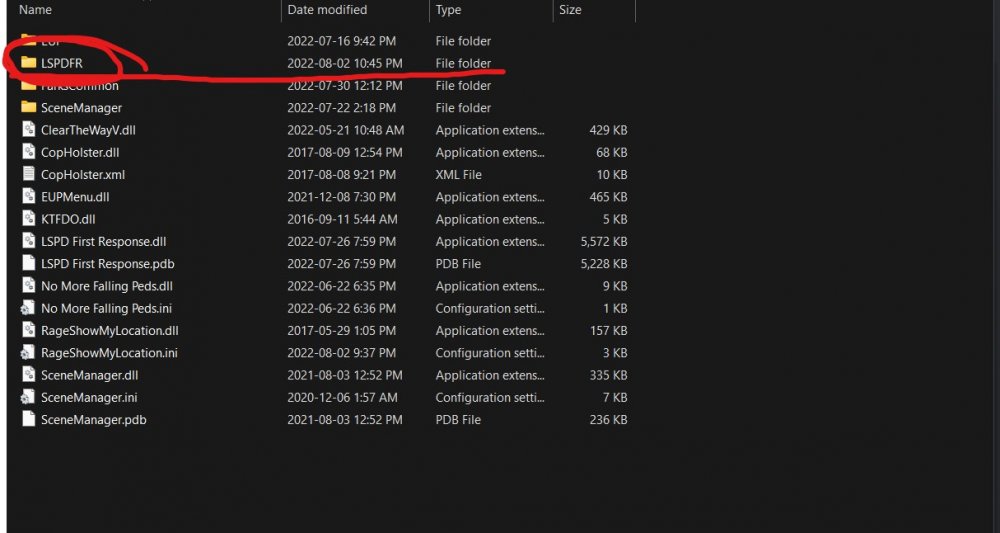
You are missing the LSPDFR plugin folder. As you can see in the screenshot, this is the folder that you would put SuperCallouts in. Please make a folder called "LSPDFR" inside of Grand Theft Auto V\plugins and then drop SuperCallouts in there.
-
Send me screenshots of the following: Grand Theft Auto V\plugins Grand Theft Auto V\plugins\LSPDFR Also just to clarify, you are going on duty and checking?
-
Great to hear! Have a great time. 😁Just EUP Menu AFAICT. Please also update RAGENativeUI.dll. Download it from this link, then place RAGENativeUI.dll from the .zip file into your GTAV root. https://github.com/alexguirre/RAGENativeUI/releases/download/1.9/RAGENativeUI.zip Sorry, forgot to include the link in the first reply.