



Keith.
Members
-
Joined
-
Last visited
Everything posted by Keith.
-
Unless the person who created the actual model, set the lightbar up for CHP flash patterns in Zmodeler. Then just changing the ELS xml file to CHP wont work. The model its self has to be CHP specific. If you just change the xml file on a random model with a Valor. The flash patterns wont come out right bud
-
Just so you know the models lightbar has to be set up too. Next to where it says LightingFormat. Where it says "Leds" or "traf" Change it to CHP and save
-
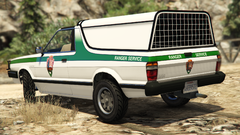
From the album: Officer Wades photos
-
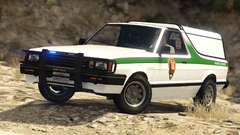
From the album: Officer Wades photos
-
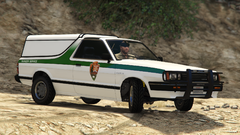
From the album: Officer Wades photos
-
Any ideas on what equipment on it ?
-
It depends what you're after really
-
https://www.policecarwebsite.net/states.html
-
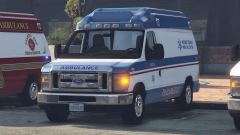 I never released it bud
 -
Probably. But, It'll get finished when I get spare time to do it, so, not sure on any release dates yet.
-
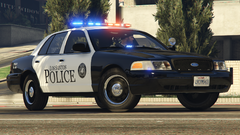
From the album: Officer Wades photos
-
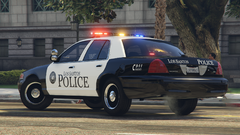
From the album: Officer Wades photos
-
Might as well. I'm bored. I'm in the middle of setting up the lights I.D's. But I've already templated and dirt mapped it amongst other things
-
HVY Insurgent Mapped Default-Style - Vehicle Models - LCPDFR.com
-
It says in the video description, The link for the models in in his discord.
-
So I've updated and reinstalled everything. Now I'm just getting this permanent loading screen. I've got no plugins installed either
-
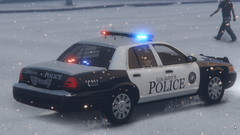
From the album: Officer Wades photos
-
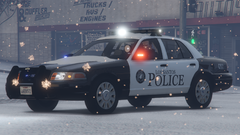
From the album: Officer Wades photos
-
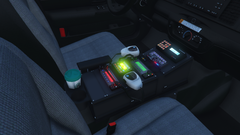
From the album: Officer Wades photos
-
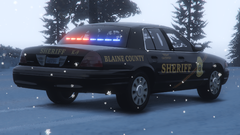
From the album: Officer Wades photos
-
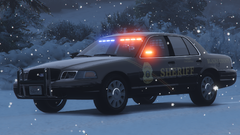
From the album: Officer Wades photos
-
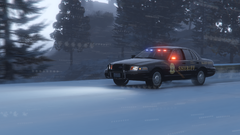
From the album: Officer Wades photos
-
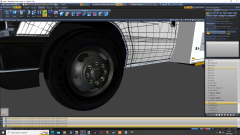
From the album: Officer Wades photos
-
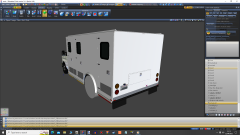
From the album: Officer Wades photos
-
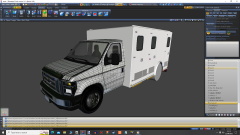
From the album: Officer Wades photos



