



Keith.
Members
-
Joined
-
Last visited
Everything posted by Keith.
-
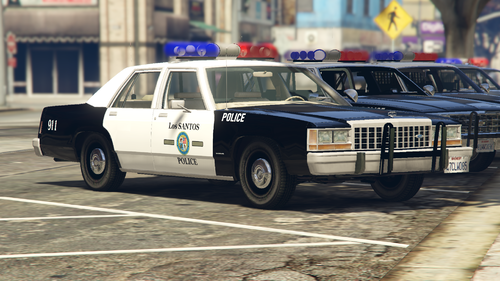 You need to put all the files in, including the carvariations and carcols You're welcome mate. Nice for it to be appreciated
- 45 comments
- 3 reviews
-
 It's a dev part bud. It's up to you what you do with it, just as long as credit is given where it's due
 -
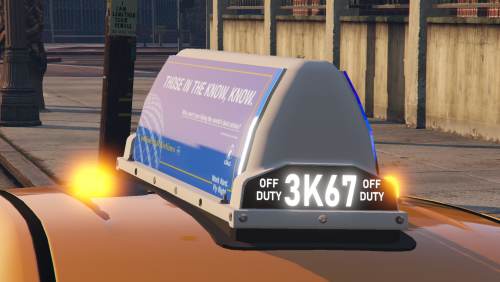
Look nice. That lightbar looks like an EPL 9000
-
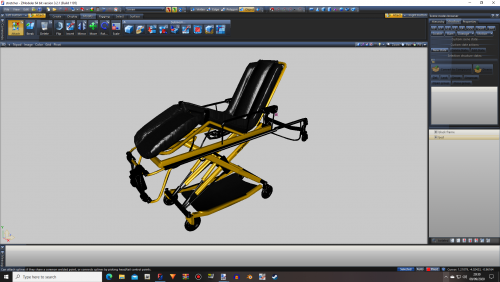 It was $21 from Turbosquid bud
 -
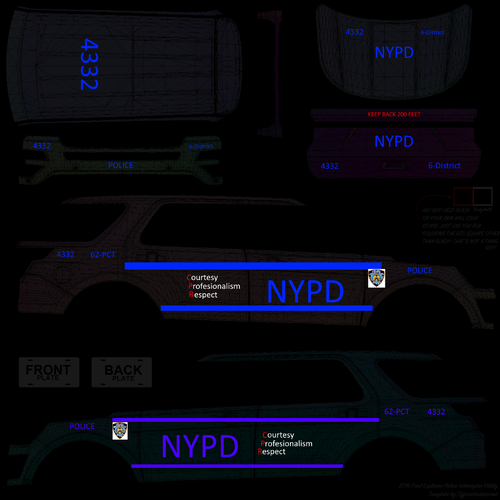 The NYPD font you're looking for is called Rockwell Extra Bold
 -
I'm trying to get my wheel to come out as a standard alloy colour. But, no matter what I try, it keeps coming out and showing in game as chrome. What am I doing wrong anybody ?
-
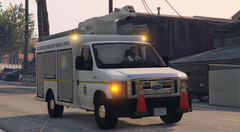
From the album: Officer Wades photos
-
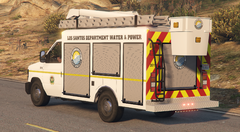
From the album: Officer Wades photos
-
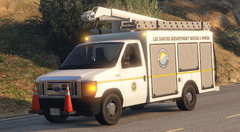
From the album: Officer Wades photos
-
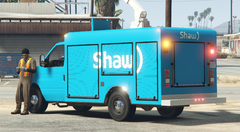
From the album: Officer Wades photos
-
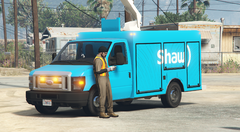
From the album: Officer Wades photos
-
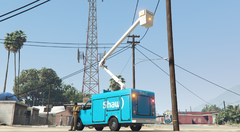
From the album: Officer Wades photos
-
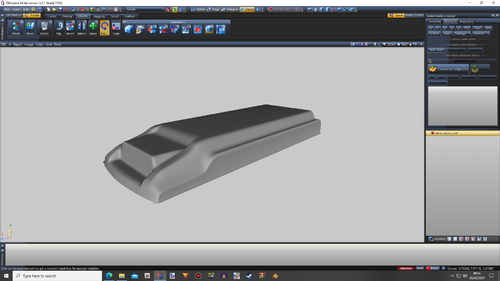 It's an extended roof for vans It'll need setting up. Van not included.
 -
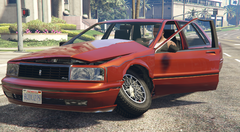
From the album: Officer Wades photos
-

From the album: Officer Wades photos
-
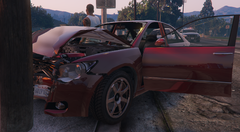
From the album: Officer Wades photos
-
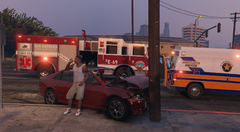
From the album: Officer Wades photos
-
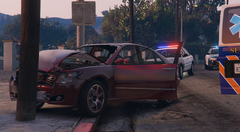
From the album: Officer Wades photos
-
Yeah you need zmodeler3 bud. You have to duplicate the parts of the vehicle body that you want to be reflective.
-
What slot have you got the Taurus in ? Try changing the colour with your trainer
-
Here's a bit more info for you bud. If you're having issues with vehicles disappearing as you move away from them (LODs) Go back to your vehicles.meta and look for this line <lodDistances content="float_array"> replace all the numbers underneath it with these 100.000000 200.000000 300.000000 400.000000 500.000000 500.000000 This will stop your model disappearing as you move away Do the same thing for any of your models that have the same issue. If your cars spawn with blacked out lightbar or other glass look for <diffuseTint value= (it's 3 lines above the lod distances one ) and paste this line over it <diffuseTint value="0x00FFFFFF" /> Do the same for any of your cars that have the black glass problem Don't forget to save
-
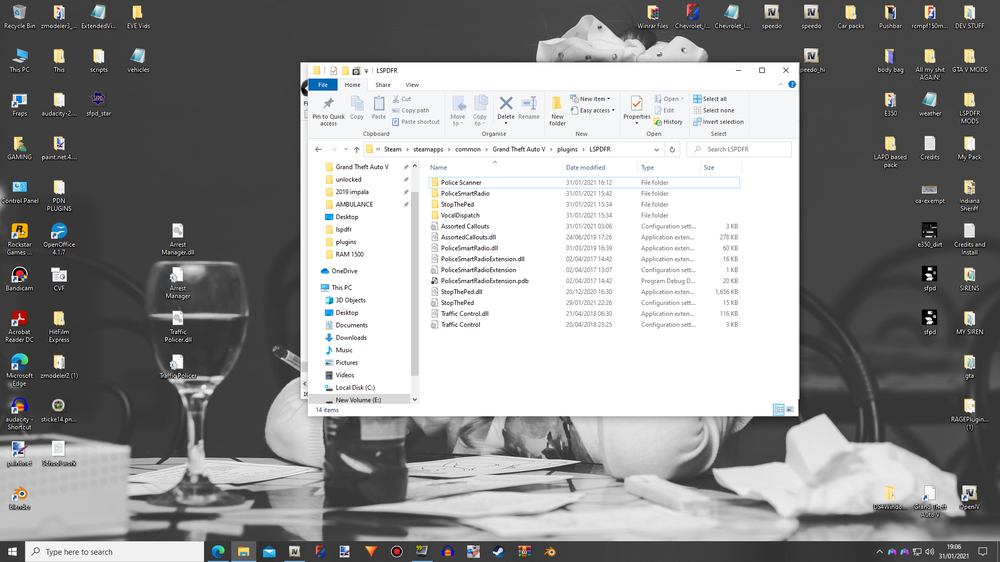
Yeah I've just done all that and binned most of my plugins and managed to get it back up to 29 to 35 fps. I'll get rid of the other 2 and see what that does. This is all I have in there now
-
To be honest the computer I've got isn't a high end or anything. It's only using an i3 and a GTX 1050ti. But it runs the game in SP with no issues at all. And GTA V is the only game I play on it. I've only got LSPDFR and my vehicles installed ( plus the usual associated extras like ELS and SNT ) No ENB or graphic enhancing mods. Just my edited visualsettings for better ELS lighting. It's one of the reasons why I don't bother with LSPDFR really. Everything is up to date too
-
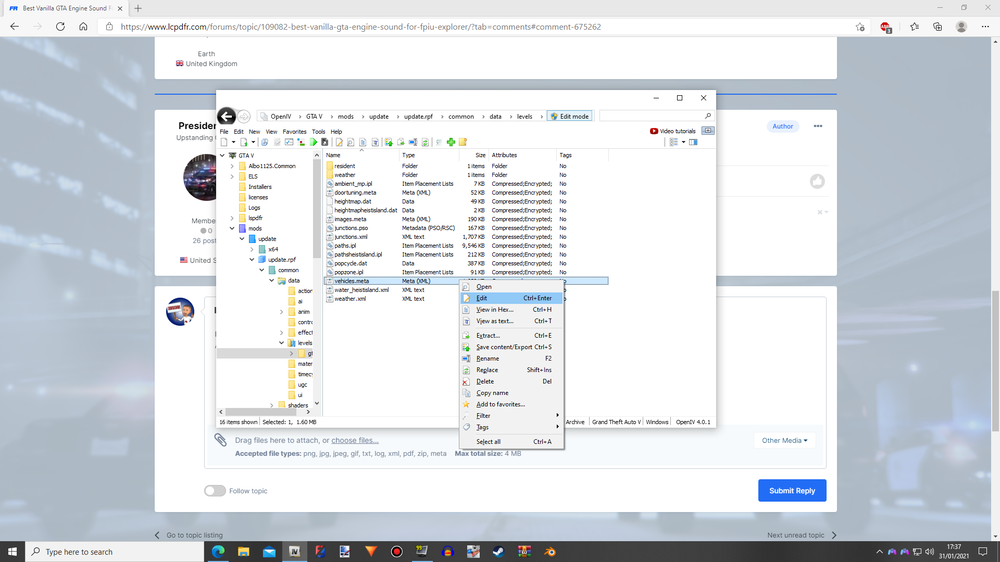
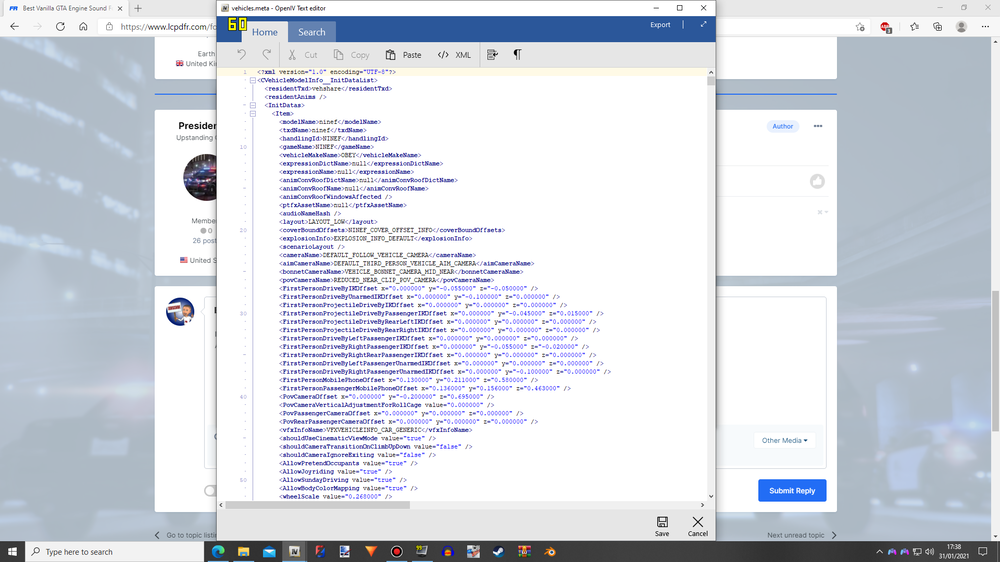
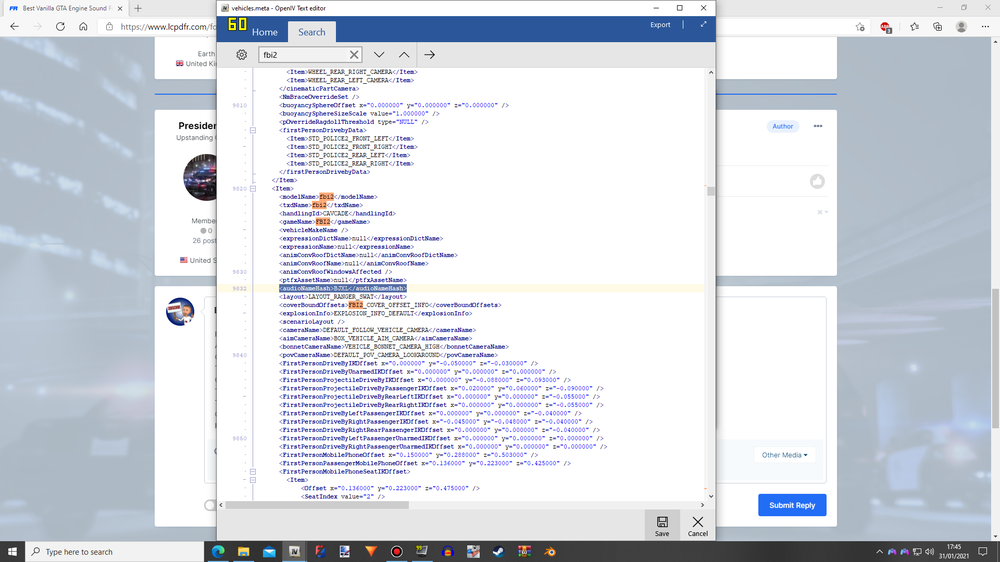
In OPEN IV Go to mods \ update \ update.rpf \ common \ data \ levels \ gta5 And right click on the 'vehicles.meta' choose 'edit' from the drop down menu. Click on the 'Search' tab and put in the vehicle you want to edit, so 'fbi2' The 3rd line down will look like this <handlingId>FBI2</handlingId> Copy and paste this line in its place, or just change the FBI2 to CAVCADE, so, <handlingId>CAVCADE</handlingId> That will stop the worst of roll overs. To change the engine sound look 9 lines further down for audionamehash Copy and paste this line in <audioNameHash>BJXL</audioNameHash> Hit SAVE in the bottom right corner. Job done
-
I've tried three of the most common ones, and not one of them work properly. It's annoying because I want to use one and LSPDFR is getting worse for playability





