


Creators: Due to background reprocessing of files, approvals and file security checks may be delayed. Thanks for your patience.

TreadRed
Members
-
Joined
-
Last visited
Everything posted by TreadRed
-
[4/9/2019 6:33:35 PM.991] Failed to create D3D11 device for Grand Theft Auto V: 887a0001 try following these steps Start rage, press settings In the general tab set the threshold to 50000 and tick disable text rendering in the advanced setting make sure nothing is ticked in the game setting>command line switches make sure the only things ticked are directx11 and forced windowed mode.
-
Well assorted callouts is suppose to be downloaded into plugins>lspdfr and loads automatically when you go on duty. I can only sugguest you delete all the callouts and this time read the readme files and install them in the right spots and you should be good to go
-
Error is usually from doing something wrong in openIV, so whatever you did there, try fixing/undoing it
-
Need the file from Grand Theft Auto V>RagePluginHook (textdocument)
-
click on the link in the error box and download what it is telling you
-
your welcome
-
You can try going into rage settings, set the threshold to 50000. In advanced settings make sure nothing is ticked In game settings>command line switches make sure only thing ticked is forces windowed and direct x11. You have -nod ticked, which disables directx11.
-
shre the file in Grand Theft Auto V>RagePluginHook (text document)
-
Only way Im aware of adding tattoos is via Trainer V
-
Try starting rage and going to rage settings. Set the threshold to 50000. In advanced setting make sure nothing is ticked. In gamesettings>command line switch make sure the only things ticked are directx11 and forced windowed mode
-
what callouts you got?
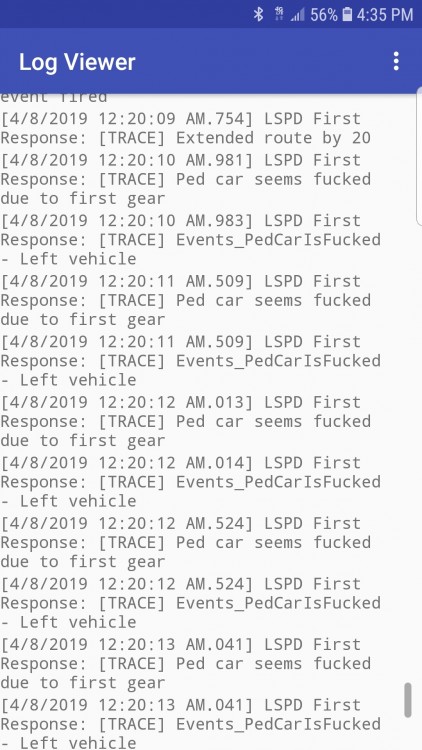 The vehicle you added in the police slot is not installed correctlyGrand Theft Auto V>RagePluginHook (text document)I don't see how it would break the station. You will have to move some trigger points around using the stations.xml in lspdfr>dataYou gott have, in this order, EUP Law and Order EUP Serve and Rescue EUP LSPDFR COnfigurations or Jurisdictions+post the file from Grand Theft Auto V>RagePluginHook (text document)please post the file from Grand Theft Auto V>RagePluginHook (text document)you will have to post the crash log for anyone to help youthe "police" model vehicle is not installed properly, causing game to crash when it tries to load it for patrollol not nearly, but thanks, and your welcome. Have funWorks like a dream, EUP is working, having different department uniforms finally. Now my only problem now is my RPH console is not appearing. In the Trainer V setting I have it set to F3 only but works with both, F3 +F4... I have the trainerv issue too, just have to tough tough it out, I haven't figured out why it works on both yet, follow this to hopefully fix the directx issue, and maybe some future ones Start rage, press settings In the general tab set the threshold to 50000 and tick disable text rendering in the advanced setting make sure nothing is ticked in the game setting>command line switches make sure the only things ticked are directx11 and forced windowed mode.Try setting the trainer to f4 and the console to f3yea ditch Native Trainer and get Trainer V then install in this order Install EUP Menu(optional) Install LAW and ORDER Install Serve and Rescue Install LSPDFR EUP Configurations or Jurisdictions+idk post a new log


