Creators: Due to background reprocessing of files, approvals and file security checks may be delayed. Thanks for your patience.

Leonov
Members
-
Joined
-
Last visited
Everything posted by Leonov
-
A suspects fleeing call, now that is one I haven't got in a LONG time.
-
Sometimes they won't surrender right away and will continue to Resist. Not an issue, just chase them around and eventually get them on the ground. Then pull out a Gun or Taser and that should quickly get you to arrest them.
-
Well, it's usually suggested to drop off Roman at first if I'm not mistaken, and then maybe save your game there. Then try it, also remember when you pull someone over, you have to press "Shift", the officer (unless you're on lighting mode "3" (activated by the "/" key), then they'll simply pull over when you press shift) should shout something through the megaphone of the car, and the in most cases, will pull over, and you will have a prompt telling you to "get behind the car" and when you're positioned right, it will tell you to approach the window (the red circle shows here), which from there, there are options you can follow to get through the rest. I hope that helps.
-
Yeah, I'm sorta confused myself here on that subject. Do you Is this Rick Ross known as "the Biggest Boss", or did the OP accedentally have two thoughts somewhere in between the title and the post? Yeah, I'm that culturally deprived...
-
Either way, all those can be downloaded from the Microsoft Website if I'm not mistaken, and that would possibly be the best way to get them (as it is the official source.)
-
I don't understand what you mean, but I'll try to give an answer from what I think you mean. I know that ELS lets you set the siren to "yelp" or as "full" or something along those lines, but aside from that, I don't think you can assign more than one siren to a vehicle.
-
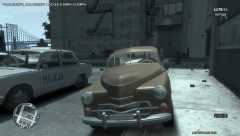 Yeah, here is the FSO model if you're interested: http://www.gtainside.com/en/download.php?do=comments&cat=441&start=0&id=35524&orderBy= Here are the various GAZ versions around: http://www.gtainside.com/en/download.php?do=comments&cat=432&start=0&id=35770&orderBy= http://www.gtainside.com/en/download.php?do=comments&cat=432&start=0&id=34693&orderBy= Here is the pickup, the link is in Russian, should add, this site has a lot of good stuff, especially when it comes to old Soviet stuff, and current russian stuff if you're interested. You might want to change the vehicle it's associated with though with another 2 door vehicle: http://gtamania.ru/load/cars_for_gta_4/gaz/194-1-0-500
 -
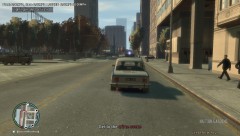 It is a nice little toy! For a late 60s European car, they actually were not too bad in reality. As for the lightbar, I personally like this one (nice thing too, can be done realistically without ELS too!) Just wish I could find a more realistic siren sound for it, like this one (which the Fiat 125ps (like you see here) were equipped with:
 -
So, you say that when you use "E", you don't find anything, but with "ALT+R" you find something, if I understood you correctly. That is strange, just by chance, have you tried re-installing the mod and seeing if anything changes?
-
That's strange, as I almost always frisk with ALT+R and have found something, or haven't found something on them (usually after I arrest them of course.) As for the new way using the "E" button, I haven't really used it for much (as I use it more to hold suspects during car searches.) How often on average would you say you use the frisking option?
-
This is a FSO Warszawa M20. It is the Polish version of the Soviet GAZ M20 "Pobeda" (which there is also a "pickup" version of out there as well for GTAIV.)
-
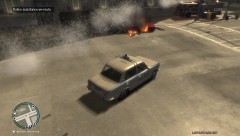 The Cruiser is a 68' year, and the red one is a 70' year btw.
 -
Both cars (the red one on fire) and the Police cruiser are Fiat 125Ps.
-
Like I said, LCPD:FR comes with dsound, which is already installed. You just have to put those files into the Scripts folder where LCPDFR is (which is GTAIV root directory/Scripts)
-
Don't worry, as teh asi loader (dsound) and scripthook are both in there (as they come with LCPD:FR, though you can use xliveless in the place if dsound if you wish (but not both)). What you should do here though is simply put what cars (aside from taxis, garbage trucks and emergency vehicles) you want to spawn while driving around (it's a list with 20, it can't support no more than that.) After that, you put them into the Scripts folder of your main GTAIV directory where LCPDFR is installed. After that, it should load up automatically.
-
A day with the LCMO 1-21-2012. Somehow, this became one of my busier than usual days.
-
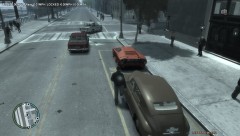 2012 01 21 00096
-
2012 01 21 00094
-
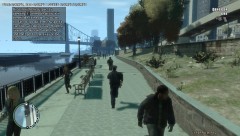 2012 01 21 00093
-
2012 01 21 00090
-
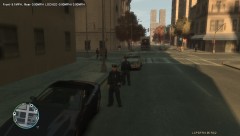 2012 01 21 00089
-
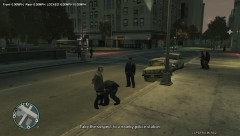 2012 01 21 00088
-
 2012 01 21 00087
-
 2012 01 21 00085
-
 2012 01 21 00084
-
 2012 01 21 00082
-
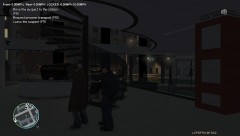 2012 01 21 00081
-
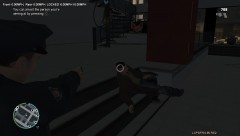 2012 01 21 00079
-
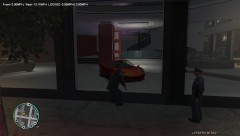 2012 01 21 00078
-
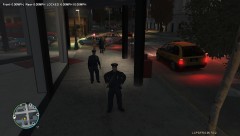 2012 01 21 00076
-
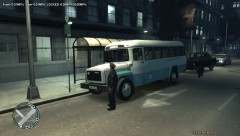 2012 01 21 00072
-
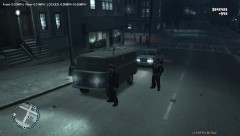 2012 01 21 00068
-
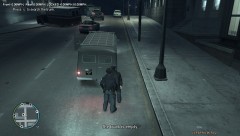 2012 01 21 00067
-
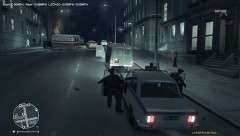 2012 01 21 00066
-
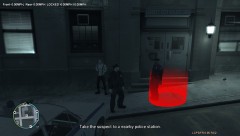 2012 01 21 00065
-
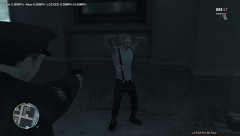 2012 01 21 00064
-
-
From the album: A day with the LCMO 1-21-2012
And it feels good to be home after a long day! -
From the album: A day with the LCMO 1-21-2012
So now, it is 11 AM the next day, time to go home! -
From the album: A day with the LCMO 1-21-2012
unfortunately, this man got in the way, and wouldn't stop when we wanted to talk to him. He eventually jumped inot the water, then got back on the dock, where he tried to run from us there, but gave up. Strangely enough, he seemed to have no drugs on him (unless it fell out, or washed away in the water.) -
From the album: A day with the LCMO 1-21-2012
Got a call about a suspicious suicidal person, so we took the call. -
From the album: A day with the LCMO 1-21-2012
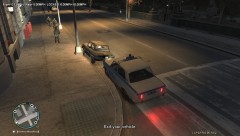
This guy ran a red light. According to the computer, his first time, so we gave him a warning not to do it again. -
From the album: A day with the LCMO 1-21-2012
and after that, he went back to the station with us. -
From the album: A day with the LCMO 1-21-2012
after asking him to step out, I did a seach of the vehicle to make sure it wasn't used in the transport of illegal goods. -
From the album: A day with the LCMO 1-21-2012
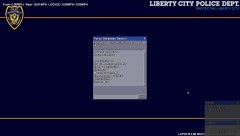
Looks like he was on a suspended licnese too, so I guess I'll have to arrest him here. -
From the album: A day with the LCMO 1-21-2012
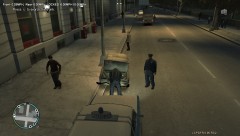
She stopped in the middle of the intersection, and had a hard time starting up, so I pushed him over to the other side.