
TrentMU
Insiders
-
Joined
Everything posted by TrentMU
-
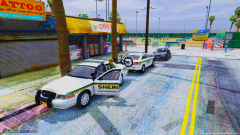
From the album: My GTA V Fleet
LSCSO Preparing for some Bike Patrols at the beach! Slowly but surely updating the skin adding more divisions, editing and changing a few things. Currently fixing the window texture up then next will be a few more cars to the fleet. Shout-Out to T.Swift for the models! Really digging the bike rack on the squad car! -
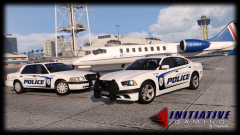 Still think the older style vic skin looks better.
 -
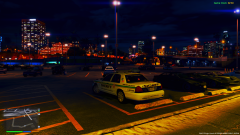
From the album: My GTA V Fleet
Got the idea off someones skin on here and decided to make it myself, Might not be as good but it did come out pretty sexy -
 I wanna say its called Real Life Graphics
 -
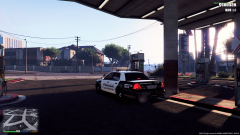
From the album: My GTA V Fleet
Installed myself a new graphics mod and thought this was a neat picture -
 Yeah, I probably could do that, I wanna update it more because theres a lot of blank spots on it for GTA V.
 -
Right now they are private, Maybe I'd release them but I am not much on releasing stuff.
-
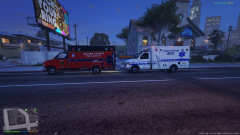
From the album: My GTA V Fleet
Figured I might as well transfer over my Larkwood EMS Skin (Outfitted for Los Santos) and my Alderney County FR (Outfitted for Blaine County) to GTA V -
-
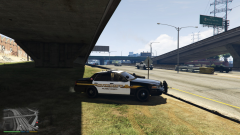
From the album: My GTA V Fleet
Well, I got super bored over the weekend and decided to throw mods in GTA V. Skin is based off of San Joaquin County Sheriff Skin by Me Car by Carper -
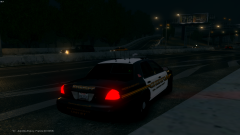
From the album: My Fleet
Started to work up on the SJSD Units now. Models by Stinkace Skins by Me Ped Models Unknown Ped Skins by Me -
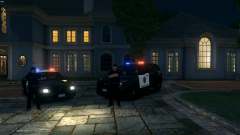
From the album: My Fleet
Stockton Police Department has become a reality now in IV. Models by Stinkace Skins by Me Ped Models Unknown Ped Skins by Me -
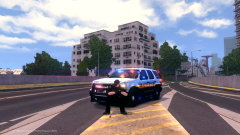
From the album: My Fleet
Decided to do San Joaquin and Stockton again for IV, I am pleased how it all turned out -
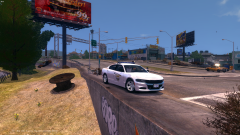
From the album: My Fleet
Ohio State Highway Patrol '16 Charger Model by Stinkace2 Skin by Me -
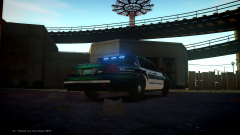
From the album: My Fleet
Just something I was working on a while ago for a clan, back in the Havasu days, Decided to update it a little bit. Not sure what I think about it -
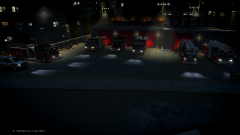
From the album: My Fleet
Well, Here is the famous FDLC Fleet made by Stinkace2! Below is the video previewing all of the units that are in it! PS The Beast is the best one(Rescue 3) -
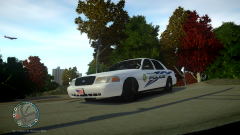
From the album: My Fleet
TSPD Chilling awaiting for any traffic violations -
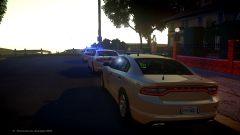
From the album: My Fleet
Well, The charger is pretty much complete, All I gotta do is fix up the skin and that sexy beast is gonna be fully operational! Thank you stinky for my future car -
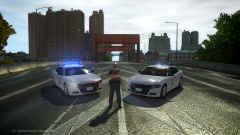
From the album: My Fleet
Looks like me and Stinkace got a new little project we are working on. My home states brand new 2016 Dodge Charger. Model and skin are still a WIP but should be done soon. -
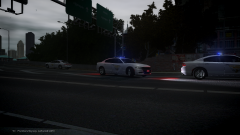
From the album: My Fleet
Looks like me and Stinkace got a new little project we are working on. My home states brand new 2016 Dodge Charger. Model and skin are still a WIP but should be done soon. -
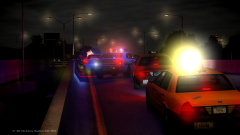
From the album: My Fleet
PCSO Out on a single vehicle crash -
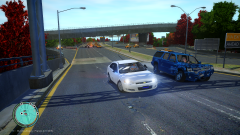
From the album: My Fleet
Dude, I don't think your car can take it anymore just stop. -
From the album: My Fleet
New Computer is liking GTA IV I see, just need to finish getting it back up fully before I start modding once again. Charger can be found on here! Skin is made by me(It comes with one I just use my skins) -
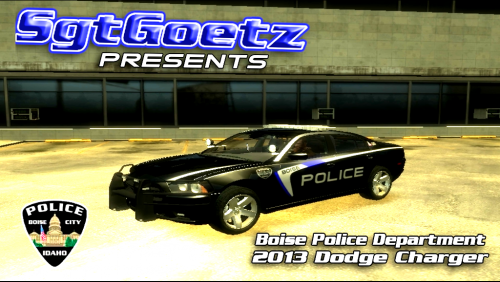 Looks like it's time to throw on my skins I made for Boise, Did their Breast Cancer, Bicycle Safety and Patrol Unit
- 3 comments
- 1 review
-
-

- 1
-
-
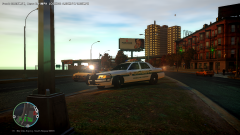
From the album: My Fleet
New Computer is liking GTA IV I see, just need to finish getting it back up fully before I start modding once again. Shout-Out to Stinkace for the fleet <3