INSAN1TY
Members
-
Joined
-
Last visited
Everything posted by INSAN1TY
-
 Pretty cool
 -
-
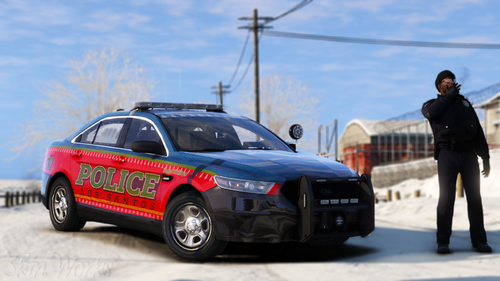 Typically all holiday skins (Christmas, Halloween, etc) are terrible, low quality. But these are very high quality and the design looks so clean. Very very good job!
- 4 comments
- 2 reviews
-
-
-
Okay... That's awesome.
-
-
 cool stuff stuff stuff
 -
-
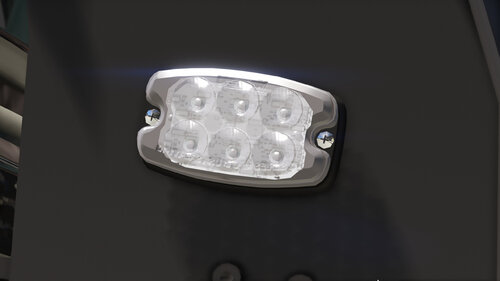 Hot.
Hot. -
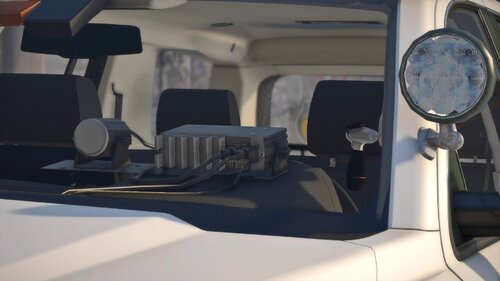 This is so hot, like extremely hot. So hot that I am sweating rn all over my body.
 -
-
-
I went back and put LSPDFR and all the scripts I can confirm that work on a different GTA V folder and it worked perfectly fine. Thanks for the help 😄
-
I got rid of all the files completely, if there are any like .xml files or anything then no. I don't remember deleting those.
-
Last night LSPDFR/RPH was working completely fine. I install RDE game works but crashed about five minutes in. But now RPH won't even get pass the loading screen when I am loading up. It crashes after "Loading Game and Populating World" or something like that but after that it stops working and crashes. So no plugins are loaded in. RPH Log https://pastebin.com/9ny6GzjV I tried so far: -Disabling the Mods folder -Uninstalling RDE -Verifying Game Cache in Steam I can provide more detail if needed, but not much I can add
-
-
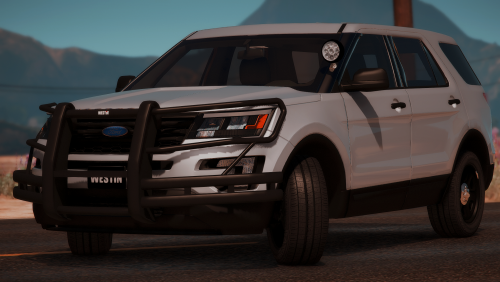 I love ittttt
 -
-
-
-
-
-
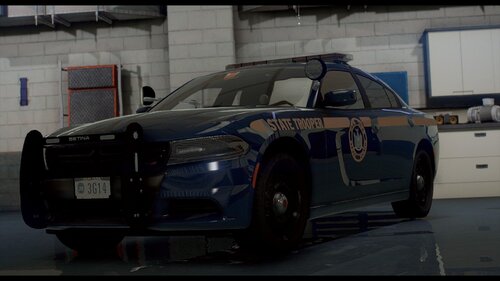
 That is beautiful! What do you use for screenshots if you don't mind me asking??
 -