.jpg.e891f29aa7e4ee9b573d99a5dfa67c58.jpg)
Prophet
Members
-
Joined
Everything posted by Prophet
-
-
 Thanks for such a beautiful release my man!
 -
-
 You fucking tease.
 -
Lol worst one. Mapping is completely fucked. Tires are floating. Glass doesn't break. Front Lights are halfway inside the model. Front fender is an extra. Interior gauges don't work. Interior hand placement isn't matched to wheel. Taillight and reverse light are of horrible quality. No partition. Spotlight is attached to door. = Best Model?
-
same :(
-
-
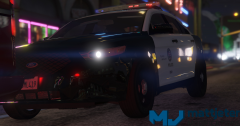 Very nice indeed.
 -
-
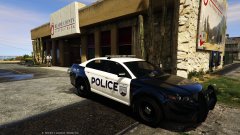 very nice!
 -
_(24).jpg.d1bfc8e967e88d5680587cd86d6e426e.jpg) I think this is what they call an erection.
I think this is what they call an erection. -
I did.
-
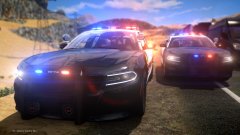
_(22).jpg.810d1fba140e1a612d7cb0f4c7d3102a.jpg) Is that a Whelen Justice?! May the good lord have mercy. Hnnngggggg...
Is that a Whelen Justice?! May the good lord have mercy. Hnnngggggg... -
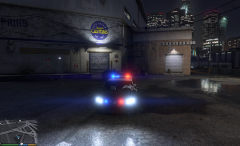 Check it out in action here guys!
 -
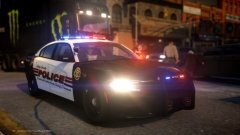
_(15).jpg.edcbb9f72a1b03632ebc719971dcd005.jpg) So hard right now for this beauty.
So hard right now for this beauty. -
-
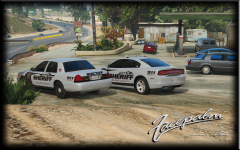 Lol. Liberty City Plates on that CVPI? Ya fucked up. Nice skins though!
 -
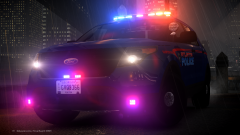 Was this ever released?
 -
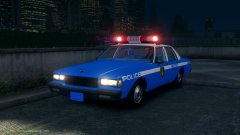 Four words. Hurry. The. Fuck. Up.
 -
I fucking love you.
-
 I love you!
 -
Legal reasons bud.
-
You better believe.
-
The Red and Blue lightbar car in the video is the GTA V default system.
-
Come in! Enjoy the discussion, as well as updates pertaining to the ELS-V modification by @Lt.Caine. Developers: @Lt.Caine and @LMS Official Testers: @Bxbugs123, @Prophet, @GravelRoadCop, @Albo1125 and @PoliceWag. Video Previews on ELS:
.thumb.jpg.f7d19f85fad406630fb24c5fa819cf86.jpg)
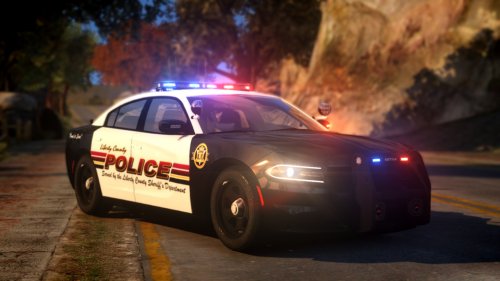

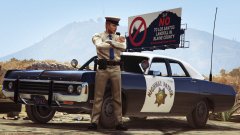
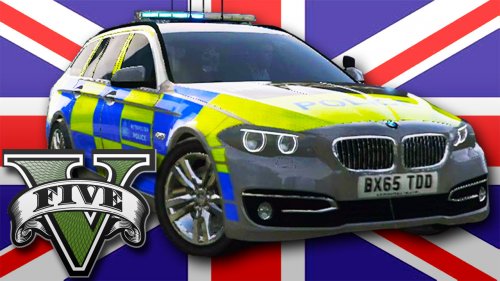
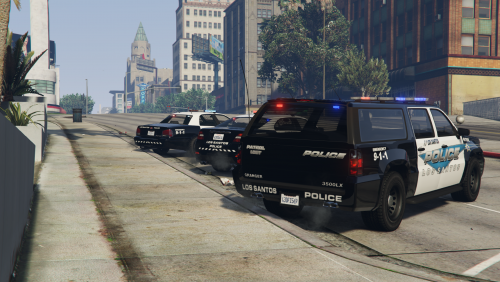
_(24).jpg.d1bfc8e967e88d5680587cd86d6e426e.jpg)
_(22).jpg.810d1fba140e1a612d7cb0f4c7d3102a.jpg)
_(15).jpg.edcbb9f72a1b03632ebc719971dcd005.jpg)