


Reddington
Members
-
Joined
Everything posted by Reddington
-
From the album: Red's LSPDFR chaos
-

From the album: Red's LSPDFR chaos
-
From the album: Red's LSPDFR chaos
-
From the album: Red's LSPDFR chaos
-
 Thanks for all your help, people like you are what members of this community should always strive to be! For everyone else, I'll spend the two seconds it takes to get the link for everyone else's convenience, however I have no idea if either of these are it. or
 -
@J T Can you please link to this texture pack?
-
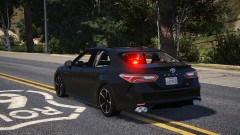
From the album: Red's LSPDFR chaos
-
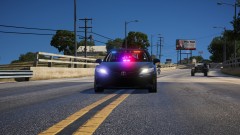
From the album: Red's LSPDFR chaos
-
-
It kinda depends on what you're editing. Can you please attach the vehicles.meta document here and tell me again which slots you're having issues with, and which one is the FPIU.
-
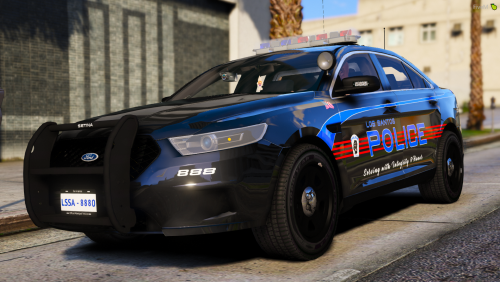 This is probably my new favorite LSPD texture. I love the combination of colors - all of which are my favorite. Thanks for doing my request!
- 10 comments
- 3 reviews
-
-

- 1
-
-
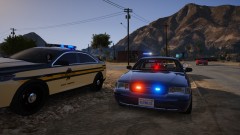
From the album: Red's LSPDFR chaos
-
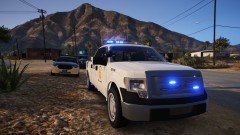
From the album: Red's LSPDFR chaos
-
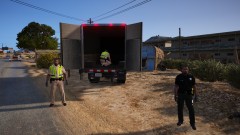
From the album: Red's LSPDFR chaos
-
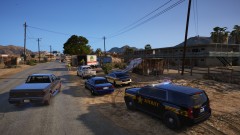
From the album: Red's LSPDFR chaos
-
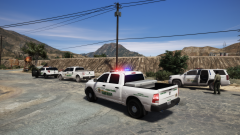 Is this a texture pack? if so, can you link to it please.
 -
Can you clarify on this - You're taking the vehicles.meta line for the gresley and pasting it over a police line, correct? Are you making any edits to the meta after that?
-
There is a pinned topic at the top of this section which tells you the best handling lines to use. Use the gresley handling for Explorers.
-
Locked/unlocked is for vehicle developers only, if you're just a player, it means absolutely nothing at all. Locked = the model cannot be edited. Unlocked = the model can be edited.
-
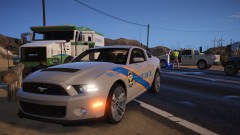
From the album: Red's LSPDFR chaos
-
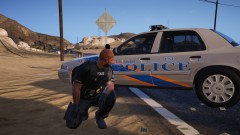
From the album: Red's LSPDFR chaos
-
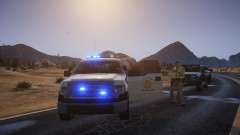
From the album: Red's LSPDFR chaos
-
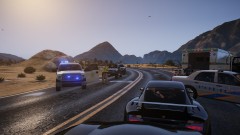
From the album: Red's LSPDFR chaos
-
I can't really help with that, as I don't play fivem.
-
I mean, you should've had a "mods" folder, which is like a protective shell. All your game file changes and car additions should go here. (Example: mods-->x64) Vanilla means your actual game files. (Instead of going through a mods folder first, you go directly to x64) If you didn't use a mods folder, your only option is to verify integrity of game cache to get vanilla sirens. Or just download a different one.

