


Reddington
Members
-
Joined
Everything posted by Reddington
-
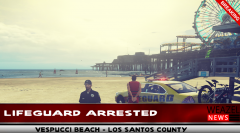 Mags, what did you use to make the news graphic?
 -
Alright, open up the .INI for TrainerV. Look for: Change 33 to 0. However, this only disables that one keybind. In game, open TrainerV, and click the right arrow button to go to the second page of TrainerV's options. You will see a "keybinds" option. Disable this.
-
Sometimes modding can be difficult like that.
-
You could move your mods folder to your desktop, start the game and load in, then exit out and put the mods folder back, see if it's recognized. However, the main issue may be that the mods folder contains files from a previous version and not the updated one. It may come down to you needing to delete the mods folder and remaking it. You could try moving your mods folder to your desktop, making a new one, and getting that one set up properly and seeing if it works. If it does, you know it's a problem with the old one.
-
Did you try and save any files in the update.rpf from your previous game? The issue could be that the mods folder needs to be remade.
-
When you updated your game, did you remake the mods folder, or no?
-
In OpenIV, go to tools / ASI manager. Make sure ASI Loader and OpenIV.asi are enabled.
-
Did you also update the update.rpf in the mods folder?
-
The trainer? or the option? The trainer is Simple Trainer, and the thing to disable is "keybinds".
-
This is part of your trainer. You can either open the trainer in game and disable keybinds, or open the trainer's .INI and disable them there.
-
Are you positive you installed Police Smart Radio correctly? I'd uninstall and do a fresh install of it.
-
I'm not entirely sure if this mod still works. It worked the first time I tried using it, then never again. https://www.gta5-mods.com/vehicles/mtl-flatbed-tow-truck
-
I can't imagine what correction officers in Russia have to deal with, but I can imagine how bad the prison itself would be. Though, to be fair, I am imagining an old, crappy building, which might not be accurate at all.
-
I've never used RDE, so I don't know if there is an easy way. You might just have to do it manually.
-
Take your time and get better. :)
-
Unfortunately no. RDE needs to be updated for it to work with the latest versions.
-
1) You have to actually be in an active pursuit/call and on scene for backup to do anything.. 2) Go to the RagePluginHook Settings ---> Game settings ---> Command line switches check "Force Windowed mode" and "Force DirectX11" then save and launch. You can change back to full screen once in game.
-
The Shield was such an amazing show! I loved it. Need to rewatch at some point,
-
You're welcome.
-
The only tow truck callouts are the default ones as Franklin and Tonya Tow jobs. Other than that, the towing scene is very scarce. I mainly just roleplay it out when doing tow patrols. Sucks there's no actual callout, but you do find a lot of illegally parked cars and un-roadworthy vehicles. https://www.gta5-mods.com/scripts/tonya-tow-jobs-net
-
I'm almost positive Redux is not compatible with recent GTA versions, and nothing can fix that aside from the mod being updated.. You could check the Redux download page and see if it has been updated, or if the author has any plans to update it. I refuse to believe that's without any ENBs. :P It looks far too good to be GTA V vanilla.
-
You're welcome. :)
-
You're welcome. :)
-
Try installing RadianceV, please.
-
A lot of prisons offer various programs that are designed to help the person. Still, there are some that will not ever change and don't want to.

