


Reddington
Members
-
Joined
Everything posted by Reddington
-
A lot of people have this mentality. "Give them guns, problem solved!" "How do we deal with criminals? Hire more cops!" "How do we deal with terrorists? Deport all foreigners and not let any in!" (That is an example, albeit true) Arming a firefighter with a water hose doesn't prevent the fire from starting, so why would that scenario work in any other circumstance? We can try our damndest to prevent attacks before they happen, but we will not always be able to. This will never change. Instead of arming the police force thinking it will solve all the problems, lets put some tax dollars into CTU (Counter Terrorism Unit. Not sure what it's called in the UK) and their effort to find terrorists and planned attacks.You're welcome. :) Please check out my tutorial on installing standalone cars. If you need any help with the process, just ask. :)Smart Radio also requires BetterEMS.RDE is not compatible with recent versions of the game. Best to uninstall it and wait for an update. If you're not already, you can follow the progress here -I knew there had to be something else causing issues, lol. Glad you got it. :)Make sure that you have a folder on your desktop with the siren.awc and the vehicles folder.Make sure you have Traffic Policer installed.
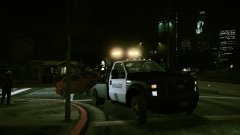
From the album: Red's LSPDFR chaos
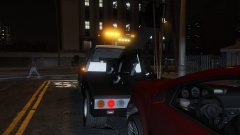
From the album: Red's LSPDFR chaos
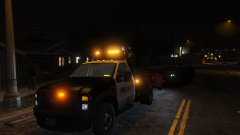
From the album: Red's LSPDFR chaos
You're welcome.So the problem is either with the cars, or VisualV, which is highly unlikely. Please try a different car pack.Remake the mods folder again, please. This time, do not install anything at all. Once you have the mods folder remade, please go in game and try to get in sheriff2. If it still crashes, you will need to verify integrity of game cache.I would be cautious about downloading them online, you never know what someone has done to a file. Glad you got it sorted.You did re-add the mods folder, right? Please list all of the mods you currently have in your game.So you replaced the vanilla handling? Please open your GTA V directory (not in OpenIV). Move your mods folder to your desktop, then verify integrity of game cache. This should get your vanilla file back. Once this is done, load into your game and make sure it works and you can actually load in. Just so you're aware, you can add 64W and the other letters such as x64e to your mods folder. :) That's something you can do once we get it back up and running.You're welcome! Good luck.Your best bet would be to start back peddling. While you didn't make backups, I assume you used a mods folder, correct? You'll still have backups of these files. In OpenIV, go into update (not in the mods folder) and go to where you installed the handling.meta. Once there, extract the meta to your desktop, then go back into the mods folder to where the handling.meta is located and add the one from your desktop.Good luck. :)Please try uninstalling LA Roads.I don't have any experience using that mod, so I'm unaware if it can cause something like this. Did you edit the vehiclelayouts.meta or the vehicles.meta?You're welcome. :)Unfortunately, because you can't remember what it was you installed, your only option would be to redo your mods folder entirely. It would be very helpful if you could try and remember what you added, because it's going to be hard for me to try and take guesses as it could've been anything.Actually, both of these are 100% realistic. In real life officers will blip their siren when pulling someone over. Granted, some will let the siren play a bit longer. The swearing part I can understand for some who might not like swearing. Unfortunately, I'm not entirely sure if there's a way to 'fix' that. There is the Family Friendly Free Roaming mod, but I'm not sure if that applies to AI drivers. https://www.gta5-mods.com/scripts/family-friendly-free-roaming


