


Reddington
Members
-
Joined
Everything posted by Reddington
-
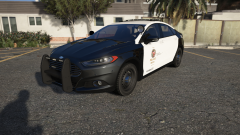 It's pretty easy to hate on new things that replace the old. It's what we commonly see on these forums even, people don't want to conform to change so they relentlessly hate on the new and point out every single little flaw they can find.
 -
Did you replace the actual audio hash? 0x14BFBCE3 is what you'd be replacing with the bullhorn you want.
-
Voici le lien. https://www.lcpdfr.com/forums/forum/65-forum-franã§ais/
-
This topic has been moved to the appropriate forum. Please post in the correct location in the future.
-
The only way you'd be able to utilize multiple bullhorns is replacing the firetruck horn's audio hash, and then opening the ELS VCF for the car and putting in VEHICLES_HORNS_FIRETRUCK_WARNING where MainHorn AudioString="SIRENS_AIRHORN" /> would be. This topic has been moved to the appropriate forum. Please post in the correct location in the future.
-
You're welcome. :)
-
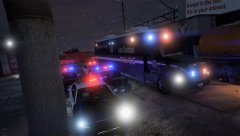 The command truck looks sexy.
 -
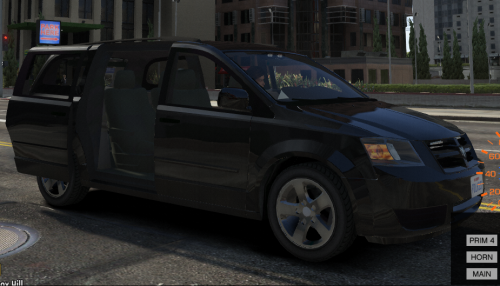 It still needs a carvariations, though. Without one it'll most likely spawn looking weird, as the carvariations also controls how the vehicle spawns and how it looks aesthetically (as in colors). @LtRob You don't actually need a specific carvariations. Use the one I provide in this topic:
- 26 comments
- 10 reviews
-
Your topic has been moved to GTA V Support, this is not LSPDFR related. Please post in the correct location in the future.
-
Open the ELS VCF that came with the car, and look for "Lstageactivation", it'll be set to "auto". You can change this to one of two things in order to get all three stages: manual - This will start from stage 1 lighting to stage three. First click is stage 1, second click is stage two, and third is stage three. invert - This inverts the above stages, so the first click is stage three, second click is stage two, and third is stage one. Just change "auto" to either of the above.
-
It's such a sexy car. I just wish someone would've made a new LSPD based texture for it.
-
Brandon, You previously already had a topic in this section, but since it was outdated I removed it. In the future, please edit your original topic and stick with it. Also, this section is meant to showcase your work, we don't allow any requests here, as such I've removed the last part of your post. You're more than welcome to view the request forum for any texture requests, as well as edit your signature and/or profile about me to add info about making requests.
-
This topic has been moved to the appropriate forum. Please post in the correct location in the future.
-
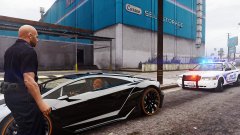 Lol, it actually wasn't even a traffic stop. The guy was just sitting there doing nothing.
 -
From the album: Red's LSPDFR chaos
-
From the album: Red's LSPDFR chaos
-
From the album: Red's LSPDFR chaos
-
Please attach the vehicles.meta and carvariations that contain the info for these vehicles.
-
This topic has been moved to the appropriate forum. Please post in the correct location in the future.
-
I know you can force certain extras, but I don't think you can disable them entirely.Hi there, I'm sorry, but I'm not understanding what you're asking. Are you trying to force a vehicle extra to stay on?Probably, but I don't know of any map modders. You could go over to GTA 5 mods and look through the maps section, maybe suggest it on a few other maps. https://www.gta5-mods.com/Use the very newest/highest number patchday. Older patchdays don't work for vehicles anymore. Your topic has been moved to GTA V Support, this is not LSPDFR related. Please post in the correct location in the future.


