


Reddington
Members
-
Joined
Everything posted by Reddington
-
You're welcome. :) For Tahoes, use baller
-
Are you using a mods folder? Did you enable OpenIV.asi and ASIloader in OpenIV?
-
Use the gresley Gresley is GTA V's version of the Explorer.
-
Make sure youre using the newest patchday, which is the highest numbered one.
-
Are you able to spawn and drive them?
-
This topic has been moved to the appropriate forum. Please post in the correct location in the future.
-
Did you install them as standalone/add-ons? Your topic has been moved to GTA V Support, this is not LSPDFR related. Please post in the correct location in the future.
-
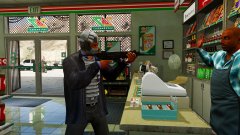
From the album: Red's LSPDFR chaos
-
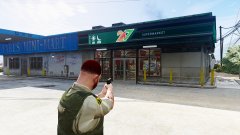
From the album: Red's LSPDFR chaos
-
Your topic has been moved to GTA V Support, this is not LSPDFR related. Please post in the correct location in the future.
-
You're welcome. In the future, check the GTA V support section. I have a topic at the very top that has a bunch of frequently asked questions/issues.
-
This user hasn't logged on since May of last year, so chances are this isn't going to happen. Gonna close since this is an old topic, but if OP logs on and still wants this done, report this post and ask for it to be reopened. If you feel this topic has been closed in error, please report this post.
-
To my knowledge, no there isn't, and I highly doubt that is even possible to do currently.
-
The security check that is in place is not as difficult as you're making it out to be. I admit, sometimes the background on the security check makes it harder, but just try and type it out and if you get it wrong, then you might get a better image. Here is an example of one that might be a bit difficult - Refresh the page and try a different one. We can't satisfy everyone, there will always be someone that complains about the captcha we used for whatever reason, but what it comes down to, we have to have a captcha system in place. There's no getting around that. This topic has been moved to the appropriate forum. Please post in the correct location in the future.
-
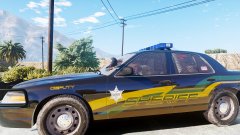
From the album: Red's LSPDFR chaos
-
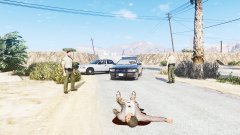
From the album: Red's LSPDFR chaos
One deputy DOA and a suspect DOA. Still trying to piece together exactly what happened here, but initial theories are that the deputy was responding to a suspicious person, who opened fire once the deputy arrived. -
Don't worry, someday you'll look old as well. :P
-
The OIV installer must've installed the ped files in a different location, but I have no idea where, and only you know if you used the mods folder or not. My advice is to redownload the pack containing the OIV installer. When the zip archive opens with the OIV in it, double click the OIV file. The file should open up. From here, you might be able to see where it installed the files.
-
Sorry, we do not allow fivem based requests. You might wanna check out the fivem community forums. If you feel this topic has been closed in error, please report this post.
-
At least we won't have to wait too long for it.
-
This topic has been moved to the appropriate forum. Please post in the correct location in the future.
-
Your best bet would be to check the fivem forum, as this is for LSPDFR. Closing as we don't allow fivem content, which includes fivem ads, which this topic will produce. If you feel this topic has been closed in error, please report this post.
-
Default, or whichever has the vanilla ped files.
-
You'll extract them to your desktop, then go and re-add them.
-
Verifying integrity should 100% revert all modded files back to vanilla. Go into the x64e and extract the vanilla peds you replaced. Now, go back to the vanilla portion of your directory you replaced with modded peds. Drag and drop the vanilla ones back in. Remember to click "edit mode" before dropping the files, and after.


