



PNWParksFan
Insiders
-
Joined
-
Last visited
Everything posted by PNWParksFan
-
I managed to get an all-red lightbar working on the Edge variant, so an all-blue lightbar should be doable too. I'll send you the texture later tonight.
-
Hmm. I use both with no problems. What issues do you have with traffic police when custom backup is installed? Can you upload your ragepluginhook.log, custom backup.XML, and custom backup INI file?
-
Do you want this for LSPDFR backup, or for general gameplay?
-
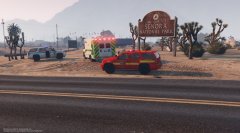
From the album: PNWParksFan WIP and screenshots
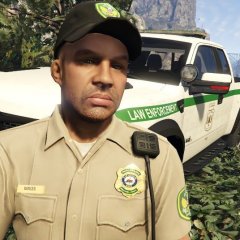
Blaine County Fire EMS skin and US National Park Service Law Enforcement skin for upcoming Tahoe by @nicks0112. Fire skins and modified red lightbar textures by me. Park Service ambulance skin is released. -
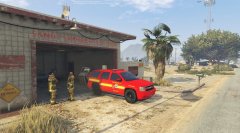
From the album: PNWParksFan WIP and screenshots
Blaine County Fire skin for upcoming Tahoe by @nicks0112. Fire skins and modified red lightbar textures by me. -
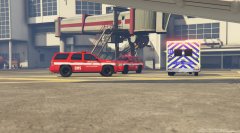
From the album: PNWParksFan WIP and screenshots
Los Santos Fire and Blaine County Fire skins for upcoming Tahoe by @nicks0112. Fire skins and modified red lightbar textures by me. -
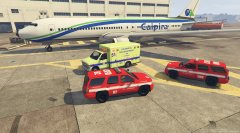
From the album: PNWParksFan WIP and screenshots
Los Santos Fire skins for upcoming Tahoe by @nicks0112. Fire skins and modified red lightbar textures by me. LSIA Fire Ambulance skin available for download. -
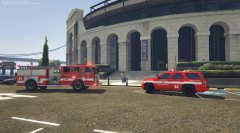
From the album: PNWParksFan WIP and screenshots
Los Santos Fire and Blaine County Fire skins for upcoming Tahoe by @nicks0112. Fire skins and modified red lightbar textures by me. -
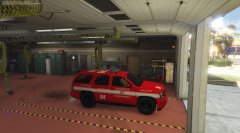
From the album: PNWParksFan WIP and screenshots
Los Santos Fire and Blaine County Fire skins for upcoming Tahoe by @nicks0112. Fire skins and modified red lightbar textures by me. -
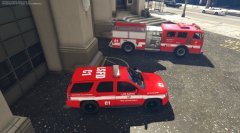
From the album: PNWParksFan WIP and screenshots
Los Santos Fire and Blaine County Fire skins for upcoming Tahoe by @nicks0112. Fire skins and modified red lightbar textures by me. -
Yeah, I'm hoping to eventually implement some better functionality in terms of giving non-dead peds to EMS. If you have the vehicle search mod installed, you'll get healed any time you search an ambulance.
-
I can't guarantee everything since I don't think everybody is having this issue. But I was successfully able to get all 5 of my 2k textures on one model without it crashing. When I tried to put in even 2 of my 4k textures it crashed.
-
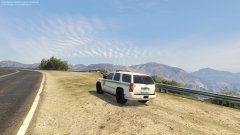
From the album: PNWParksFan WIP and screenshots
Working on a 2016-style US Park Ranger skin for @nicks0112's upcoming Tahoe. -
I've had some similar issues. The files don't seem to work with multiple 4k liveries. If you want multiple liveries at once, you need to downsize them all to 2k. But as Daquan said, you can also just delete the unwanted skin if you won't be using multiple slots. I created some skins for the new chargers, and just updated them to include 2k skins to fix this issue. The readme has more info on how to deal with it.
-
Glad to hear it! Hope you're enjoying the mod :)
-
Looks perfect to me! Copy that in under the <LocalPatrol> section and it should work for ya, assuming all those vehicles are actually installed.
-
What text editor are you using? It might help to use something which is designed for editing XML. If you have Visual Studio installed, use that. Otherwise, try Notepad++. The way XML works is it's a series of opening and closing tags. <TagName> opens a tag, and </TagName> closes it. That's how you tell where one part ends and another begins.
-
Direct link: http://docs.ragepluginhook.net/html/62951c37-a440-478c-b389-c471230ddfc5.htm
-
-
-
Where is "here"?
-
I did specifically ask you to post in the discussion thread for this mod, which @The Loot linked to above. As to your problem, The Loot is correct that your XML file is malformed. You need to upload the full RagePluginHook.log. When the mod gets loaded it saves various debug information to the log, which doesn't appear to be included in your log file. The fixed XML posted by The Loot should work. Try that, and if you're still having issues, please follow the support instructions from the PDF.
-
-
I have not created any such video. If somebody made a good video tutorial I would post it on the download page. What part are you having trouble with? Perhaps I can help? If somebody wanted to create a GUI program for editing the CustomBackup.xml, they can PM me and we can discuss that possibility. I don't have the time right now to do that myself though.
-
.thumb.jpg.61de846de400ca98f85d205992527de1.jpg) If you want a more lore-styled texture than the one included, I created LSPD, LSSD, and SAHP skins: http://www.lcpdfr.com/files/file/10475-4k-lspd-lssd-sahp-and-sahp-cve-textures-for-carpersbxbugs-2014-chargers/ Have you messed with carvariations.meta for whichever slot you installed it in?
If you want a more lore-styled texture than the one included, I created LSPD, LSSD, and SAHP skins: http://www.lcpdfr.com/files/file/10475-4k-lspd-lssd-sahp-and-sahp-cve-textures-for-carpersbxbugs-2014-chargers/ Have you messed with carvariations.meta for whichever slot you installed it in?- 265 comments
- 83 reviews

.thumb.jpg.61de846de400ca98f85d205992527de1.jpg)