


A Stranger
Members
-
Joined
-
Last visited
Everything posted by A Stranger
-
Can you show me commandline.txt?
-
1. You are missing files for CoastalCallouts. Make sure you install the LML Package + Plugin correctly. 2. Bejo's plugins load fine.
-
Yep, that means your mods folder is causing the issue. The underscore simply disables it.
-
Please send your asiloader.log (Found in your GTA V folder) and a screenshot of your GTAV/ELS/Pack_default folder.
-
According to your error your ScripthookV is outdated. Delete your and get the latest from: http://www.dev-c.com/gtav/scripthookv/
-
Well, it only comes with vehicle files and its ELS VCF. So you need to create the vehicles.meta; carvariation.meta and maybe handling.meta yourself. 1. Install Albo's MODDING DLC. (https://www.gta5-mods.com/misc/modding-dlc-pack-v) 2. Install a custom gameconfig, heap and maybe Limit Adjuster if needed. 3. Place the FBI model files in the vehicles.rpf of the MODDING DLC. 4. Rename them to whatever. (like f.ex "camaro") 5. Locate the carvariations.meta and paste Albo's template and change the name. (The templates come with the MODDING DLC) (Make sure SirenSettings is set to 1.) 6. Copy the "FBI" slot out of the original vehicles.meta (mods/update/update.rpf/common/data/levels/gta5) 7. Paste it in Albo's MODDING DLC's vehicles.rpf. 8. Change the ModelName TxdName GameName to "camaro" f.ex. 9. Change the <audioNameHash> to police or something else. <audioNameHash>police</audioNameHash> 10. You're done.
-
Remove SimpleCallouts.
-
it's a text file in your GTA V folder.
-
Make sure you have the following links installed after you installed car packs and add-on cars: Gameconfig; choose 1x Traffic 1x Peds or 1.5x: https://www.gta5-mods.com/misc/gta-5-gameconfig-300-cars Heap Limit Adjuster: https://www.gta5-mods.com/tools/heap-limit-adjuster-600-mb-of-heap or for more memory: HeapAdjuster: https://www.gta5-mods.com/tools/heapadjuster
-
There is a difference between LSPD:FR plugins and RPH Plugins. 1. LSPD:FR Plugins go to /Plugins/LSPDFR 2. RPH Plugins go to /Plugins Make sure to read their instructions carefully. Please send a RagePluginHook.log.
-
Probably because you removed files. Reinstall LSPD:FR manually.
-
1. Clean commandline.txt in your GTA V folder. 2. Rename mods to _mods.
-
Simply drag & drop it into the message bar or use the "Attach" function.
-
Please send your RagePluginHook.log.
-
Don't delete vanilla files. Ever. If you put your replace cars in Patchday25ng (where they belong) then it overwrite the other files. If it still doesn't work; create a custom carvariations.meta for it.
-
I recommend cleaning your GTA V folder. (ScripthookVdotNet etc.)
-
Extract them as a .png (sort by size) and use f.ex Paint to scale them to a lower resolution.
-
Try renaming your mods folder to _mods and then retry.
-
Remove in /Plugins/LSPDFR: ALPRPlus; RegularCallouts;
-
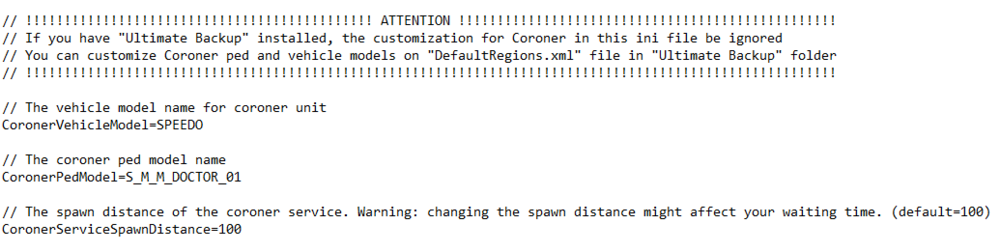
Edit the StopThePed.ini:
-
You're in the wrong support section. This is for GTA V and LSPD:FR.
-
There is no proper crash in your log. Do you have anything in your mods folder?
-
I recommend using MVGA's visual settings file. It won't blind you. The inside of cars are different, but that's something R* just does.
-
Change the plugin timeout threshold from 10000 to 60000 in the RagePluginHook.ini file; found in your Grand Theft Auto V folder. Then change Main.PreloadAllModels found in GTAV\LSPDFR -> LSPDFR.ini to false.
-
Do you have StopThePed? If so, please disable the RealisticWeaponSystem ingame with "G" or in the StopThePed.ini.




