BlaineBug
Members
-
Joined
-
Last visited
Everything posted by BlaineBug
-
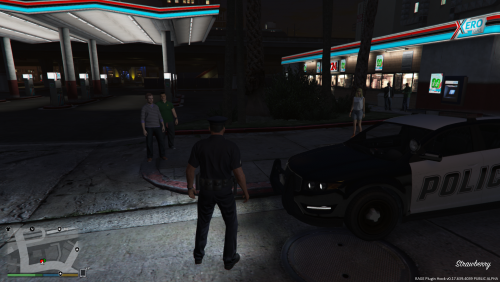 That is true, I have never seen it not start an immediate pursuit. Thanks for your reply!
- 423 comments
- 73 reviews
-
 Nice manual tone there. I assume that you replaced the vehicle horn somehow? Too bad those other quirky vanilla siren tones can't be removed when you hold the horn button down.
- 45 comments
- 11 reviews
-
" Police Impersonator - Suspect now wears clothing to make himself look like an officer I tried to make him drive police vehicles (to make it look like his car has lights), but LSPDFR does not allow the player to pull over police vehicles" I thought that the stolen police vehicle call out worked fine when attempting to pull them over.
- 423 comments
- 73 reviews
-
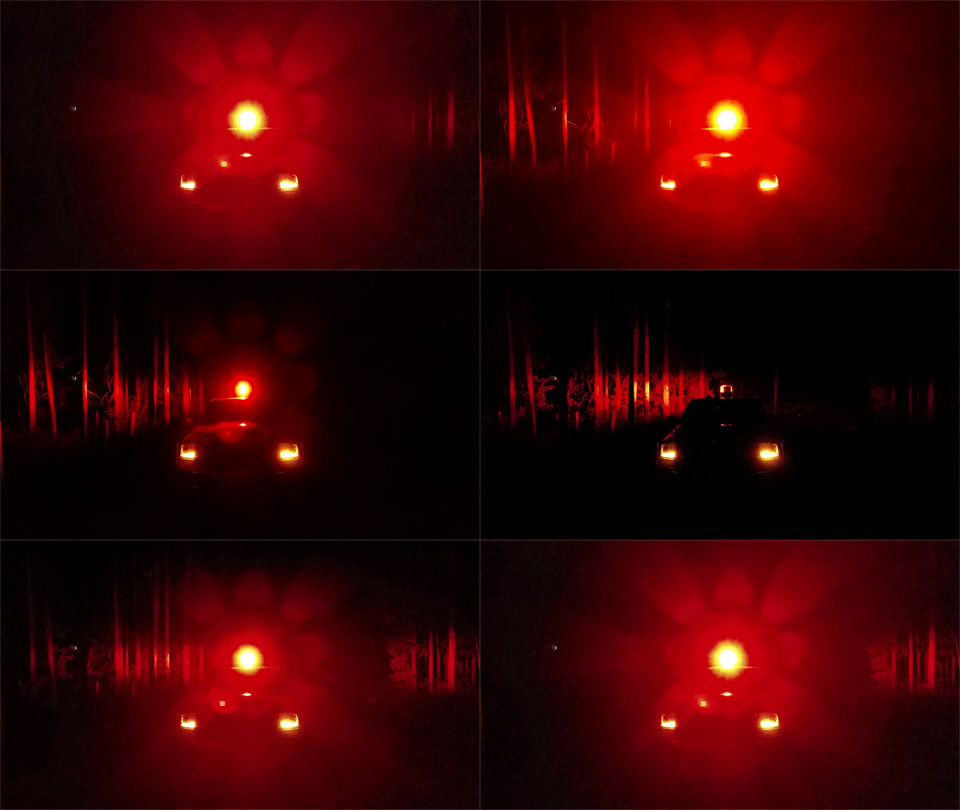 I use the Code 3 Mastercom tones in place of the Federal Signal Smart Siren tones. Much louder. In fact, I use the Mastercom tones in place of all Police, Sheriff, and FIB siren tones as well. Very nice. The Smart Siren tones are great but they are too quiet.
- 316 comments
- 31 reviews
-
-
That is most likely a Police Interceptor with the Street Appearance Package. It features the same suspension and other features that all Police vehicles do, with a bit more chrome to "fool" the public into thinking that it's just Grandpa on his way back from the Doctor.
-
Not special order, but different interiors were offered. It looks close enough.
-
Just telling you about the seats. There were three interior colors offered. Black, tan, and grey.
-
The dash looks more of like the grey color, where as the seats look like more of the tan color interior offered with these cars. The wheels look absolutely wunderbar, though! :D
-
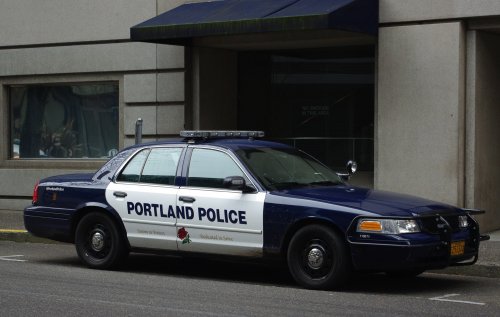
What year seats are you looking for? You can safely say you are modeling a 2003-2004 model with these alloy wheels. So that's what I'll give you, for now. It could also qualify as a 2005 model with those wheels, but in 2005, that was the only year that the AM/FM radio antenna was placed on the rear fender instead of in the rear window glass. Just one year ONLY for an external AM/FM antenna. Leather: You can see how the last year, 2011, had huge front headrests (below.) But the rest of the seat remains the same. 2003-2010 headrests all look like the photograph above. Plush Cloth: 2005 Model year rear passenger side AM/FM antenna. ONLY year with external antenna! (Mercury Grand Marquis shown in photograph) 1998-2004 steering wheel: (1998-2005 gauge cluster shown, no tachometer) 2005-2011 steering wheel: (2006-2011 gauge cluster shown, with tachometer)
-
Almost? You really do strive for perfection.
-
To be honest, I think that would be fine enough, even if it isn't 100% accurate. You know that the rest of the car model isn't going to be 100% accurate either. But everything is pretty damn close!
-
Great work on the Crown Victoria wheels! And your Gaz Volga has wheels on it that look similar to those found on late 1990s Jeep Cherokees and Wranglers.
-
I almost forgot. There was also an alloy Sport wheel available for 1998-2002 models. These are similar to the Sport/LX wheels available for 2003+ models, but feature a different offset.
-
That looks spot on for the 2003+ wheels.
-
-
Here are some other choices: 2003+ alloy wheels 2003+ alloy "Sport" wheels (Sport is the equivalent of the Handling and Performance Package, but renamed for 2003+ models.) I believe that these may have been used on "LX" models as well. 1998-2002 alloy "LX" wheels 2003-2006 steel wheels with wheel covers/hub caps 1998-2002 steel wheels with wheel covers/hub caps 1998-2002 steel wheels with wheel covers/hub caps
-
I have no idea what to tell you about that. I'm a hands on guy, but definitely not a programmer, graphic design, or computer modeler! :)
-
The wheel all of the way on the right looks like a close match to the wheel already shown by 55charlie, although that has thicker aluminum, and was a wheel that was only used for 2003+ base models. The center wheel doesn't look like any of the stock Ford wheels, though. It also appears to have simulation bead locks. I would imagine that the wheel all of the way on the left could be left as-is to replicate the stock Ford HPP wheels that were used up until 2002.
-
I will vote for the wheels on the right. I think that they look similar to the HPP "handling and performance package" wheels that were offered as an optional upgrade up until 2002.
-
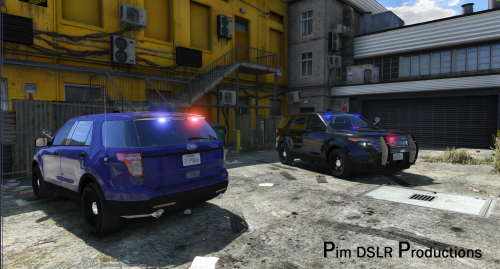 Flawless model! Installation was a breeze. Noticed 3 inaccuracies with lights: (1) Lights on pushbumper have two different colors that are mixed up.......red with blue and blue with red (for the LED color and then the flash color.) (2) Six lights in front windshield do not display LED color, only flash color. (3) Rear brake lights are white.
- 48 comments
- 18 reviews
-
Is there any way to increase the volume of the wail and yelp for the default Smart Siren tones? They seem to be softer and quieter while the rest of the tones seem to be the appropriate volume level.
- 316 comments
- 31 reviews
-
-
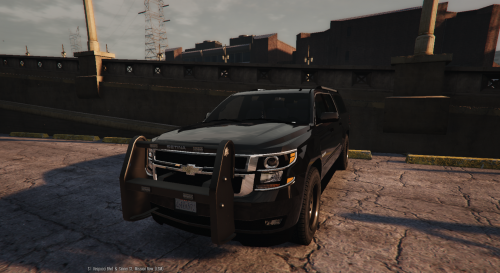 Model looks fantastic, but I noticed two negatives: 1) Push bumper seems to be invisible and will disappear inside of walls and such. The front of the vehicle where the hit boxes are is still the factory bumper cover behind the push bumper. 2) The bottom of the tires is below ground.
- 38 comments
- 21 reviews
-
Just plugins associated with LSPDFR, mostly all callouts, arrest manager, traffic policer, keep calm, more control, police radio......
.thumb.png.5fbbb989547defaeeb5c22864df62b54.png)