


GreenAid
Members
-
Joined
-
Last visited
Everything posted by GreenAid
-
Tutorial? For what? It's in the Car Options, 2nd page, spawn extras.
-
-
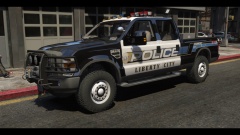 Yeah, long time ago Slimory. You will find it on here.
 -
Yeah you spawn the extras with trainer? Not rly hard.
-
![[WIP] NYPD Umarked Crown Vic](//s3-gallery.int-cdn.lcpdfrusercontent.com/gallery/album_2903/sml_gallery_12804_2903_2366172.png) You miss the chrome tho.
You miss the chrome tho. -
He says under it, ELS is disabled?
-
You can't do it cos it's locked.
-
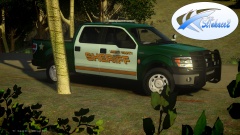 Looks sexy!
 -
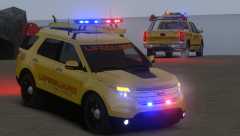 Dodge wheels.. just no pls.
 -
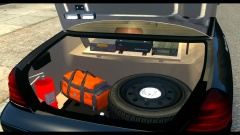 Polies: 10k & counting...
 -
![[WIP] FAGGIO INTERCEPTOR](//s3-gallery.int-cdn.lcpdfrusercontent.com/gallery/album_2498/sml_gallery_4103_2498_1345775.png) Dat rambar! Now you can head-on truck safely!
Dat rambar! Now you can head-on truck safely! -
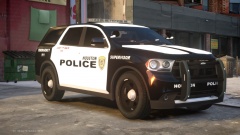 Who's lightbar is that?
 -
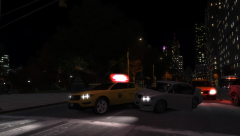 I prefer the rims on the civ.
 -
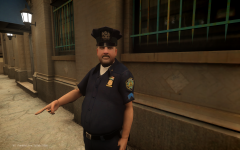 That finger is sooo looong!
 -
Chikamru's Real Traffic is the best known mod for this issue, loads all kind of cars & doesn't cause texture losses when others do.
-
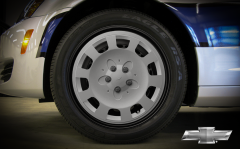 Well, they look very different! :D
 -
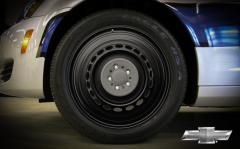 He must took a pic from google & fitted his rim.
 -
They made new ones??
-
^ lol, & maybe you can decrease it in the .ini
-
-
I'd highly recommend getting OpenIV to work, as it's much better, faster & constantly updated.
-
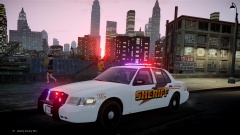 Eww he's still using that model?? :(
 -
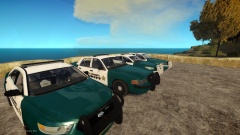 Not to me & apparently not to him too...
 -
Dude... do you have sex with spotlights?? You ask for them on EVERY vehicle! Is it really important if there is one or not? It doesn't make a big difference.
-
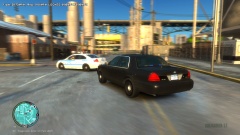 Umm PITting was too hard? :D

![[WIP] NYPD Umarked Crown Vic](http://s3-gallery.int-cdn.lcpdfrusercontent.com/gallery/album_2903/sml_gallery_12804_2903_2366172.png)
![[WIP] FAGGIO INTERCEPTOR](http://s3-gallery.int-cdn.lcpdfrusercontent.com/gallery/album_2498/sml_gallery_4103_2498_1345775.png)
