
Albo1125
Insiders
-
Joined
Everything posted by Albo1125
-
 Hi, try this. Nothing to do with Assorted Callouts. You can disable this in Code 3 Callouts's ini file.
- 1,081 comments
- 166 reviews
-
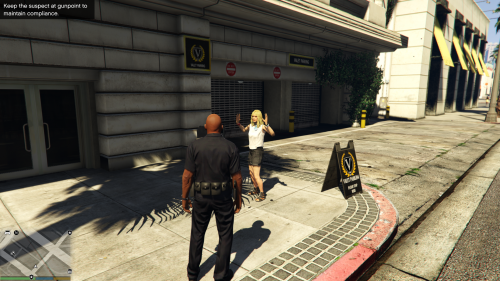 It's now built into LSPDFR 0.3.1. This is obsolete as stated in the description.
- 54 comments
- 22 reviews
-
-

- 1
-
-
If you click the textbox like a human, it won't give you a captcha ^.^
-
-
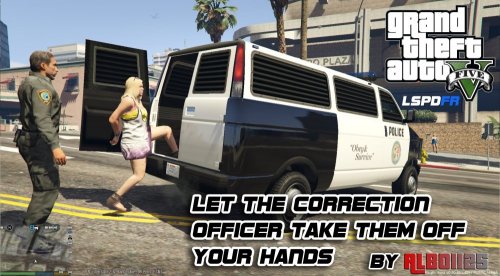 Probably a site issue. I recommend trying again a bit later, if issue persists post in the site problems forum.
- 1,915 comments
- 242 reviews
-
-
- 1
-
-
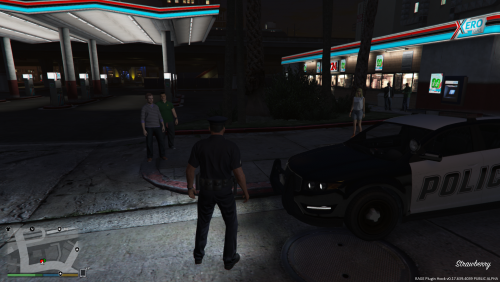 Appears the ped doesn't exist when trying to make it immune to ambient events as far as I can tell. Please post your entire RagePluginHook.log file.
- 422 comments
- 73 reviews
-
7.1.0.0 (10-06-2016 20:55 CEST): Added support for BetterEMS 1.0.0.0. (not required) If you have BetterEMS installed, you will have an additional option in the Ped Management menu: Transport to Hospital. BetterEMS is then used to transport the ped to the nearest hospital. Added support for Computer+ 1.3.0.0. (not required) If you have this installed, Arrest Manager will use the call details screen to add Prisoner Transport Required entries. These will update once the prisoner has been picked up. Fixed an issue where an error message about Arrest Manager's XML files popped up if another modification caused a crash. Updated for RPH 0.40. Works with RPH 0.39+.
- 1,915 comments
- 242 reviews
-
-
- 1
-
-
0.4.3.0 (13/06/16 23:39 CEST) Updated for RPH 0.40. Works with RPH 0.39+. New Callout(s): 'Store Robbery.' With over 25 different locations and multiple different robbery situations, there's plenty to discover. Fixed various minor issues in other callouts. Added compatibility with Computer+ 1.3.0.0. Assorted Callouts makes use of Computer+'s call displaying system to realistically enhance your experience.
- 1,081 comments
- 166 reviews
-
-
- 2
-
-
-
-
-
-
Replace your Assorted Callouts.ini with the default one from the download. When changing your keys, keep the following in mind: //FOR ALL KEYBINDINGS: // Use the exact 'member name' for the corresponding keyboard key: https://msdn.microsoft.com/en-us/library/system.windows.forms.keys(v=vs.110).aspx
- 1,081 comments
- 166 reviews
-
-
- 1
-
-
-
-
-
 I think I may have narrowed down the issue. Thanks. The application is also unable to access the Internet - this is likely causedb be your av/firewall. Don't worry about it too much though, it's meant to help solve your problems, not give you more to worry about hehe. Will look for a fix tomorrow!
- 379 comments
- 113 reviews
-
-
- 3
-
-
Seems like it's failing to get the permissions to even check the version number. You may want to try tweaking your AV. I'll look into this further tomorrow.
- 379 comments
- 113 reviews
-
-
- 1
-
-
-
-
Please follow the folder structure from the download. Every file in the download must be copied over in the appropriate location. This is easily done by following readme instructions. Arrest Manager Transport Regions.xml has been discontinued in favour of the others. This is also in the changelog.
- 1,915 comments
- 242 reviews
-
-
- 1
-
-
 Grand Theft Auto V\plugins\LSPDFR\Police Scanner\Traffic Policer Audio\OTHER_UNIT_TAKING_CALL
- 203 comments
- 29 reviews
-
You must follow the folder structure of the download. You have it installed in the wrong folder. I recommend following my Readme's instructions/installation video.
- 203 comments
- 29 reviews
-
-
Will look into it. If you want to do that, issue a TOR/summons and check the seize vehicle option. They'll get out after you book them.
- 203 comments
- 29 reviews