
Alex_Ashfold
Insiders
-
Joined
-
Last visited
Everything posted by Alex_Ashfold
-
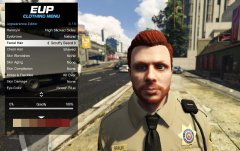 Yes! :) save and load slots for sure Something like, over 25 slots we could add to 2147483647, but we'll keep it simple lol
 -
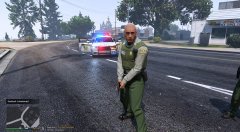 Nice job, tu pourrais descendre la saturation des pantalons sinon, sur la photo ça l'air trop vif.
 -
From the album: Emergency Uniforms Pack WIPs
© EUP Team
-
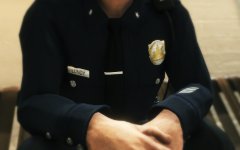 Sorry I haven't found any 2D anime girl with country bear uniform in the game
 -
the add-on was released a couple of hours ago
-
I dunno
-
From the album: Emergency Uniforms Pack WIPs
© EUP Team
-
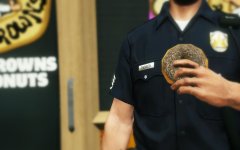
From the album: Emergency Uniforms Pack WIPs
© EUP Team
-
![something huge is coming [WIP]](//s3-gallery.int-cdn.lcpdfrusercontent.com/monthly_2016_03/small.test2.png.b70f1239e37c301c0efa402d41ac5468.png) @AlexBraun
@AlexBraun -
 yeah, but you'll get it back when you get out, like you said it's a gta v ting
- 2,346 comments
- 236 reviews
-
-
To avoid issues with mp custom models (missing voice, losing body armors or badge when holstering or entering a car) and it's more easier and quicker. But if you were looking for immersion we do have something planned
- 2,346 comments
- 236 reviews
-
-

- 4
-
-
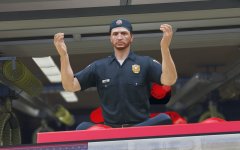
From the album: Emergency Uniforms Pack WIPs
© EUP Team
-
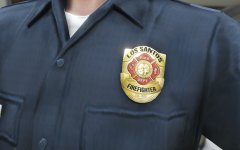
From the album: Emergency Uniforms Pack WIPs
© EUP Team
-
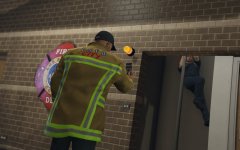
From the album: Emergency Uniforms Pack WIPs
© EUP Team
-
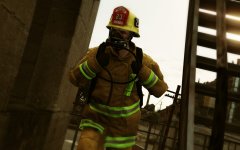
From the album: Emergency Uniforms Pack WIPs
© EUP Team
-
-
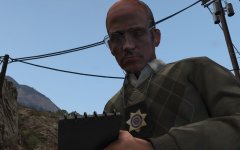
From the album: RDE Screenshots
© Realism Team
-
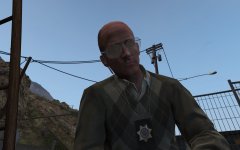
From the album: RDE Screenshots
© Realism Team
-
No, you select the model first in Skin Control and to go on duty you type ''Forceduty'' in the RPH console (F4) and then you open eup clothing menu to choose an uniform.
- 2,346 comments
- 236 reviews
-
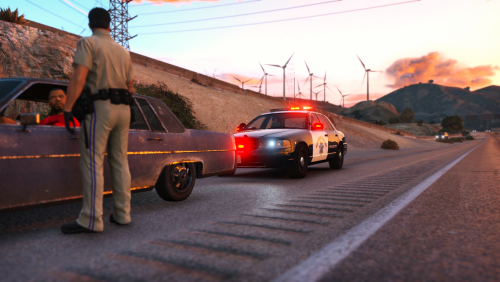 SOunds so perfect, you should include more pictures of the interior. I'm glad you kept the SAHP livery and not the CHP. I hope that if you convert it to CHP you'll keep the SAHP livery as an optional download. I'll post a review when I can get my hand on it, because this definitely looks worth a look! :)
- 95 comments
- 29 reviews
-
Well..they are not meant to be worn together, but somehow the menu gives you the possibility to equip them. will fix that in the future. Well yes, i mean it's hard to detects boobs under a bunker gear, so I don't think it will be a problem.
- 2,346 comments
- 236 reviews
-
-
- 2
-
-
It's still in development, but we'd rather let people play and let them do what they want rather than restricting their gameplay. We're not sure what the xp will bring yet. But basically, we want to recreate the gta online character creation in LSPDFR style, to add more depth and immersion to EUP.
-
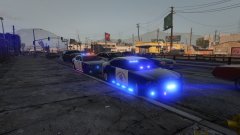 Looks like flying police saucers too me
 -
That's the plan, partners will be your other made characters
![something huge is coming [WIP]](http://s3-gallery.int-cdn.lcpdfrusercontent.com/monthly_2016_03/small.test2.png.b70f1239e37c301c0efa402d41ac5468.png)