
Alex_Ashfold
Insiders
-
Joined
-
Last visited
Everything posted by Alex_Ashfold
-
 If you extract the oiv files to install everything manually, don't ask for help if something went wrong it's only for advanced users only. Use the auto-installer.
- 2,346 comments
- 236 reviews
-
-

- 1
-
-
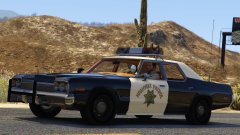 goob job on the lightbar :)
 -
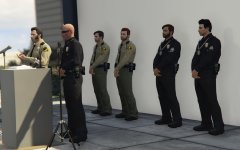
From the album: Emergency Uniforms Pack WIPs
-
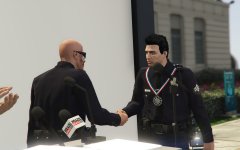
From the album: Emergency Uniforms Pack WIPs
-
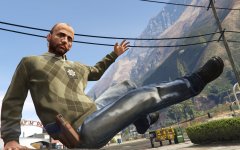
From the album: RDE Screenshots
© Realism Team
-
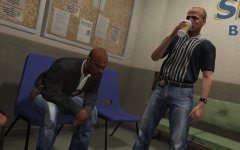
From the album: RDE Screenshots
© Realism Team
-
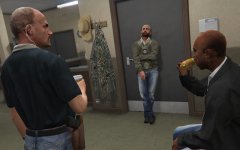
From the album: RDE Screenshots
© Realism Team
-
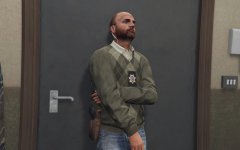
From the album: RDE Screenshots
© Realism Team
-
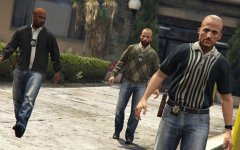
From the album: RDE Screenshots
© Realism Team
-
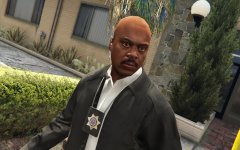
From the album: RDE Screenshots
© Realism Team
-
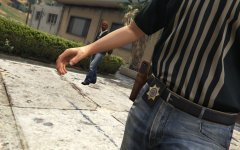
From the album: RDE Screenshots
© Realism Team
-
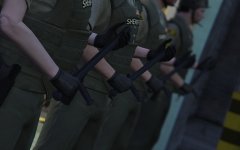 spawn
spawn -
-
-
-
Sure, send a PM and I'll help you with the file structure Yeah, I understand but i can't do anything for that, I'm sorry
- 2,346 comments
- 236 reviews
-
 This photo inspired my video lol
 -
I exploded at Ford Explorer xD. I had to drive an unmarked Taurus on a special detail few weeks ago. I'm still recovering.
-
-
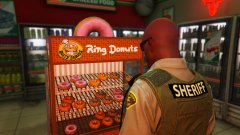
-
-
Let's make this clear this mod is only an esthetic mod, apart for the clothing menu that only simplify the customization of your uniform. This mod doesn't make you a cop. MP_freemode_male_01(or female) is <PEDTYPE>Player</PEDTYPE> and Not COP.LSPDFR provides this modification, not EUP. So report your issue to the LSPDFR team.
- 2,346 comments
- 236 reviews
-
-
- 1
-
-
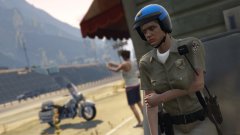 So hot your boobs melted with your arm
 -
Can't do anything about that. Btw, you should uninstall Keepcalm.dll. until it gets updated. So?
- 2,346 comments
- 236 reviews
-
After opening the eup clothing menu and getting the bald guy, try to reload your character. Tell me what happened. This is not a feature of this mod. So not an issue. You character will only do the animations for holstering.
- 2,346 comments
- 236 reviews