Creators: Due to background reprocessing of files, approvals and file security checks may be delayed. Thanks for your patience.

Alex_Ashfold
Insiders
-
Joined
-
Last visited
Everything posted by Alex_Ashfold
-
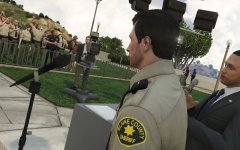
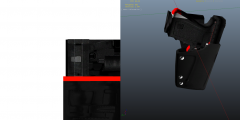 Almost there, need some adjustements
 -
From the album: Emergency Uniforms Pack WIPs
Fucked up texture template...tries and fails kill me -
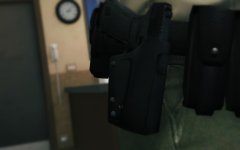 Animation already works..but there is no empty holster or belt model. Like the NPCs so no we are not working on that.
 -
From the album: Emergency Uniforms Pack WIPs
© EUP Team
-
-
-
-
-
pas pour le moment
-
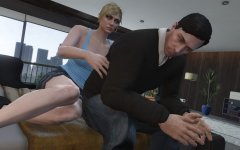 Ok...
Ok... -
From the album: Emergency Uniforms Pack WIPs
something happens to it Don't open this, you'll regret it© EUP Team
-
French Canadiance n'est pas possible pour le moment
 LSPDFR interaction menu, hold cap locks while walking, you'll make a walk/idle animation and then you'll get stuck with the cop walk animation (to confirm with 0.3.1)
- 2,346 comments
- 236 reviews
-
-

- 1
-
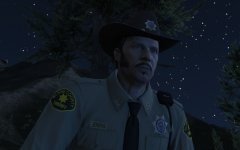 I have no idea tbh
Unfortunately it ain't gonna be that mind blowing thing you suggested, but simply some psd files of every shirts with toggable layer you can turn on and off and change the nametag texte. The customize your uniform. Put that's the best we can do for now. Sadly for user you need photoshop to open the dev files.
I have no idea tbh
Unfortunately it ain't gonna be that mind blowing thing you suggested, but simply some psd files of every shirts with toggable layer you can turn on and off and change the nametag texte. The customize your uniform. Put that's the best we can do for now. Sadly for user you need photoshop to open the dev files.
From the album: Emergency Uniforms Pack WIPs
© EUP Team
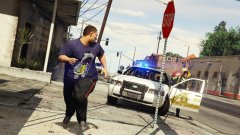 Well seems like a short foot pursuit #FatSuspectThat's because you installed Zippo raid Injured system that comes with his blood and volience overhaul. Refil your armor bar with a trainer or get in cover until your armor bar refills or delete the scripts in your scripts folder.
We don't provide support for manual instalation, if you add submit your issue on the support thread you would have seen your answer in the FAQ What does the auto-installer changes? That's the beauty of this mod it does not make heavy changes to your game here's what it does: Adds a new ''DLC'' in dlcpacks called ''eup'' the DLC is providing the clothes edits and additions to your game, without changing your originals files Adds a line of text in your dlclist.xml (located in your update.rpf/common/data) <Item>dlcpacks:\eup\</Item> So it doesn't replaces your original dlclist.xml Adds EUPclothingMenu.dll and EUPclothingMenu.ini to your plugins folder
Well seems like a short foot pursuit #FatSuspectThat's because you installed Zippo raid Injured system that comes with his blood and volience overhaul. Refil your armor bar with a trainer or get in cover until your armor bar refills or delete the scripts in your scripts folder.
We don't provide support for manual instalation, if you add submit your issue on the support thread you would have seen your answer in the FAQ What does the auto-installer changes? That's the beauty of this mod it does not make heavy changes to your game here's what it does: Adds a new ''DLC'' in dlcpacks called ''eup'' the DLC is providing the clothes edits and additions to your game, without changing your originals files Adds a line of text in your dlclist.xml (located in your update.rpf/common/data) <Item>dlcpacks:\eup\</Item> So it doesn't replaces your original dlclist.xml Adds EUPclothingMenu.dll and EUPclothingMenu.ini to your plugins folder- 2,346 comments
- 236 reviews
@Quakex64 Read the documentation and the mod page, all instructions are there, I'm not gonna repeat for each single user. I t will only gonna take 10 minutes of your time.- 2,346 comments
- 236 reviews