Creators: Due to background reprocessing of files, approvals and file security checks may be delayed. Thanks for your patience.

Alex_Ashfold
Insiders
-
Joined
-
Last visited
Everything posted by Alex_Ashfold
-
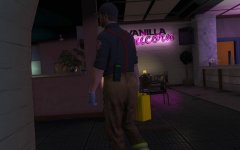
From the album: Emergency Uniforms Pack WIPs
© EUP Team
-
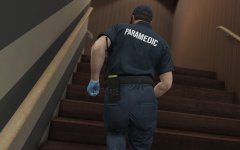 The mp model, from the apartment update (Executives and other criminals)
 -
From the album: Emergency Uniforms Pack WIPs
Patient conscious and breathing, dehydrated and weak.© EUP Team
-
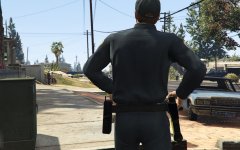
From the album: Emergency Uniforms Pack WIPs
if something happens to it. -
it's embedded in the ydr file use this to extract them and edit them http://gtaforums.com/topic/795186-wipv-texture-toolkit/
-
 The same for cop holster compatibility instructions were provided in the FAQ find on the support thread of this mod
- 2,346 comments
- 236 reviews
-
 Ok know I understand what's Canterlot is xD (thanks google) I knew it as something to do with wizard/magical stuff I never suspected this was my little pony related on the Skype chat #RacialProfilingIsMagic
 -
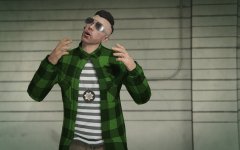
From the album: Emergency Uniforms Pack WIPs
-
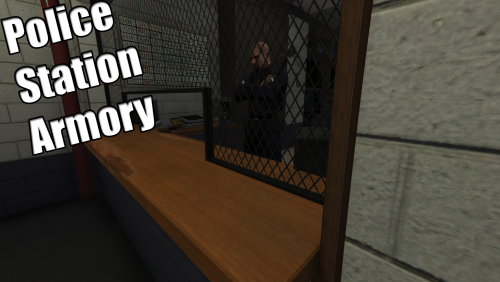 Yes, I was hoping someone had that Idea, when I first saw the animations in the game, Great job!
- 127 comments
- 33 reviews
-
-

- 3
-
-
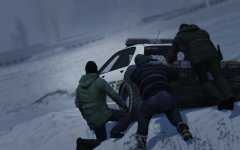
From the album: Emergency Uniforms Pack WIPs
This was my screenshot for the last Xmas/Holidays contest, but the contest never actually happened, so here it is. -
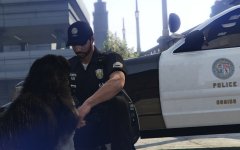
From the album: Emergency Uniforms Pack WIPs
© EUP Team
-
 Does it work on my WiiU?
 -
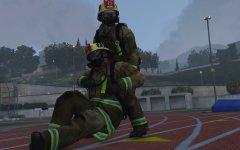
From the album: Emergency Uniforms Pack WIPs
© EUP Team
-

From the album: Emergency Uniforms Pack WIPs
Game updated to 678, all plugins works, now I hold right there Scum! Get ready for a new wave of EUP Development Screenshots© EUP Team
-
Skin control should be installed in your root folder and not in your scripts folder
-
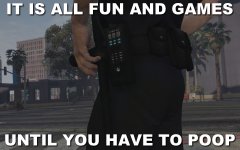
From the album: Dank cop memes ( ͡° ͜ʖ ͡°)
© justcopthings
-
Can you send me your dlclist.xml and did you tried to reinstall the mod after the latest patch?
-
-
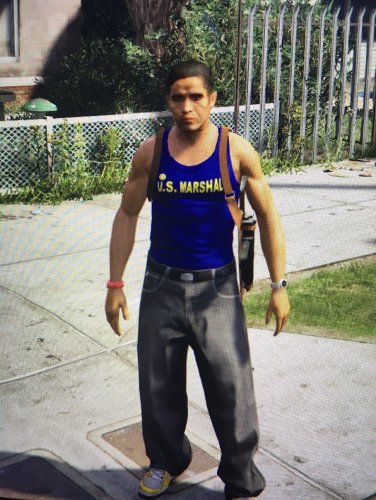 Starts GTA prologue's mission and wait for dem cops to show up in bright blue wife beater shirt in the middle of a snowstorm
 -
I think we aware that the last GTA patch might cause issues..so wait until we update it, which is gonna take a bit more than you expect... actaully I STRONGLY suggest you downgrade to 617 version, it's pretty easy with Ragehook
-

From the album: Emergency Uniforms Pack WIPs
-
Not in EUP
-
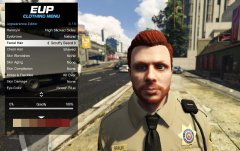 ;_;
;_; -
I have no idea actually, but before you told me this I tough it was just a problem with my game
-
This issue, not ours to fix lol.