



Alex_Ashfold
Insiders
-
Joined
-
Last visited
Everything posted by Alex_Ashfold
-
Just enable Godmode lol
-
Don't scare me like that, I'm pretty sure I used the latest RagenativeUI :0 This was answered in the FAQ What does the auto-installer changes? That's the beauty of this mod it does not make heavy changes to your game here's what it does: Adds a new ''DLC'' in dlcpacks called ''eup'' the DLC is providing the clothes edits and additions to your game, without changing your originals files Adds a line of text in your dlclist.xml (located in your update.rpf/common/data) <Item>dlcpacks:\eup\</Item> So it doesn't replaces your original dlclist.xml Adds EUPclothingMenu.dll and EUPclothingMenu.ini to your plugins folder
-
![Watcha loofing at.. Punkf!? [WIP]](//s3-gallery.int-cdn.lcpdfrusercontent.com/monthly_2016_02/small.2016-02-18_00009.jpg.d674c2f404666474059ba01ffccf42c8.jpg)
From the album: Emergency Uniforms Pack WIPs
© EUP Team
-

From the album: Emergency Uniforms Pack WIPs
© EUP Team
-
From the album: Emergency Uniforms Pack WIPs
© EUP Team
-
From the album: Emergency Uniforms Pack WIPs
© EUP Team
-
![Officer Police ? [WIP]](//s3-gallery.int-cdn.lcpdfrusercontent.com/monthly_2016_02/small.2016-02-17_00032.jpg.e5e3c39c70bb0d45b71a4fb88a7296bf.jpg)
From the album: Emergency Uniforms Pack WIPs
© EUP Team
-

From the album: Emergency Uniforms Pack WIPs
© EUP Team
-

From the album: Emergency Uniforms Pack WIPs
© EUP Team
-
From the album: Dank cop memes ( ͡° ͜ʖ ͡°)
© justcopthings
-
![More variety of customization [WIP]](//s3-gallery.int-cdn.lcpdfrusercontent.com/monthly_2016_02/small.variations.png.3011832322e0827c3dbb9635394cd960.png) That would be a separate download, I'm working on it
That would be a separate download, I'm working on it -
From the album: Emergency Uniforms Pack WIPs
© EUP Team
-
-
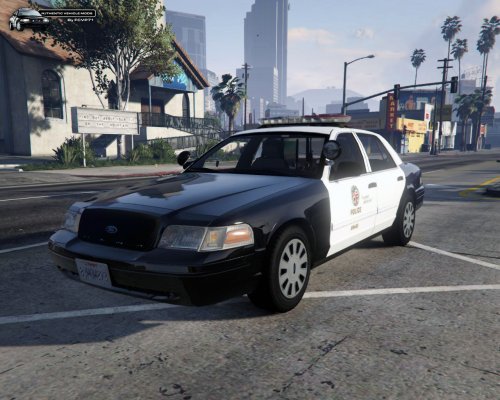 Simply the best Crown Victoria ever made -simplicity -realism -No vehicles.meta or carvariations.meta changes -No MyLittlePonny stuff- -HD quality -Perfect details- -No bugs. -Best CVPI interior I changed so many time between different CVPI models and regular 2nd generation stanier and now I'm only gonna use this forever. I thank you for making this awesome model and ll the time given into this work. By the way, this LAPD livery needs to disappear
- 139 comments
- 38 reviews
-
![Fate with a badge and a gun [REL]](//s3-gallery.int-cdn.lcpdfrusercontent.com/monthly_2016_02/small.2016-02-16_00009.jpg.5bb34cb2fe0a0eb59639cda624d33ccf.jpg)
From the album: Emergency Uniforms Pack WIPs
-
-
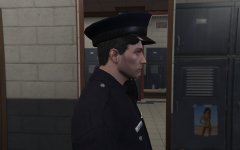 Might of find an another way
 -
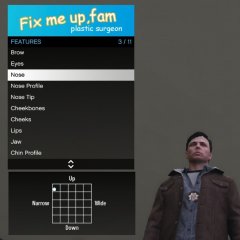 Can I get a separate cell?
 -
Bitch please I have a degree in police Brutality!
-
02-FAM-10 Dispatch Requesting back up on my location for an aggressive subject, bring tazers and batons.
-
 This issue was already anwsered in the FAQ of the support topic the characteristics of mp player models are lock in an .ymt file, which OpenIv doesn't support at the moment.
- 2,346 comments
- 236 reviews
-
I used the ig_trafficwarden_p.ydd to replace and ugly hat in mpjanuary2016
-
![LSPD Funeral Procession [REL]](//s3-gallery.int-cdn.lcpdfrusercontent.com/monthly_2016_02/small.2016-02-10_00049.jpg.f8c5b4448c449a6804905431a09de743.jpg) This was already released in 7.1
This was already released in 7.1 -
![Sorry Officer...So I can't go this way? [WIP]](//s3-gallery.int-cdn.lcpdfrusercontent.com/monthly_2016_02/small.2016-02-13_00010.jpg.49e797a95fa50ca0d2943ac40de4493b.jpg)
-
From the album: Emergency Uniforms Pack WIPs
© EUP Team

![Watcha loofing at.. Punkf!? [WIP]](http://s3-gallery.int-cdn.lcpdfrusercontent.com/monthly_2016_02/small.2016-02-18_00009.jpg.d674c2f404666474059ba01ffccf42c8.jpg)
![Officer Police ? [WIP]](http://s3-gallery.int-cdn.lcpdfrusercontent.com/monthly_2016_02/small.2016-02-17_00032.jpg.e5e3c39c70bb0d45b71a4fb88a7296bf.jpg)
![More variety of customization [WIP]](http://s3-gallery.int-cdn.lcpdfrusercontent.com/monthly_2016_02/small.variations.png.3011832322e0827c3dbb9635394cd960.png)

![Fate with a badge and a gun [REL]](http://s3-gallery.int-cdn.lcpdfrusercontent.com/monthly_2016_02/small.2016-02-16_00009.jpg.5bb34cb2fe0a0eb59639cda624d33ccf.jpg)
![LSPD Funeral Procession [REL]](http://s3-gallery.int-cdn.lcpdfrusercontent.com/monthly_2016_02/small.2016-02-10_00049.jpg.f8c5b4448c449a6804905431a09de743.jpg)
![Sorry Officer...So I can't go this way? [WIP]](http://s3-gallery.int-cdn.lcpdfrusercontent.com/monthly_2016_02/small.2016-02-13_00010.jpg.49e797a95fa50ca0d2943ac40de4493b.jpg)