FRGamer
Members
-
Joined
-
Last visited
Everything posted by FRGamer
-
I'm going to try to download the latest driver right now, hope it works.
-
I thought I was the only one having this issue, did you find a fix for it or anything?
-
-
-
-
-
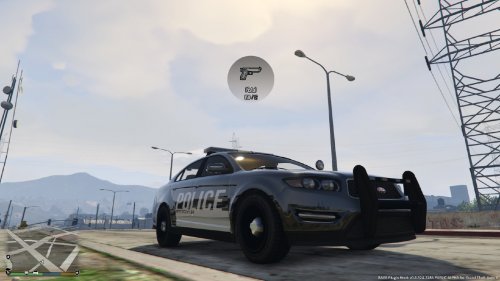 Nice job!
 -
 This was a while ago but I got it to work. Put the ELS Config File in the ELS folder and go to _SLOTCONTROL and go to police and change default_config to just police then go in game and press ALT-K.
- 36 comments
- 12 reviews
-
-
That would be so cool.
-
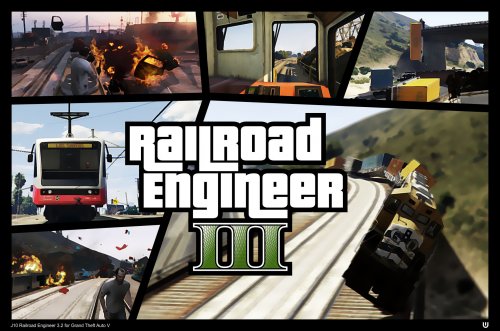 Glad I'm not the only one lol, but yeah this was released yesterday.
 -
For #5, can't you just enable Scroll Lock to fix that?
-
-
-
Same thing is happening to me.
-
I realized I couldn't download anything from the site after I tried to download Sgt.Kanyo's new NYPD FPI. I thought it was just that, that didn't work but I tried other files on the site and nothing downloads I always receive the same error everytime. I tried changing to Internet Explorer and Mozilla Firefox to see if it would work but it wouldn't. I noticed this started to happen when the captcha came back.
-
-
-
-
-
-
-
-
-
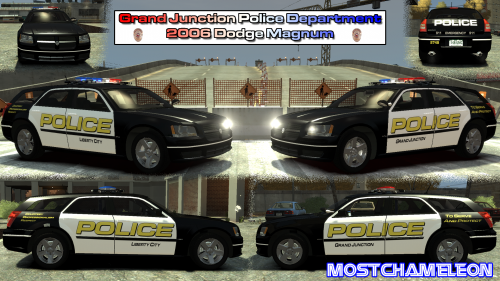 Awesome!