officerAMR
Members
-
Joined
-
Last visited
Everything posted by officerAMR
-
The passenger side should be folded i think
-
 soon™?
 -
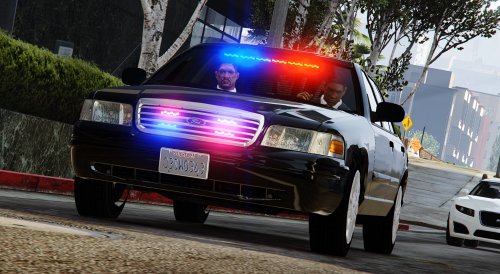
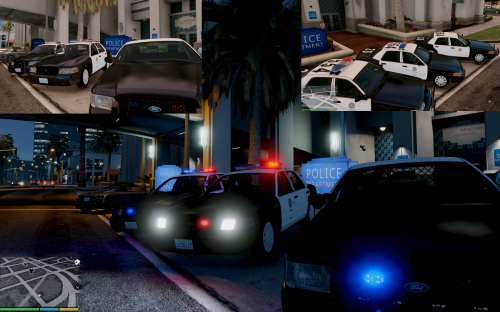
 Is that a modern Crown Vic i see? Did you conform?
 -
https://upload.wikimedia.org/wikipedia/commons/8/87/LAPD_Ford_Explorer.jpg :)
-
 I like to use lore friendly stuff, can always take inspiration from the real world
- 2,346 comments
- 236 reviews
-
-
This is just an example, but the Gruppe 6 security Uniform looks a bit like this http://www.abc.net.au/news/linkableblob/2837710/data/riot-police-in-london-look-imposing-data.jpg Switch Met police with LSPD/NOoSE may look good?
- 2,346 comments
- 236 reviews
-
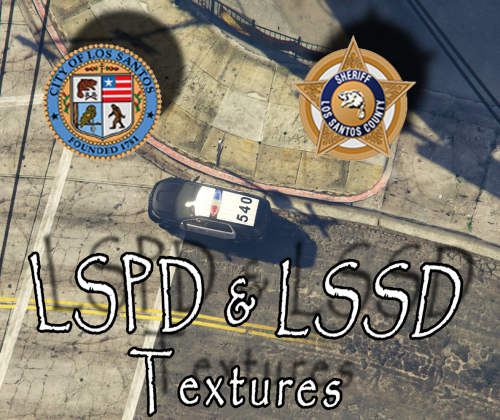 Perfect mate, you have to rename the LSPD ones to get them to work which is a pain in the a$$
- 4 comments
- 2 reviews
-
-
the LAPD setup from what i've seen as two in the rear facing window with the Traffic Advisor
-
I think it needs some lights in the windows, maybe two in the front windows and two in the rear?
-
-
-
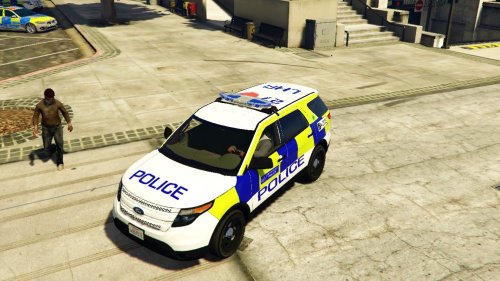 Though I would love one Ford are idiots and dont sell Explorers in the UK
 -
Perfect :)
-
Everytime i touch the game files I end up breaking them, could you provide the carvaritations in the DL?
-
-
That would be the best thing ever, the default SWAT outfits are pretty bad
- 2,346 comments
- 236 reviews
-
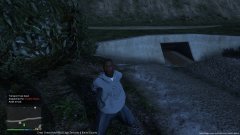 Charlie sheen looks different Must be the new hair cut?
 -
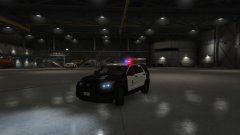 2013 interceptor or Riot
 -
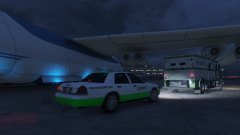 Gold has just been unloaded from AN-225 to be sent to Maze bank
 -
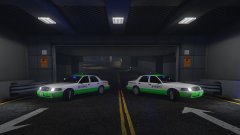 Inspiration From gamevidsnorwegian https://www.gta5-mods.com/vehicles/group-6-security-vehicle in the storyline of GTA V, when Trevor and Lester are following the security trucks Lester tells Trevor about a special security team for Maze bank. So i made a skin for them
 -
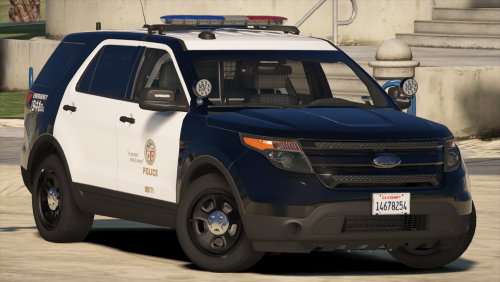 Glad to see a full release :) From what I saw in the Alpha this deserves 5 stars.
- 563 comments
- 116 reviews
-
-
Any chance of a Taxi police car?