
purplepotatoes14
Members
-
Joined
-
Last visited
Everything posted by purplepotatoes14
-
-
Wow that's looking good!
-
It looks so good!
-
In the vehicles.meta, change the vehicles handling to "police3".
-
Is your "Shader Quality" set to high or above?
-
-
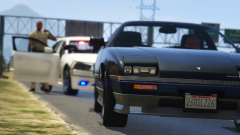 Haha maybe..
 -
-
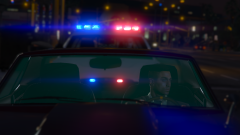 I decided to change up my vehicles from LAPD/LASD to some fictional LSPD vehicles. I'm really enjoying them!
 -
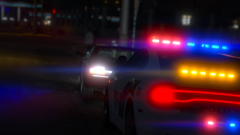 I decided to change up my vehicles from LAPD/LASD to some fictional LSPD vehicles. I'm really enjoying them!
 -
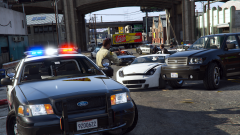 Did the LASD get new Vapid Police Interceptors with a new livery? ;P xD btw nice screenshot :)
 -
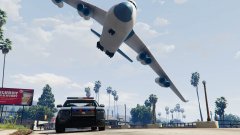 Seems legit XD
 -
It only works sometimes because of what voice LSPDFR chooses for your ped model. If LSPDFR chooses a "s_m_y_insertcopmodelhere_full" then you'll get your loudspeaker quotes. However, if it chooses a s_m_y_insertcopmodelhere_mini" then you may not hear loudspeaker quotes. You can fix this by changing your model's voice to a "full" voice using the simple native trainer.
-
-
-
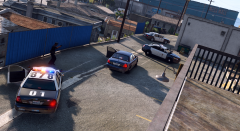 My God that's an awesome screenshot, extremely realistic! :D
 -
Oh my god this car is coming along awesome!
-
Weird, I'm not sure what more to tell you though. Maybe try reinstalling Radiance V or try using this.
-
Your "Post FX" should be set to high or above too if not already.
-
From what I can tell is that Desmond doesn't have a light enhancer mod (Radiance V or something) so the lightbar looks more orange than it should be. However, if Radiance is installed, the lights may have a more realistic colour, but I could be wrong.
-
Oh cool, thanks!
-
Those beacons look great! Question though, will those lights have a rotator corona or something else?
-
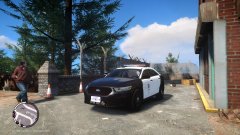 GOD DAMN IT YOU GOT ME EXCITED FOR NOTHING!!!11@!!@!@ GAHHH! jk ;)
 -
Oooo looking awesome!
-
Ha, I love the tiny antenna that moves on the roof! Great update Desmond!