Hystery
Members
-
Joined
-
Last visited
Everything posted by Hystery
-
Light intensity data are in the visualsetting file located in the update.rpf archive.
-
Read the installation instructions and install it properly, that's the only thing you should do. If it works for everyone else but not you, then you're doing something wrong on your end at some point.
-
Try to put the shader quality to high. And if it doesn't work, you failed the installation, so you'll have to redo it properly.
-
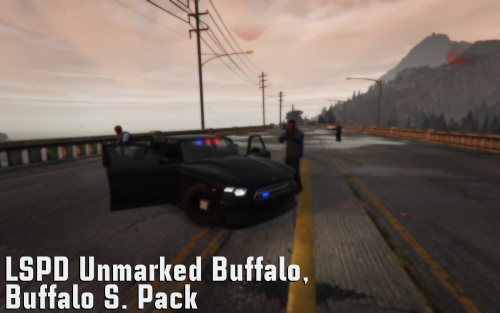 That's awesome. We need more vanilla cars in the middle of all those IRL models swarming all over the place.
- 7 comments
- 3 reviews
-
-

- 1
-
-
You should put all this stuff in spoilers, it takes forever to scroll down.
-
Pretty sure it's a Code 3 21TR. But I could be wrong.
-
If it's indeed an overheating problem, which isn't sure at all yet, you'll have to open your computer to clean the fans and the dust that has accumulated inside, as a first step. Usually it helps a lot.
-
Using a software dedicated to that. Like HWMonitor.
-
If sometimes it runs good and sometimes not, regardless of what you're doing, it might be a temperature problem. Check your components temperature when you're playing to see if they are overheating. But it can be that like it can be many other things, it depends on a lot of different stuff.
-
Replace the liveries in both .ytd files, or delete them all together in both.
-
The PS2 had much more success than the X360 though. I'm pretty sure Microsoft know what they are doing, it's probably not profitable anymore to keep producing that console. Especially after the disappointing sales of the XOne, they probably need to bring as much money as they can to have a balanced economic situation.
-
YOU HAVE TO DOWNLOAD THEM FROM THE DOWNLOAD SECTION. Holy damn dude, I try to be patient but you're really pushing me to my limits at the moment. There: There: And so on. SEARCH FOR THE CARS. INSTALL THEM. INSTALL THE SKINS ON THEM. It's not complicated, it's not chinese, and if you want to use those skins you'll have to do that. Deal with it or leave it.
-
No, those cars are not the default cars. Those cars are modified default cars, that are templated. If you want to install those skins, YOU'LL HAVE TO INSTALL THE CARS TOO. The sooner you'll get this into your head, the sooner you'll be able to play with the skins you want.
-
... Are you serious? DEFAULT CARS HAVE NO TEMPLATE. This is getting ridiculous now, geez, make an effort to understand what I'm saying, I'm not speaking chinese.
-
*sigh* There's no path to templates. You CAN'T install skins on default cars. Not with the skins made for templated vehicles. Default vehicles are NOT templated. That's how it is. If you want to use the default cars, you'll have to deal with the default liveries. If you want to install skins, install custom cars from the download section of this very website. I can't be clearer than that.
-
If you didn't install any car mod, then it won't work, you have to install cars that have been templated. And if you want to install car mods, follow the guide I linked to install them correctly.
-
Well, then you wonder why it doesn't work. You've to use cars that have been templated to be able to replace the skins.
-
Then you didn't read it properly. I spent a lot of time writting this guide to make it understandable for everyone, and so far it worked, so just read it carefully, do as it is told, like, EXACTLY like it is told, and it'll work. Here, let me stress the important parts: For that, you'll have to open the .ytd file(s) of the car model you want to install the texture on in OpenIV. The .ytd are where all the textures of the car are located. Once opened, just scroll down and browse through all the textures to find where the original car texture is and simply click on replace once you selected it, and select what texture you want to replace it with. Alternatively, you can find how this texture is actually called, give the texture you want to apply the same name, click on import and select that texture for it to automatically replace the original one.
-
You're asking for help, and I'm linking you a guide that explains everything. Don't get offended and read it.
-
Install them properly with all the carvariation.meta and vehicles.meta lines and there will be sound. There's no magic formula, if you do things correctly, it'll work. If it doesn't work, that means you failed at some point.You'll probably have to add the lines manually in an existing carvariation.meta like in mpchristmas2.I doubt they can do much about that, it's just the AI of the game acting like that. Besides, after a little while they eventually move around. The best work around is to use the Traffic Policer mimicking option to pull the pulled over car a bit more to the side so it doesn't block traffic.If you mean by that the way the lightbar flashes depending on the police slot, it's just a line for every emergency vehicle that is something like "sirensettings=", and after the =, a certain number that relates to a definite pattern. For example, the number 13 is for the halogen lightbars. The police, ambulance, police transport slots have this setting for example. The number 1 is for the basic LED pattern, for the police2, fbi, fbi2 or sheriff2 slots, for example. Don't know the other numbers by heart as most of the time I just use the carvariation.meta lines given with the car I downloaded and installed.It's a radar, not a laser. And it's not been done yet.