.png.22897c42e5e93c7e0d52995e3c33fb92.png)
Dippa
Members
-
Joined
Everything posted by Dippa
-
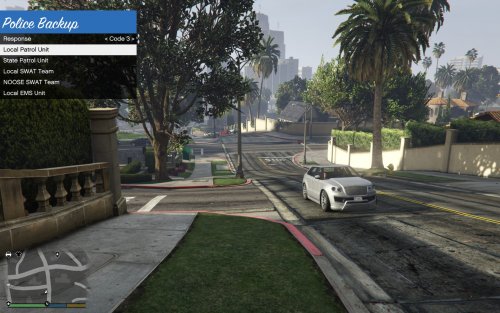 So basically, he is just telling us to put it in our game and shut up lol
 -
 This is part of LSPDFR, not Albo's mods bro. If you are getting his callouts only, it means his mod is taking priority over others and this is possibly due to the strong coding of his plugins. A tool I use is Callout Manager. You can pick which callouts to launch on the fly. Works great.
- 3,646 comments
- 306 reviews
-
-

- 1
-
-
Two things we need to try to help you out. We need you to post your Ragehook Log file if possible, and could you tell me which GTA V game version are you running?
- 3,646 comments
- 306 reviews
-
Open the rar file and drag and drop folders to your desktop. Once you do that go to the location of your GTA V main folder and open it. From there, drag and drop into your main GTA V folder.
- 3,646 comments
- 306 reviews
-
-
-
I know this is off topic, but can you tell me what CVPI is that you have in that picture? I like those wheels and would like to add them to my CVPI or just download that car....Thanks
- 3,646 comments
- 306 reviews
-
Kindness is still around, just not always available I guess, but I've found it and will be showing it to you now. This is the list that is in the INI file. The list is as follows on the number pad on your computer: //Controls: //These controls are also used for Custom Pullover Location. //Default: PositionUpKey=NumPad9 PositionUpKey=NumPad9 //Default: PositionRightKey=NumPad6 PositionRightKey=NumPad6 //Default: PositionResetKey=NumPad5 PositionResetKey=NumPad5 //Default: PositionLeftKey=NumPad4 PositionLeftKey=NumPad4 //Default: PositionForwardKey=NumPad8 PositionForwardKey=NumPad8 //Default: PositionDownKey=NumPad3 PositionDownKey=NumPad3 //Default: PositionBackwardKey=NumPad2 PositionBackwardKey=NumPad2 //Default: MaxSpeedUpKey=PageUp MaxSpeedUpKey=PageUp //Default: MaxSpeedDownKey=PageDown MaxSpeedDownKey=PageDown //Default: StartStopAverageSpeedCheckKey=PageUp StartStopAverageSpeedCheckKey=PageUp //Default: ResetAverageSpeedCheckKey=PageDown ResetAverageSpeedCheckKey=PageDown Hope this helps, if not let me know and I'll see what else I can do to help you bro...
- 3,646 comments
- 306 reviews
-
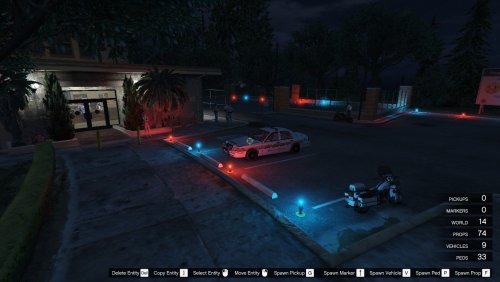 Based on the pictures, it looks like it's a population mod. It adds everything you see in the pictures to the game as scenery for a more "busy" feel.
 -
I'm not sure why GGN Crazy quote above me keep popping up when I try to comment, but ok lol....anyway I think I've found an issue with the callout with three locations to check. I and another officer responded to the wrong addresses, and dispatch said wait for further information. I saw the police officer dot and the yellow suspect search area dot, but nothing was happening so I drove to the location (located where those house are by the speedboat callout) and the police car and AI officer was doing circles in the tight alleyway and was stuck. I had to ram him with my car and try to push him to the yellow area circle before it triggered the rest of the callout. I would suggest however that once the officer reaches the area he should be made so he does not despawn until the callout is finished and I've arrested the suspect. It seems more realistic if the officer stayed and acted as backup since they are the one who found the proper location if that makes any sense..
-
 Can somebody tell me what is the EUP path listing on the dlclist.xml? For instance <Item>dlcpacks:\______\</Item> Is it "EUP" that goes in the open space? Anybody?
- 2,352 comments
- 238 reviews
-
 Awe man! I just had one of the most badass callouts to date. I was in Vinewood Hill and it was an accident beside the gun store. The witness only had half the tag number so dispatch gave me three locations that the suspect could be at. When I picked the one I wanted to investigate, dispatch called to other officers to go to the other locations and they responded when they got to the locations and I could see their location dots as they went while I was going to mine!! When I didn't have anything I called it in and so did they but then the callout didn't finish!! Mann that was so awesome...I STILL say this needs to be FEATURED and everybody should be following this for updates! Great work Low!
- 166 comments
- 75 reviews
-
-
- 1
-
-
See if RPH 0.46 will work instead of 0.45. Also make sure you roll your game back to the previous version before downgrading. You should be able to roll it back using the 0.47.
- 3,646 comments
- 306 reviews
-
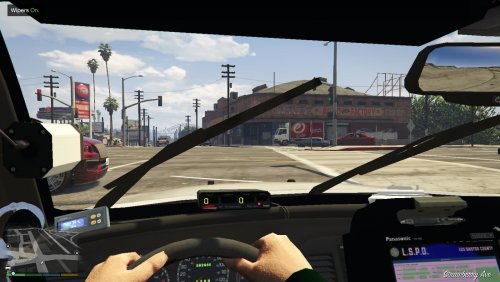 Can this be put in as a add-on instead of replacing the sheriff slot? I'm happy with the vehicles I have in the game already, but I want this in my game not spawning with AI's, but rather only me.
- 49 comments
- 22 reviews
-
Ok bro I found a few bugs just in case you wasn’t already aware of them. I noticed that whenever the callout happens and I arrive, sometimes the ambient police case spawns near the accident scene, once they get out the vehicle and start shooting their suspect, all hell breaks loose and everybody, including the injured ped LOL, runs over to the officers doing the shooting and everybody starts fighting each other and attacking the officers. I’ve had to end the callout a few times when this happens. In addition, just a fyi, sometimes the callout will call to the same location back to back, even though the suspect might be at another location. You may want to restrict the callout to trigger at the same location consistently.
-
-
Ok but how do you know if the patchday is compatible? For instance, I have a modded Airbus that will not load in game using x64e vanilla slot, like the readme says..
-
Stephen Hawking, man this is top shelve work here bro. He could build on this and this could provide the investigative side that's really missing during a shift. I was blown away. I think the only thing I would change is to have the ped location dots vanish as soon as they have nothing else to say, in case of a crash, the dot will not be confusing, such as happened to me. Other than that man, he is about to change the game with this....the callout game....
- 166 comments
- 75 reviews
-
-
- 2
-
-
-
Ok, this would have to be presented to the LSPDFR support forum unfortunately. This thread is only support for Traffic Policer issues bro.
- 3,646 comments
- 306 reviews
-
-
-
-
-
.thumb.png.69333a247b9117caac821eda3fa59672.png)