



Mikofiticus
Members
-
Joined
-
Last visited
Everything posted by Mikofiticus
-
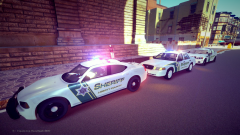 You might want to fix that CVPI though lol.
 -
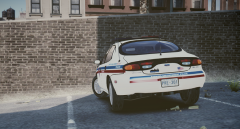 Or a Jetsonic, that seems common for Taurus' back in the day. It looks like no department ever used that generation of Taurus (that I could find) but I did find a 90s one with a Streethawk, and in a movie one had a Areodynic.
 -
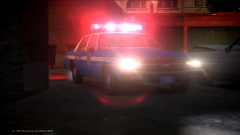 Ha! I'm at 250 on mine.
 -
Horrible Bosses, We're The Millers, Blues Brothers, Naked Gun, Hot Fuzz, Shaun of the Dead, World's End, Austin Powers (1, 2 and 3). Those are some of my favorites.
-
How high did you have to pup up the visual settings for that? Lol.
-
This would look good with a Whelen Edge.
-
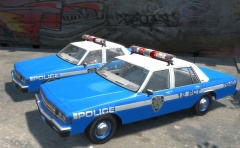 Nice! This was on my long line of todo lists. You might need to angle the line and "police" on the fender, it distorts on the lip of the quarter panel.
 -
-
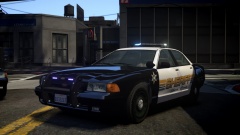 Good to see you use some defaults!
 -
-
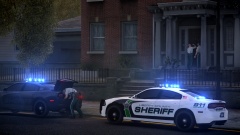
From the album: Action Shots!
Deputies serve a warrant on a house. *Charger is a WIP by Voodoo* -
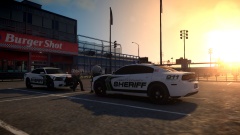
From the album: Action Shots!
2 Deputies catch dinner and converse at a Burger Shot. *Charger is a WIP by Voodoo* -
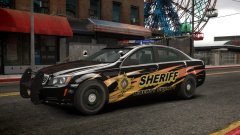 Aha. I see you got a hold of Ironic's Caprice! :D
 -
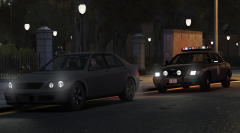 Oh man, I think the skin came from Sheriff VanDyck, and the car is from an Alaskan car, you can find it on this website. I think it's a Juneau pack.
 -
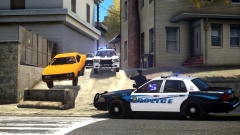
From the album: Action Shots!
LCPD and LCSO chase an orange Dukes through Alderney. -
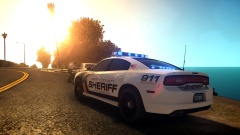
From the album: Action Shots!
A Sheriff's Deputy stops a Oracle for speeding in the evening. -
The author took it down some time ago apparently.
-
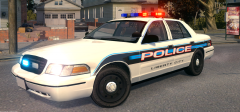 I dig.
 -
Slackers! Lol. EDIT 3: 1967 Shelby GT500 1979 Camaro Z28
-
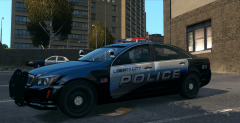
From the album: LCPDFR In Action
New liveries thanks to BErad! (ps, the Caprice is no longer available). -
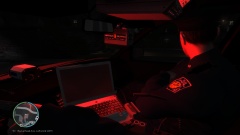 Alt [ or Alt ]. I can't remember, I just click it when I play haha.
 -
I really like them. With the last head to the right, the glasses clip thru his face. Other than that I really like these. I might edit them to say Alderney. Great job!
- 11 comments
- 4 reviews
-
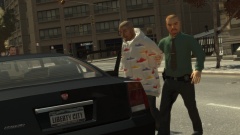 Are those your detective peds? They look sweet! I love the look of just the tie and button up.
 -
Supposedly the author said that this fixes it if you go to enbeffect.fx and find the line called "define Blackbars" to disable the bars, just add // before define. like this //Define Blackbars, and it should be disabled
-
![[WIP] 2014 GMC LFD Ambulance](//s3-gallery.int-cdn.lcpdfrusercontent.com/gallery/album_722/sml_gallery_3386_722_149177.jpg) Wow. That red and grey skin almost looks like Newberg, OR. They use the same colors and it looks awesome.
Wow. That red and grey skin almost looks like Newberg, OR. They use the same colors and it looks awesome.

![[WIP] 2014 GMC LFD Ambulance](http://s3-gallery.int-cdn.lcpdfrusercontent.com/gallery/album_722/sml_gallery_3386_722_149177.jpg)