
Mikofiticus
Members
-
Joined
-
Last visited
Everything posted by Mikofiticus
-
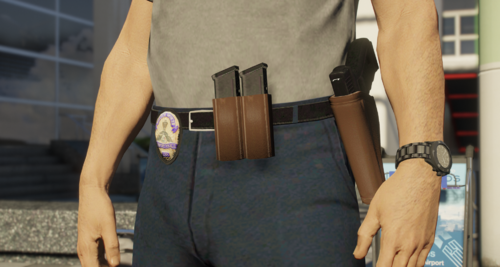 I don't really play much anymore, but as a lefty, this is pretty neat
 -
 I'm pretty sure that cop would die from all the bounce back from the lights hitting the windshield lol
 -
-
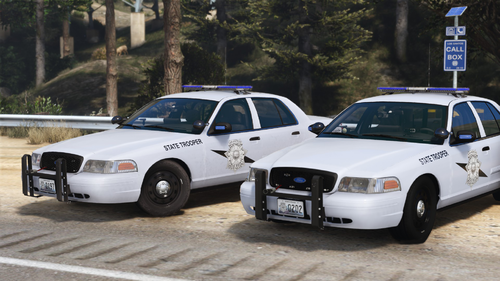 Man, these look really coo, and I love the WSP vibes.
 -
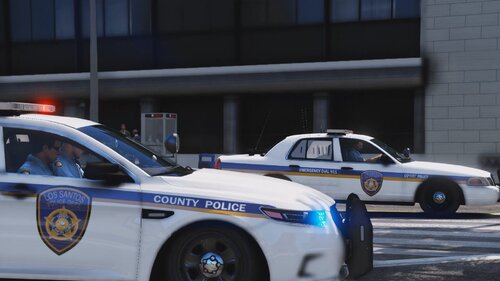 You should use your own image, instead of using a super low res version of one of mine.
 -
.thumb.png.afd8d12560b81920aa69838b43301a86.png) Looks good, but it'd be neat if it had some sort of rear lighting, such as a Whelen Talon (I think that's what these are)
Looks good, but it'd be neat if it had some sort of rear lighting, such as a Whelen Talon (I think that's what these are) -
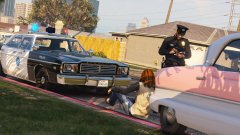
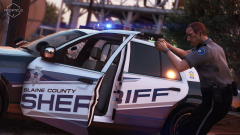
From the album: WIP Textures (GTAV)
© Mikofiticus
-
-
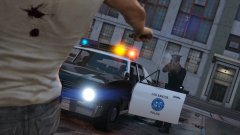
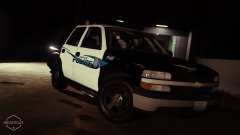
From the album: WIP Textures (GTAV)
© Mikofiticus
-
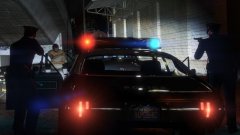
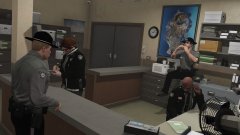
From the album: WIP Textures (GTAV)
© Mikofiticus
-
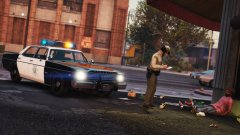
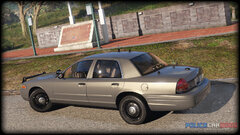
From the album: WIP Textures (GTAV)
© Mikofiticus
-
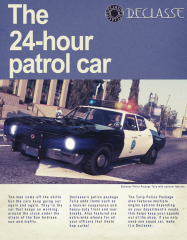
From the album: WIP Textures (GTAV)
-
Hey, just a thought, but in the vehicles search tab, there's ELS compatibility, it would be nice for there to be a tab for DLS compatibility! Since DLS is getting more popular as of late, it would help those looking for DLS enabled vehicles.
-
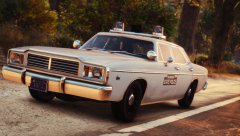
From the album: WIP Textures (GTAV)
-
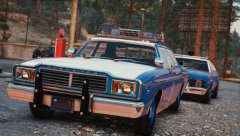
From the album: WIP Textures (GTAV)
-
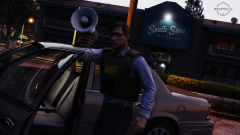 Not a chance lol. It's been so long, I don't have the animation list saved anymore.
 -
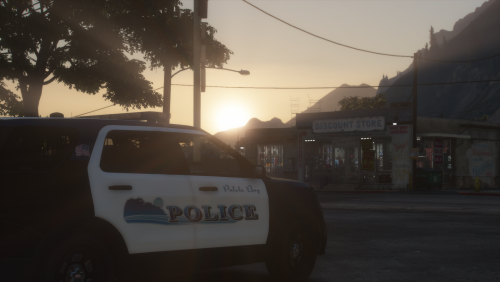 Daymn son. Looks great. Also your screenshots and especially your lights look bad ass!
- 3 comments
- 4 reviews
-
-

- 1
-
-
 ew. this is just stupid.
 -
-
 Not gonna lie, that's actually pretty sick.
 -
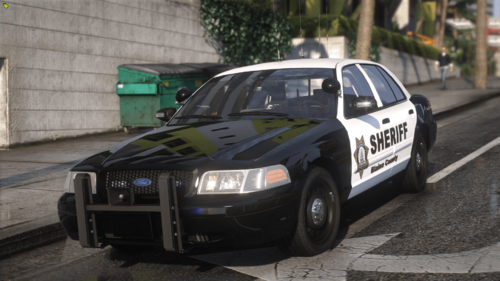 If you didn't want the steady burn, is there a particular carcols I can run? Like will the default police one work fine?
- 22 comments
- 1 review
-
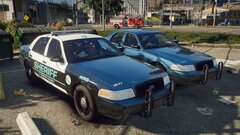 What the absolute fuck is this?
 -
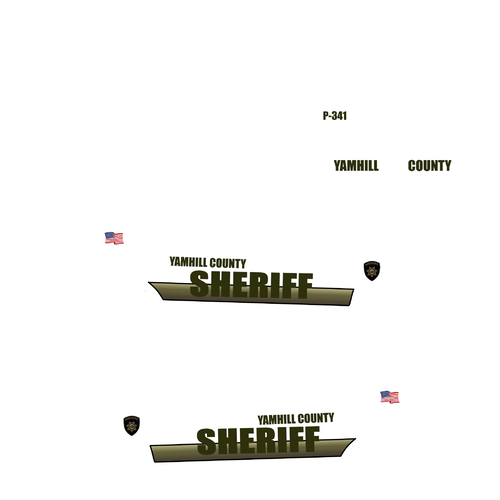 I hate their new design. I miss the old one. The brown they use looks straight up like baby poop.
 -
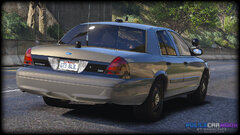 Well hello there.
 -
From the album: Textures! WIP/REL
© Mikofiticus
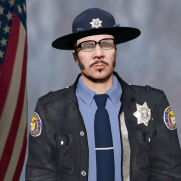


.thumb.png.afd8d12560b81920aa69838b43301a86.png)