Khanage
Members
-
Joined
-
Last visited
Everything posted by Khanage
-
 Mapped it yourself? Nice job!
 -
-
 That's what I was hoping for! Jewish_Banana, I'll do just that, see how it goes :)
 -
Ooooh that's pretty ninja, I might try something with that!
-
From the album: WIP/REL Content
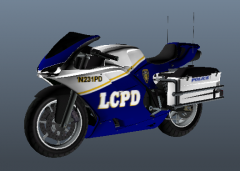
Finally managed to get around to painting this thing, fashioned after the NYPD helicopters. All lights working (has two lights on the bag thingies and two more hidden in the front lights)! Unfortunately, the livery is pretty pixelated due to a lot of stretching and squishing that Rockstar's UV-mapping is the result of. I think it looks pretty :) -
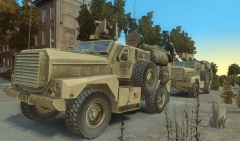 Can't imagine what this beauty would be like to drive off-road! Those tires, make me so dreamy!
 -
Oh. Dude. I'm just gonna go out there and be harsh, because there's no avoiding it with this. Boy does this need work, not sure if it's just the screens but trust me, go out there and learn some technique,
-
banditsvscops is working on something like this.
-
STAAAAAAHP DON'T REINSTALL!! Anyway, I presume you messed up your vehicles.img file, of which you can find a backup of here: http://www.gta-downloads.com/en/gta4/file-backups/10674-models-cdimages-folder-backup.html
-
 I heard BPM is a thief... but uh, let's not get into that too much.
 -
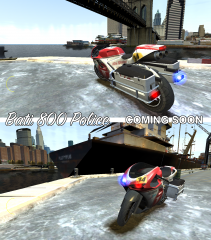
From the album: WIP/REL Content
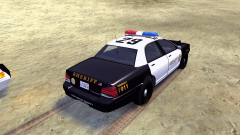
Had a eureka moment and temporarily withheld progress on my LSPD/LSSD pack. All the Zmodding is done, so now I'll just texture it up and it's ready to go! -
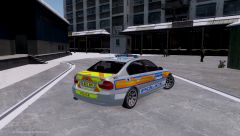
I totally thought this was about Birmingham in England.
-
-
-
-
I started a small project like this after you requested it in my thread, I'm verrry busy however with other mods, so I'll have to release it in something like a few weeks time.
-
-
Where did you get an unlocked BMW model?
-
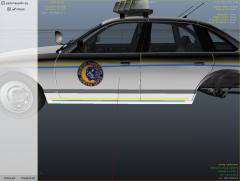 Um.. you might wanna see SkylineGTRFreaks north yankton skin mod for the CVPI and take bits off that, as it has all the actual V files.
 -
 Nice to see you're getting into LCPDFR more! Very well staged pic :D
 -
-
-
It's like every time I see a police car you replicate it in IV immediately after! I might just start using ELS now!
- 15 comments
- 6 reviews
-
-

- 2
-
-
Here's one ripped directly from GTA V: It's kind of small, but you don't have to re-size it much, it'll fit perfectly on the Interceptor in its current state.
-
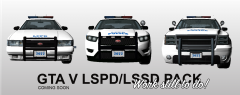 Of course xD